Connect a brand's social accounts
Connect Instagram, Facebook, YouTube, LinkedIn and TikTok to a brand, send clients a connect link, and fix expired connections.
5 min readUpdated November 7, 2026
Video lesson: Connect a Client's Instagram
Overview
Timeliner publishes posts to the brand's own social accounts, so each brand (each client) connects its own. Once an account is connected, approved posts go out on their own at their scheduled time. Without a connected account a post still sits on the calendar, but someone has to publish it by hand.
You never need a client's password. Either a teammate with access signs in, or you send the client a connect link and they sign in themselves, no Timeliner account needed.
Before you start
- Instagram, Facebook, YouTube, LinkedIn (personal profile) and TikTok can be connected and publish automatically. LinkedIn Company Pages connect from their own LinkedIn Company tile where your tab shows one. A dimmed tile marked Soon can't be connected yet.
- Instagram must be a Business or Creator account.
- How many brands and accounts you can connect depends on your plan: Studio connects one brand with one account per network; Agency connects 10 brands (plus one per extra seat) with two accounts per network; Scale and Enterprise have no brand limit and five accounts per network. See pricing.
Connect an account
- Open the brand's Actions menu (the three dots next to the brand) and choose Edit Brand.
- Go to the Connected Accounts tab. Each network has a tile reading Not connected until you add an account.
- Click Connect on the network's tile and sign in to that network in the window that opens.
- In Choose what to connect, pick the page, channel or account that belongs to this brand.
- The tile now shows the account's name, handle and follower count.
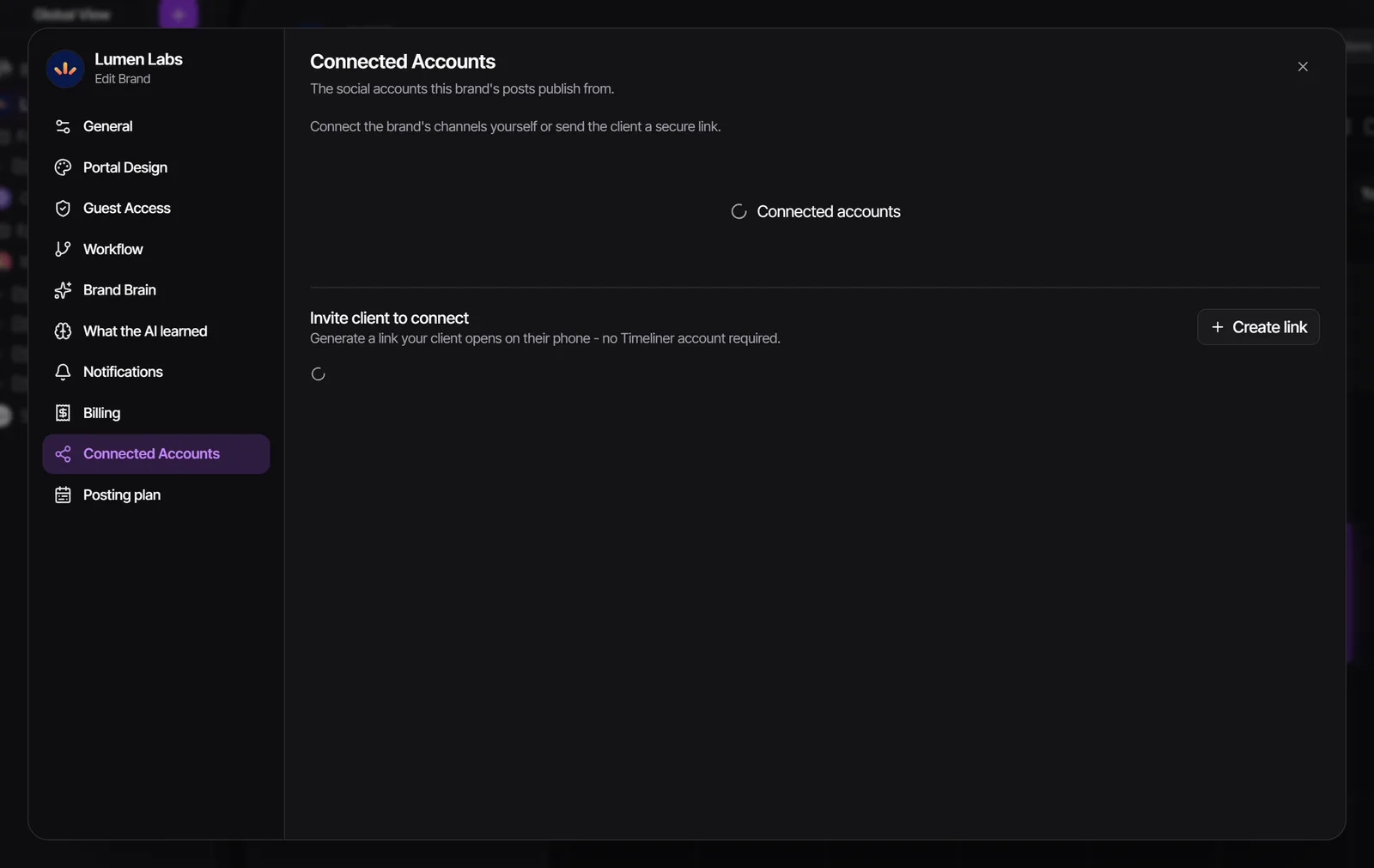
On Agency and Scale, a connected tile has a + button (Add another account) for a second account on the same network, such as two founders' LinkedIn profiles. When a brand has several accounts on a network, the composer's Publishing to picker chooses which one a post goes to.
Instagram and Facebook
- On the Instagram tile, click Connect, then choose Instagram with Facebook (for an account linked to a Facebook Page) or Direct Instagram (no Facebook needed).
- For Facebook, and for Instagram with Facebook, a short Before you connect Facebook window explains the next step. Click Continue to Facebook.
- In Facebook's window, tick every Page and Instagram account your team manages, not just this brand's, then finish.
Each time Facebook asks which Pages and Instagram accounts to share, what you tick replaces what Timeliner may use for that Facebook login. Leave one unticked and that brand's tile turns to Reconnect. If Facebook offers to continue with your previous settings, choose to edit them so you can see every box. If a Page you connected before is missing, use Go back to Facebook and tick it again.
A Facebook Page that Facebook holds until its admin confirms their identity shows Held by Facebook. Confirm the identity in the Facebook app first, then click Reconnect.
YouTube, TikTok and LinkedIn
- YouTube: after Continue to Google, Google's "Choose an account" screen lists your own channel and each Brand Account channel you own. Pick the right one. To add more channels from the same login, use Add another channel to this list. A channel you only reach as an editor or manager in YouTube Studio can't be connected by you; ask its owner to connect it through a client connect link.
- TikTok: an ordinary Connect tile. Posts publish on their own once the task is approved.
- LinkedIn: posts go to the personal profile by default. LinkedIn ends every connection after 60 days, so plan to reconnect it (see below). Under the handle, Add headline sets the headline shown on the post preview, because LinkedIn doesn't share it.
Let your client connect their own accounts
- In the brand's Connected Accounts tab, scroll to Invite client to connect.
- Optionally limit the link to certain networks, choose when it expires (7, 14 or 30 days), and click Create link.
- Copy the link and send it to your client yourself. Creating it notifies no one.
- Your client opens it on any device, sees a page branded for that brand, and connects their accounts. No Timeliner login is needed.
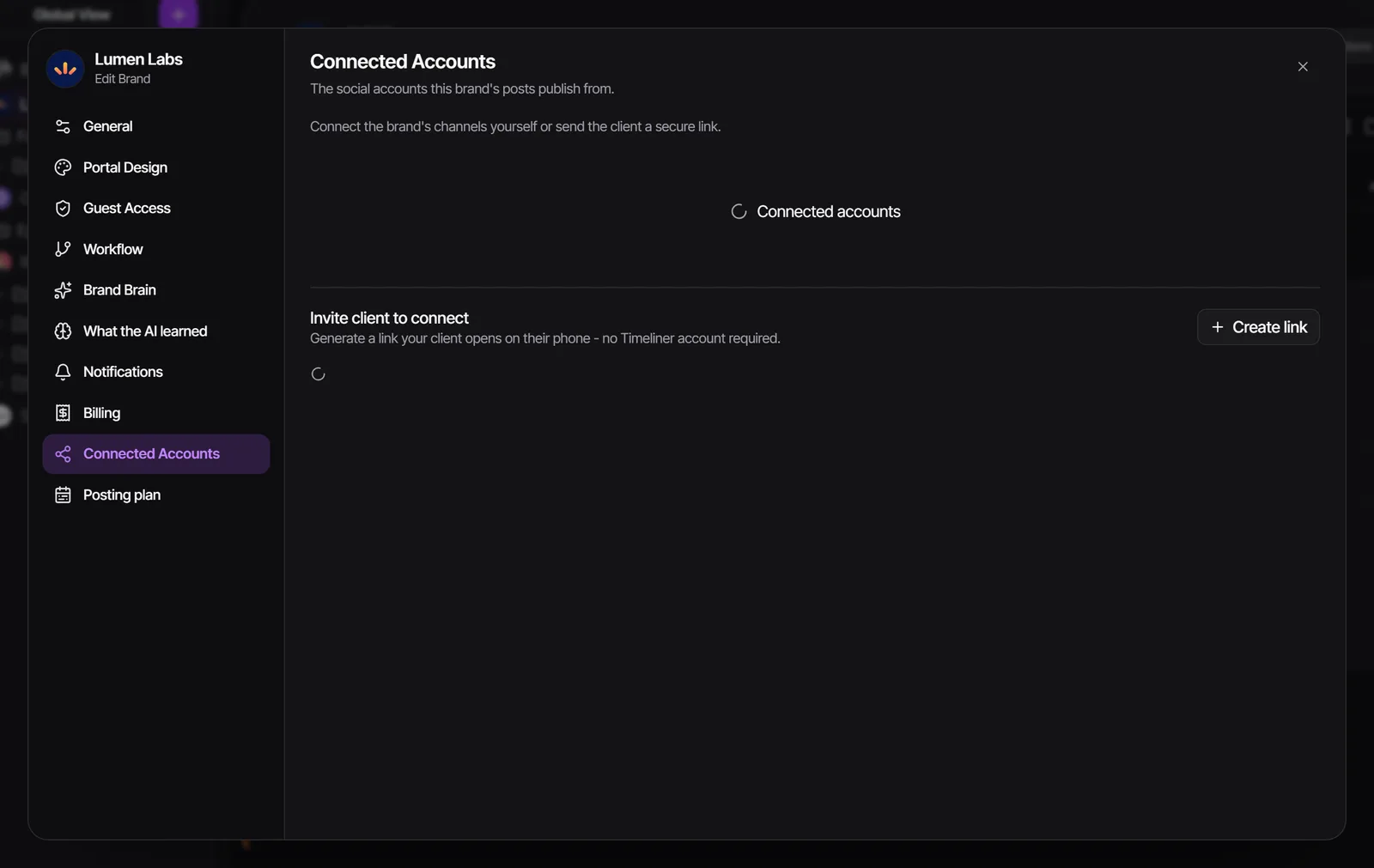
The client's page never shows account names or pictures of existing connections, and you can revoke a link at any time. If your plan's connected-brand limit is already used up and this brand has nothing connected yet, the page tells the client you can't connect another brand right now.
Reconnect an expired account
Connections expire: LinkedIn after 60 days, Facebook and Instagram when someone changes the login's password or unticks a Page. Timeliner warns you in several places:
- A red "!" next to the brand's name in the left tree means a connection has expired; amber means it expires within 7 days. Click it to see which account.
- Supervisors and admins see a red bar above the calendar naming the account and how many scheduled posts depend on it.
- The composer shows Expired - reconnect to publish on that network's tile.
- Open Edit Brand → Connected Accounts (the Reconnect button on the "!" takes you straight there).
- Click Reconnect on the account's tile and sign in again. For Facebook and Instagram, keep every Page ticked.
- If it's your client's account, click Copy client link instead and send it to them. The link opens straight on that network.
- Reschedule any post that failed while the account was disconnected.
An amber Reconnect for analytics badge means the account still publishes, but Timeliner can't read its numbers yet. Reconnecting the same account starts them. Disconnecting an account stops publishing to it: posts scheduled to it become Manual.
Who can do this
Admins and supervisors manage connections by default. Editors don't see the Connected Accounts tab. Approver clients of a brand can connect and disconnect that brand's accounts from their own Settings → Integrations.
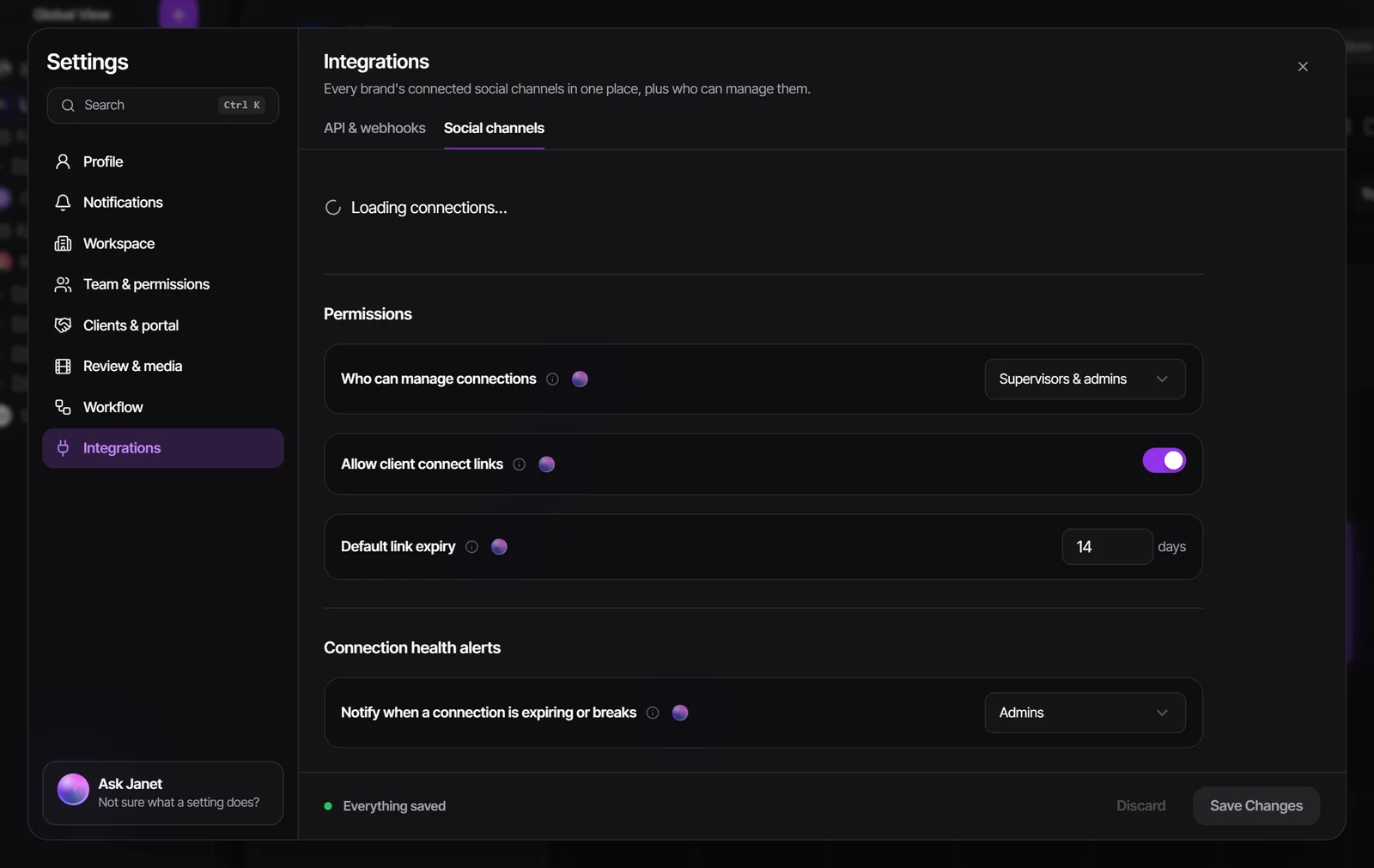
Admins set the rules in Settings → Integrations → Social channels: Who can manage connections (Supervisors & admins or Admins only), Allow client connect links, Default link expiry and who gets the daily email about expiring connections. The same page shows every brand's connections in one grid.
Watch it
Questions people ask
Do I need my client's social media password?
No, and you should never ask for it. Send a connect link from Invite client to connect and the client signs in themselves.
Why does my Instagram need reconnecting after I connected another brand?
Facebook replaces the list of Pages Timeliner may use each time you connect. Reconnect and keep every Page and Instagram account ticked.
Can I connect two Instagram accounts to one brand?
Yes, on Agency (two per network) and Scale (five per network). Use the + button on the connected tile.
Can I post to X (Twitter) or Google Business?
No. Timeliner doesn't publish to either.
My post shows Manual even though the account looked connected. Why?
The connection probably expired. Check the brand's Connected Accounts tab, reconnect, then pick a new time for the post.
Still stuck?
Ask Janet, the assistant inside Timeliner, email our team, or ask the community on Discord. We answer every message.