Schedule and publish social posts
Plan posts on the content calendar, write captions, set a brand's posting plan and let Timeliner publish approved work to each network.
8 min readUpdated November 7, 2026
Video lesson: Social Media Calendar
Overview
Once a video is approved, it needs to go out. In Timeliner a post is the task itself, set up for social: you pick the networks, write the caption, choose a time, and Timeliner publishes it to the brand's connected accounts at that time. There is no copy-and-paste into a separate scheduling tool.
The content calendar is where your team plans all of this. It shows posting times only, never deadlines. Admins, supervisors and editors plan posts; clients see the plan and, if you allow it, help shape it.
The content calendar comes with the Agency, Scale and Enterprise plans. Studio can schedule posts for one brand from a task's Publish stage or the Posting time cell, without the calendar. See pricing.
Open the content calendar
- In the left tree, pick a brand or a project, or stay at the top to see every brand.
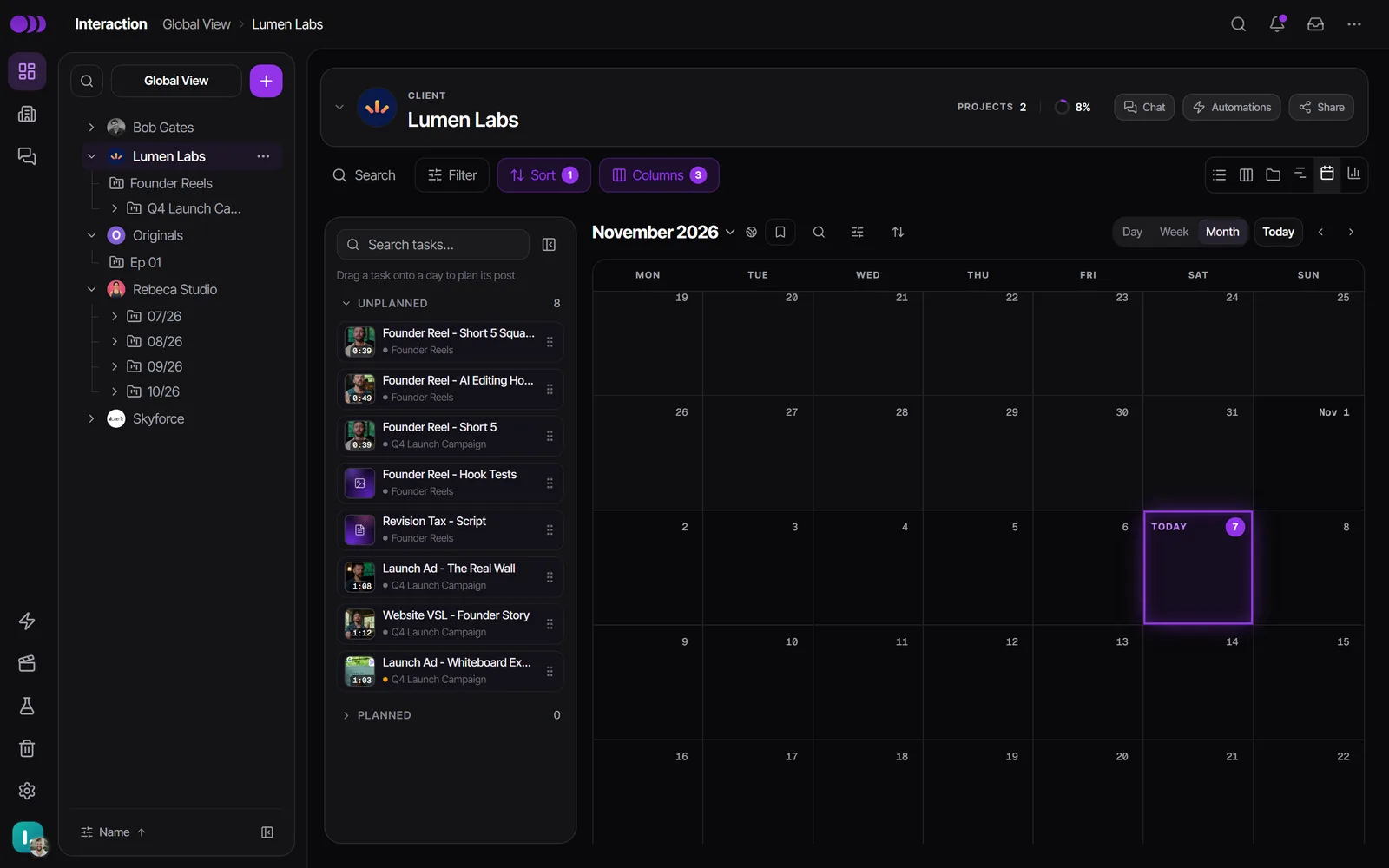
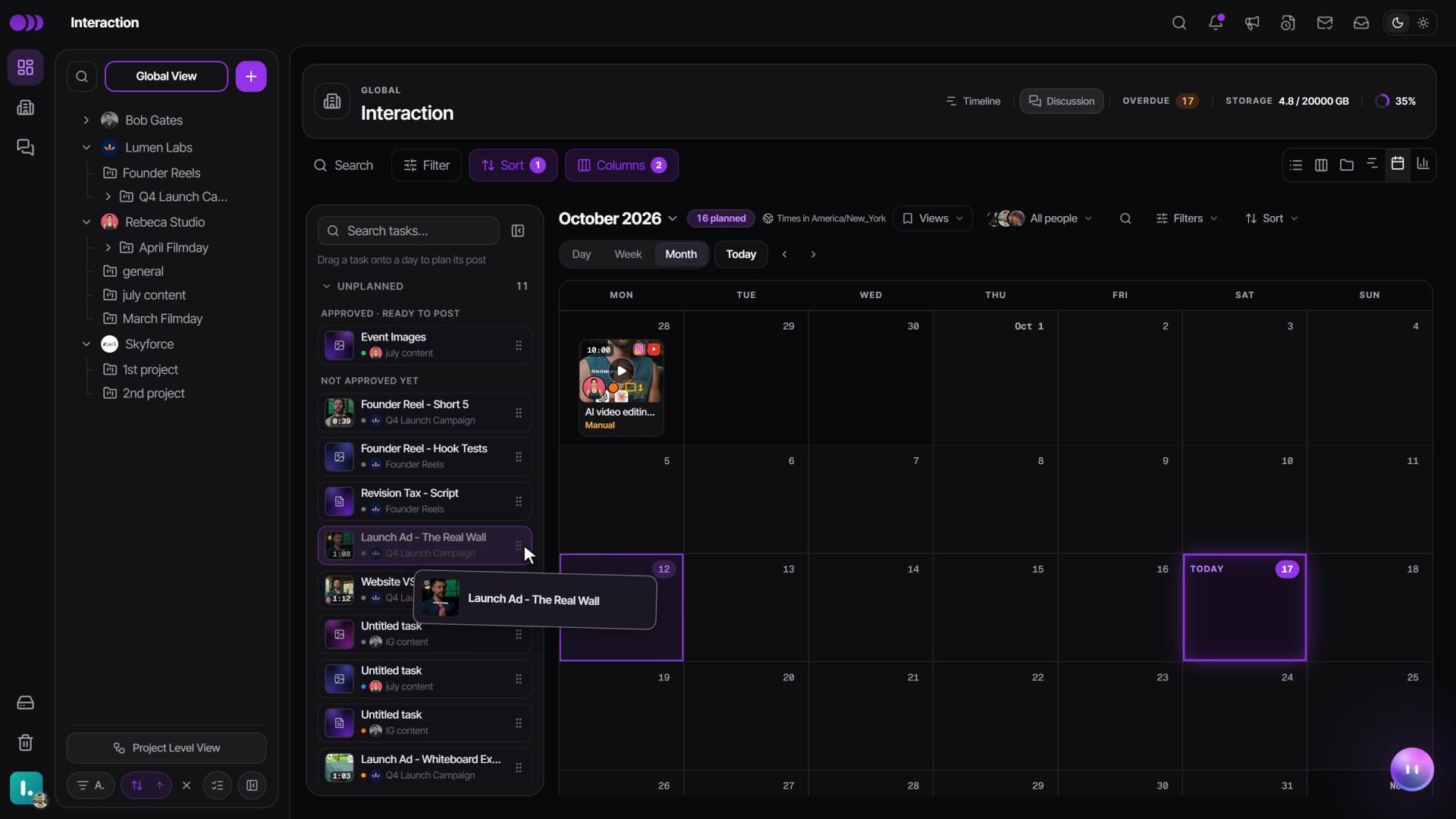
- Click the Calendar icon in the view switcher above the task table.
- Switch between Day, Week and Month. Today jumps back to the current date.
On a computer, the panel on the left lists tasks without a time under Unplanned. Approved work sits on top under Approved · ready to post, then everything else under Not approved yet. Filters narrows the calendar with quick filters such as Needs approval, Missed, Failed and Hide published.
Plan a post
- Drag a task from Unplanned onto a day. Month view places it at 09:00; in Week or Day view, drop it on the hour you want.
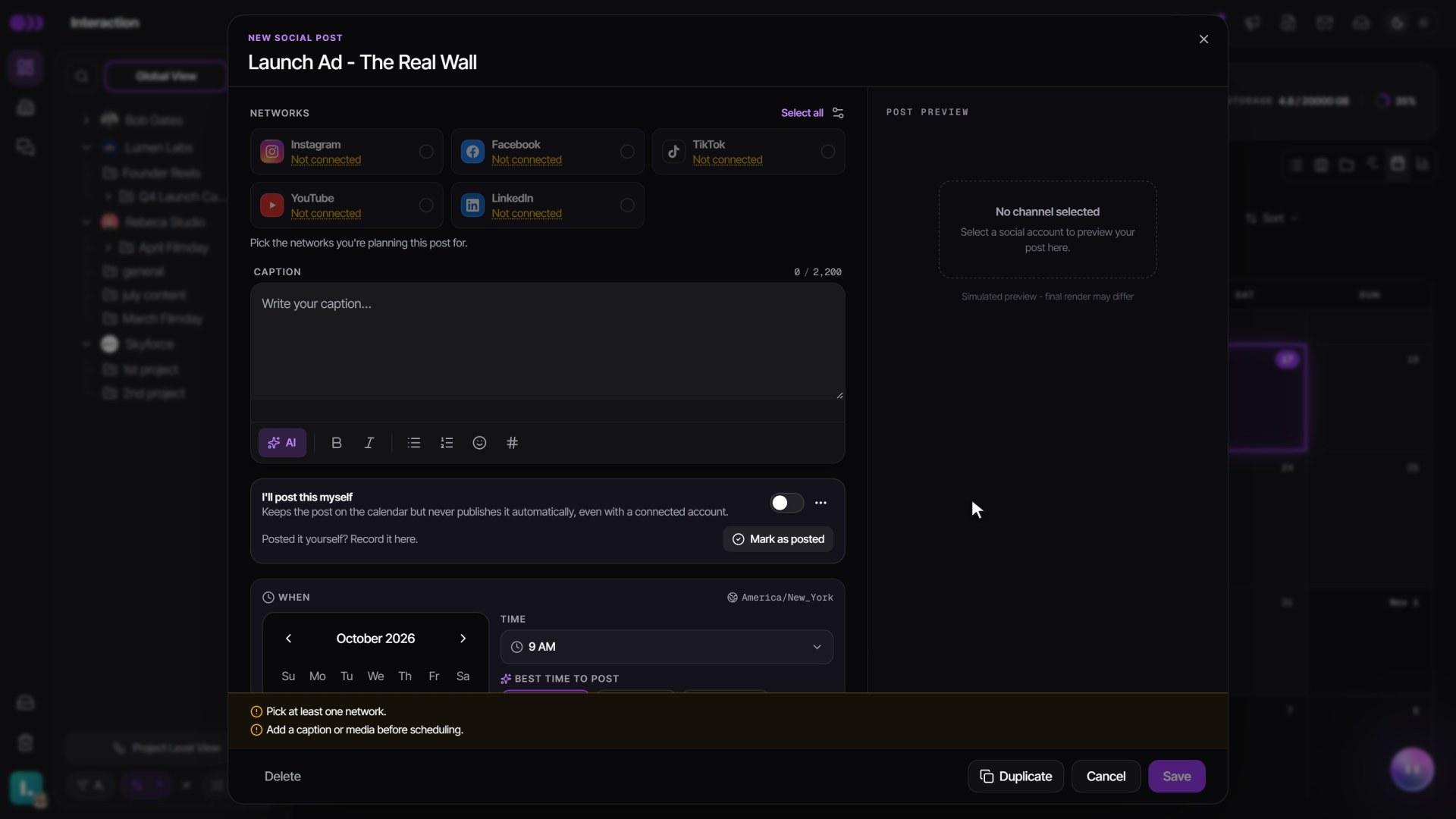
- The post is saved as a draft right away and the post composer opens.
- To start from an empty day instead, click the day. Plan a post lets you pick a task or create a New task. With one project in scope you can also choose Text post for a LinkedIn or Facebook post with no file.
You can also start a post outside the calendar: open the task, go to Publish and click Create post, or click the Posting time cell in the list or on a Kanban card. Set up post in that cell opens the full composer.
Drag a pill to another day to reschedule it. Its caption, networks and approvals stay as they are. Posted pills can't be moved.
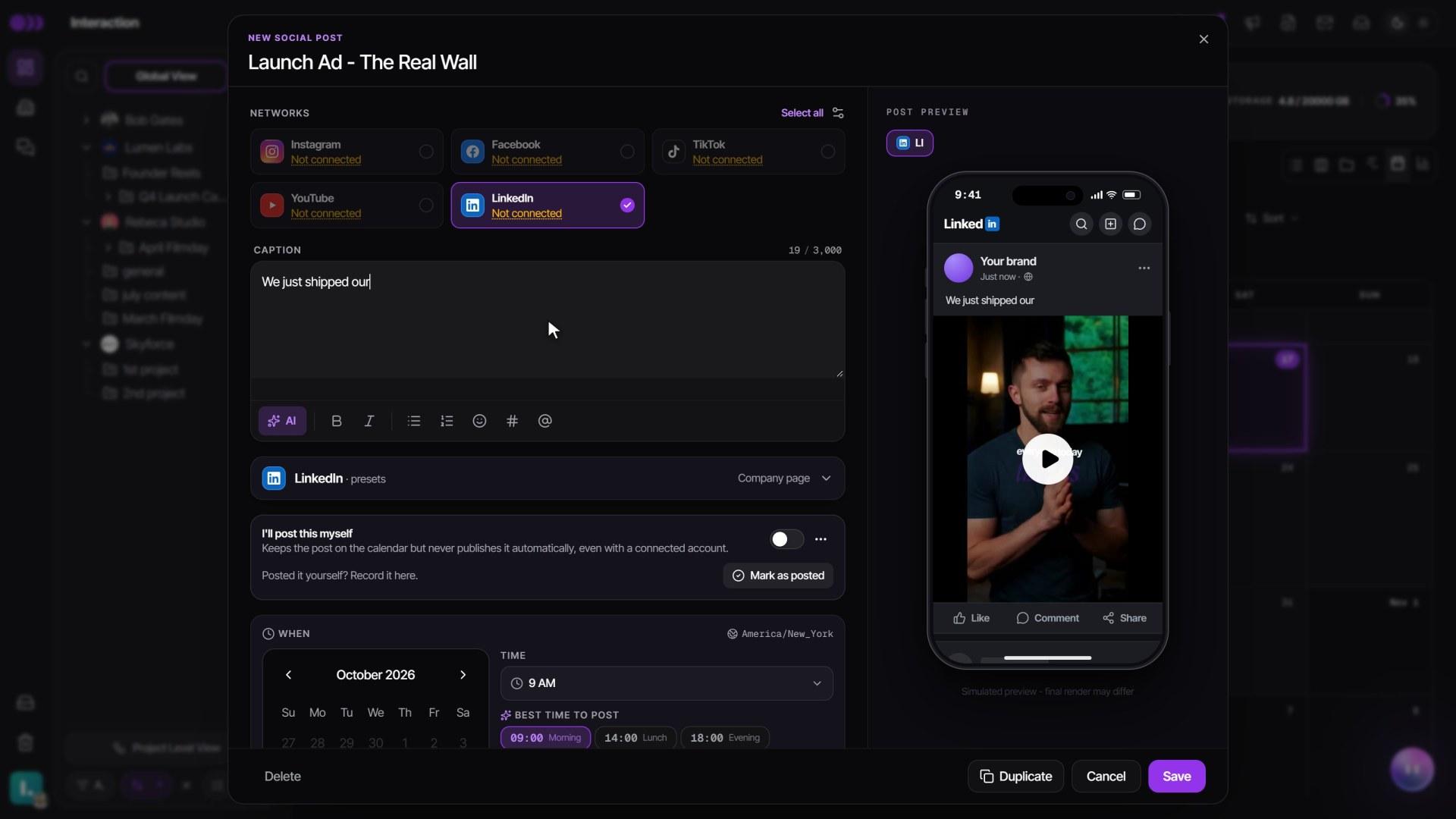
Write the post and schedule it
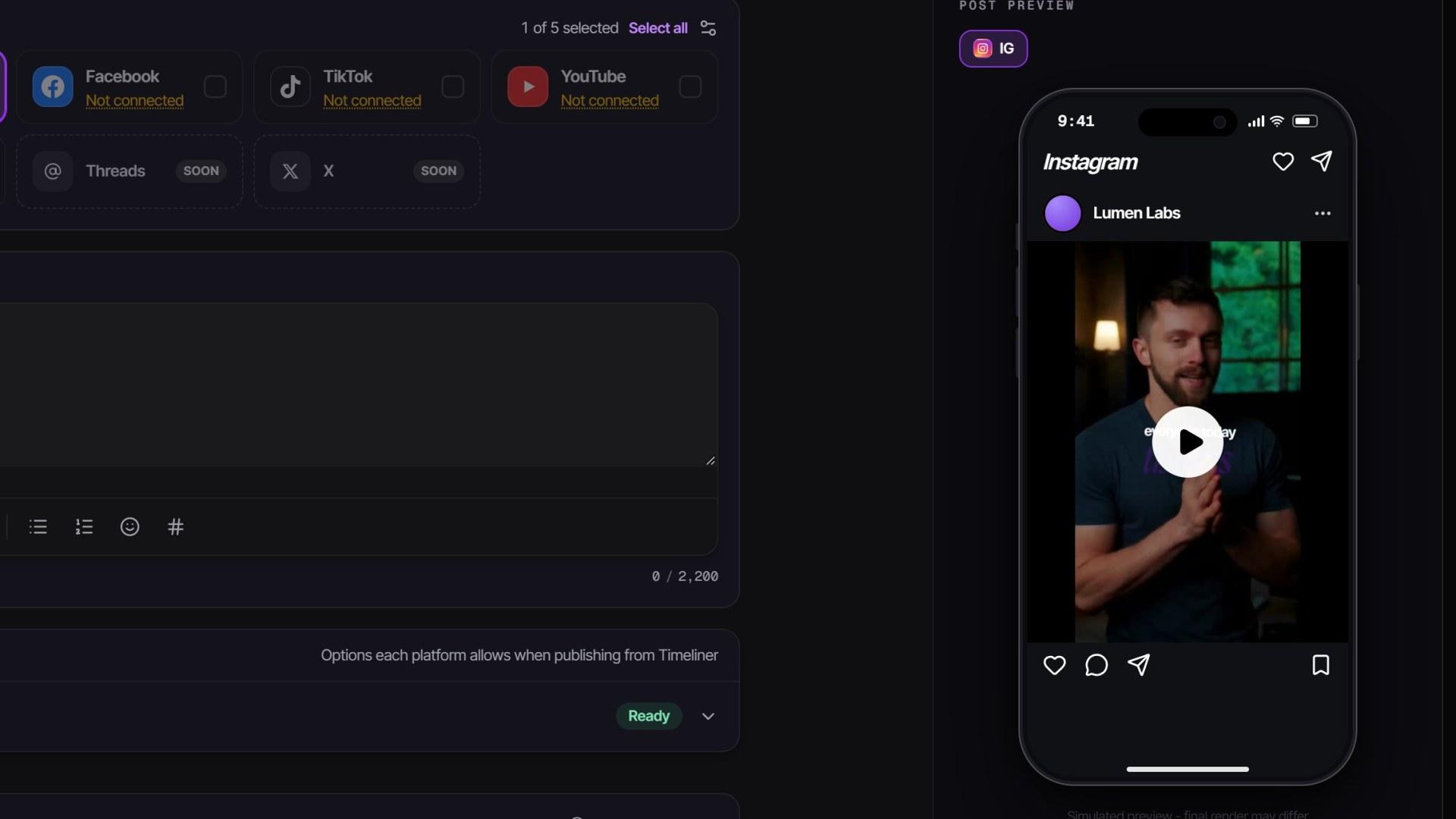
- Under Networks, tick where the post goes. A network with no connected account reads Not connected: the post stays on the calendar and someone posts it by hand.
- Write the Caption. With two or more networks picked, tabs appear so each network can have its own caption; All channels holds the shared one.
- Optional: click Generate or rewrite with AI to write the caption from the video in the brand's voice. Not quite right? lets you say what to change and Regenerate.
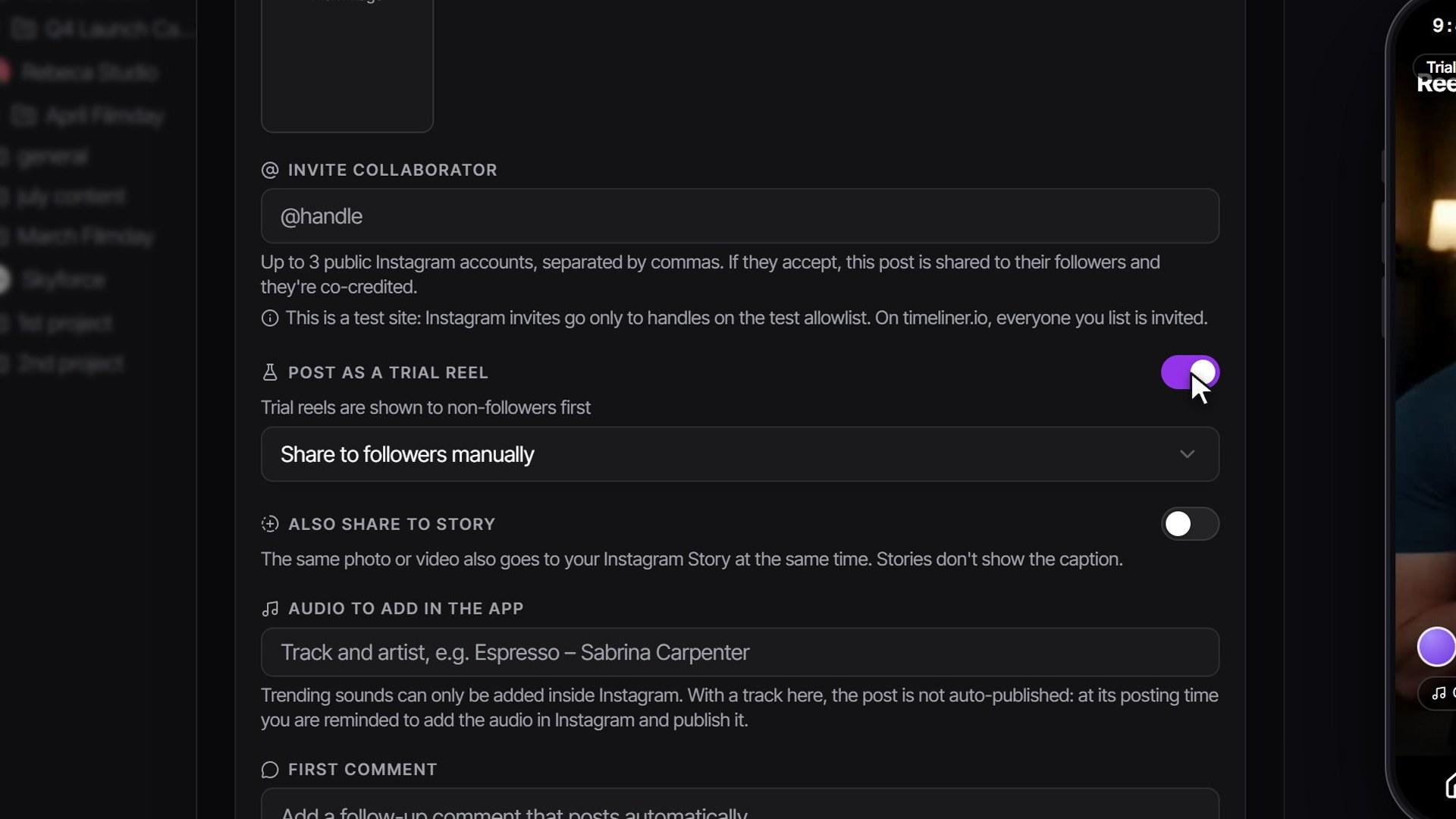
- Open each network's options: for example the Instagram format under Post this as (Feed, Reel or Story), Also share to Story, YouTube's title and Shorts, or TikTok's Direct post or Send to TikTok drafts.
- Pick a date and time under When. When the brand has enough published results, the time chips are headed Best time to post; otherwise they read Quick times.
- Click Schedule. In the pop-up composer opened from the calendar, the same button reads Save.
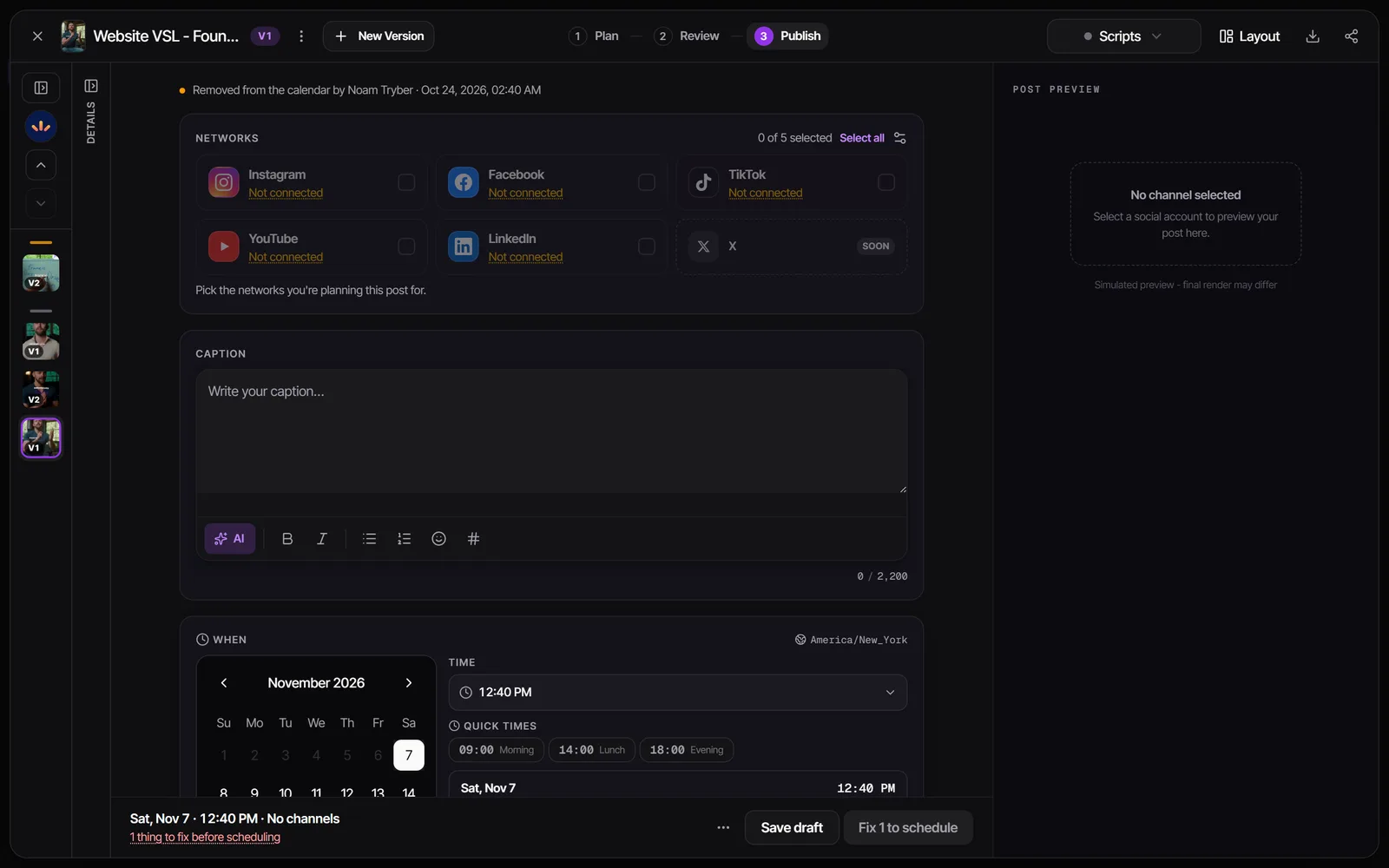
If something would stop the post from publishing, the button reads Fix 1 to schedule (or the number of issues) and lists what to fix. Save draft keeps the post on the calendar without queuing it.
Duplicate in the composer's menu, or Duplicate… when you right-click a pill, copies a post to this brand or other brands. Copies never publish until someone reviews and saves them.
Set a brand's posting plan
A posting plan holds the weekly times a brand posts at, for example Monday, Wednesday and Friday at 9:00. Approved posts can then drop into the next free time instead of someone picking one each time.
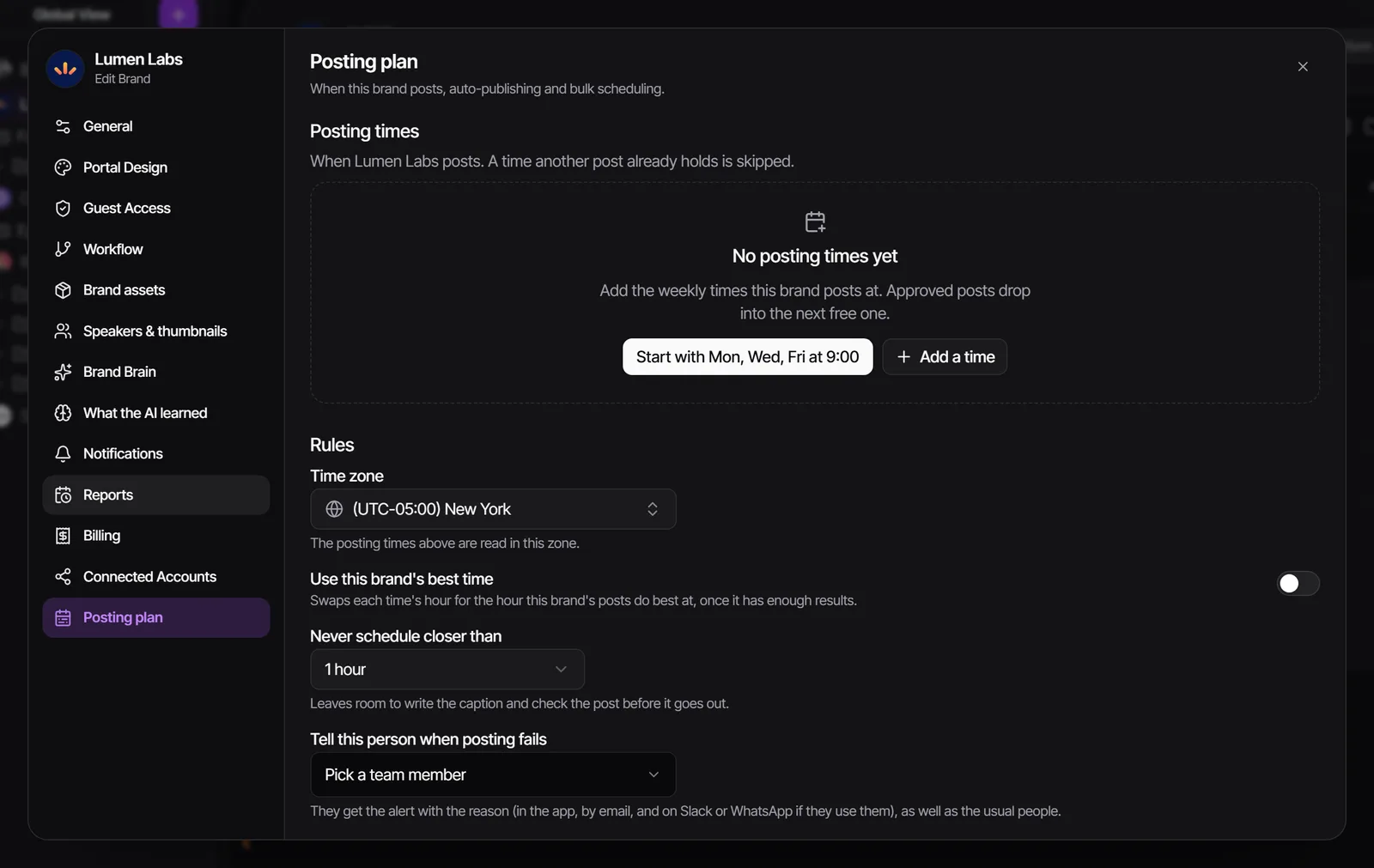
- Open the brand's Actions menu, choose Edit Brand and go to the Posting plan tab.
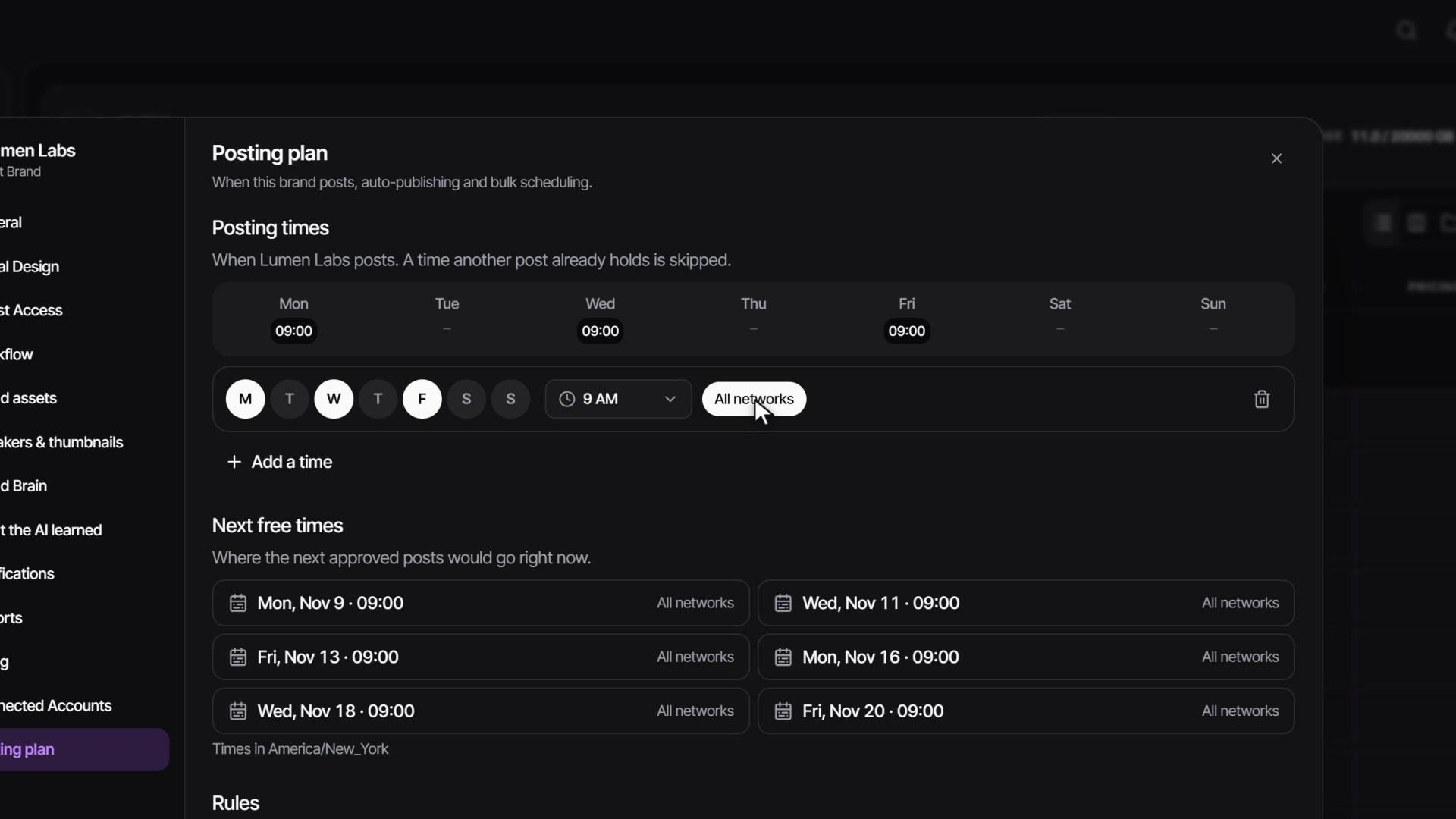
- Click Start with Mon, Wed, Fri at 9:00, or Add a time and set its Days, Time and Networks (All networks, or only some).
- Under Rules, check the Time zone and Never schedule closer than, which leaves room to check the caption before a post goes out.
- Optional: turn on Use this brand's best time, and pick a person under Tell this person when posting fails.
- Click Save posting plan. Next free times shows where the next approved posts would go right now.
Auto-publish approved posts (workspace admins, on plans with Automations) goes one step further: when a post is approved, its caption is written with AI in the brand's voice if it has none, and it is scheduled into the next free posting time. It runs as a normal automation, so Open in Automations shows and edits it. See Automations.
To schedule many approved posts at once, click Review and schedule on the Posting plan tab, or tick tasks in the list, Kanban or folders view and click Schedule posts in the selection bar (up to 50). One screen shows every post's caption and the time its plan picked. Edit any caption or time, use Write them with AI for missing captions, then click the Schedule button.
Follow a post after it's scheduled
| Pill | What it means |
|---|---|
| Draft | Dashed border. The date is saved but nothing will publish until the post has networks and a caption and is scheduled. |
| Planned | Scheduled and waiting for its time. |
| Awaiting approval | Scheduled, but the task isn't approved yet. While it is still being worked on, the pill shows that stage's name instead. |
| Posting | Being sent to the network. This usually takes a few minutes; a very large YouTube video can take longer. |
| Posted | Live on the network. |
| Partially posted | Live on some networks; open it to see the others. |
| Manual | Someone posts it by hand. When it's live, open it and click Mark as posted. |
| Failed | The network refused it. Open the post to see which network failed and why. |
| Not posted | The posting time came before the task was approved, so it was held. Approve the task and pick a new time. |
On the task's Publish stage, Published to lists each network with a View post link. Team members also see Posting history: who or what scheduled the post (a person, an automation, Janet, an API key or an AI app), the caption an automation wrote, and every publish attempt. When a network failed, Retry queues that network again. Networks that already went out are never posted twice.
A published post can't be unpublished from Timeliner. To take it down, delete it on the network itself.
Approval and what clients can do
Admins set these in Settings → Clients & portal → Posting:
- Only post approved videos (on by default): a post publishes only if its task is Approved or Posted by its time. Otherwise it is held as Not posted and the team is told.
- Let clients edit the post plan (on by default): approver and commenter clients can change the time, captions and media from the client approval stage onward.
- Let clients schedule & publish approved posts (off by default): a client approver can schedule content they already approved, and it goes live on the brand's accounts.
- Hold posts changed after approval (off by default): a text post edited after the client approved it waits for a new approval.
Clients see the calendar in their own view switcher, on plans that include it. On tasks in client review they approve the caption, thumbnail and time alongside the video. More in Share work with clients.
Network rules to know
Timeliner checks these before scheduling and tells you what to change. The limits are set by the networks themselves.
| Network | What to keep in mind |
|---|---|
| Captions up to 2,200 characters and 30 hashtags. Feed and Reel videos up to 15 minutes, Story videos up to 60 seconds. Carousels up to 10 slides. Instagram allows 100 posts through apps per account in a rolling 24 hours. Must be a Business or Creator account. | |
| TikTok | Captions up to 2,200 characters. You choose who can view each video; there is no default. TikTok caps posts per account per day but doesn't publish the number, so Timeliner warns when an account gets busy and holds a refused post until a slot frees. |
| YouTube | Titles up to 100 characters, descriptions up to 5,000. Made for kids? must be answered. Shorts needs a vertical or square video of three minutes or less. |
| Captions up to 3,000 characters. Posts with Collab with names, and newsletter editions, are published by a person on LinkedIn at their time. | |
| Text-only posts work. Facebook lets apps post only the photos of a carousel, so a carousel needs at least two photos to go to a Page. |
Trial reels and Repost as trial are covered in the trial reels lesson.
Who can do this
| Action | Who |
|---|---|
| Plan, drag, compose and schedule posts | Admins, supervisors and editors |
| Set a brand's posting plan | Admins and supervisors |
| Turn on Auto-publish approved posts | Workspace admins |
| Change the Posting settings | Admins |
| See the calendar | Team members and clients, on plans with the calendar |
| Edit or schedule as a client | Approver and commenter clients, as the settings above allow |
Watch it
Questions people ask
Why didn't my post publish?
Almost always one of two things: the task wasn't approved by the posting time (the pill reads Not posted), or the network isn't connected (the pill reads Manual). Approve the task or connect the account, then pick a new time.
Can I post right now instead of at a set time?
Pick a time at least 5 minutes from now and click Schedule. Timeliner always publishes at a scheduled time.
Can my client schedule posts?
Only if an admin turns on Let clients schedule & publish approved posts. Without it, anything a client saves lands as a draft for your team to finish.
Can I unpublish a post from Timeliner?
No. Once a post is live, take it down on the network itself.
Does scheduling through Timeliner hurt reach?
We found no official Instagram or TikTok statement that posting through an approved publishing tool lowers reach. Instagram's own guidance is about original content and watermarks.
Still stuck?
Ask Janet, the assistant inside Timeliner, email our team, or ask the community on Discord. We answer every message.