Troubleshooting common problems
Fixes for the questions we hear most: a client or editor sees nothing, a post didn't publish, notifications don't arrive, downloads are locked and more.
6 min readUpdated November 7, 2026
Video lesson: Why Your Client Sees Nothing
Overview
Most "it's not working" moments in Timeliner are a setting doing its job: clients only see finished work, editors only see their own tasks, a post waits for approval. This page goes through the most common ones, why they happen and the quickest fix.
Still stuck? Ask Janet (the round button in the bottom-right corner), or open the avatar menu -> Get Help -> Live Support to chat with our team.
My client opened the link and sees nothing
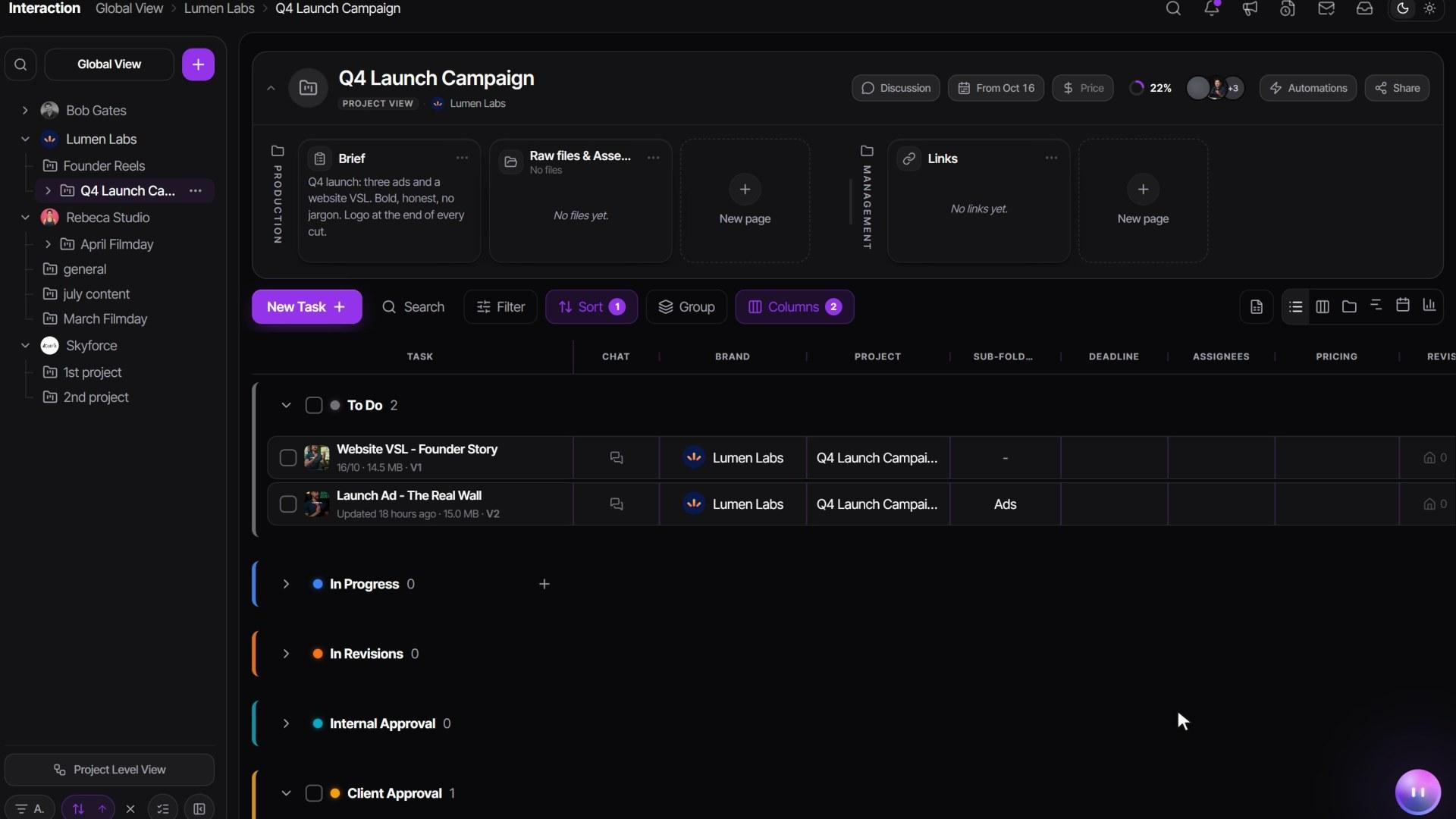
Clients only see work you have sent them. Tasks in To Do, In Progress or internal approval stay hidden until they reach client review.
- Check the task's status. Move it to Client Approval when it is ready. This notifies the client.
- Make sure a file is uploaded. An empty media task stays hidden from clients.
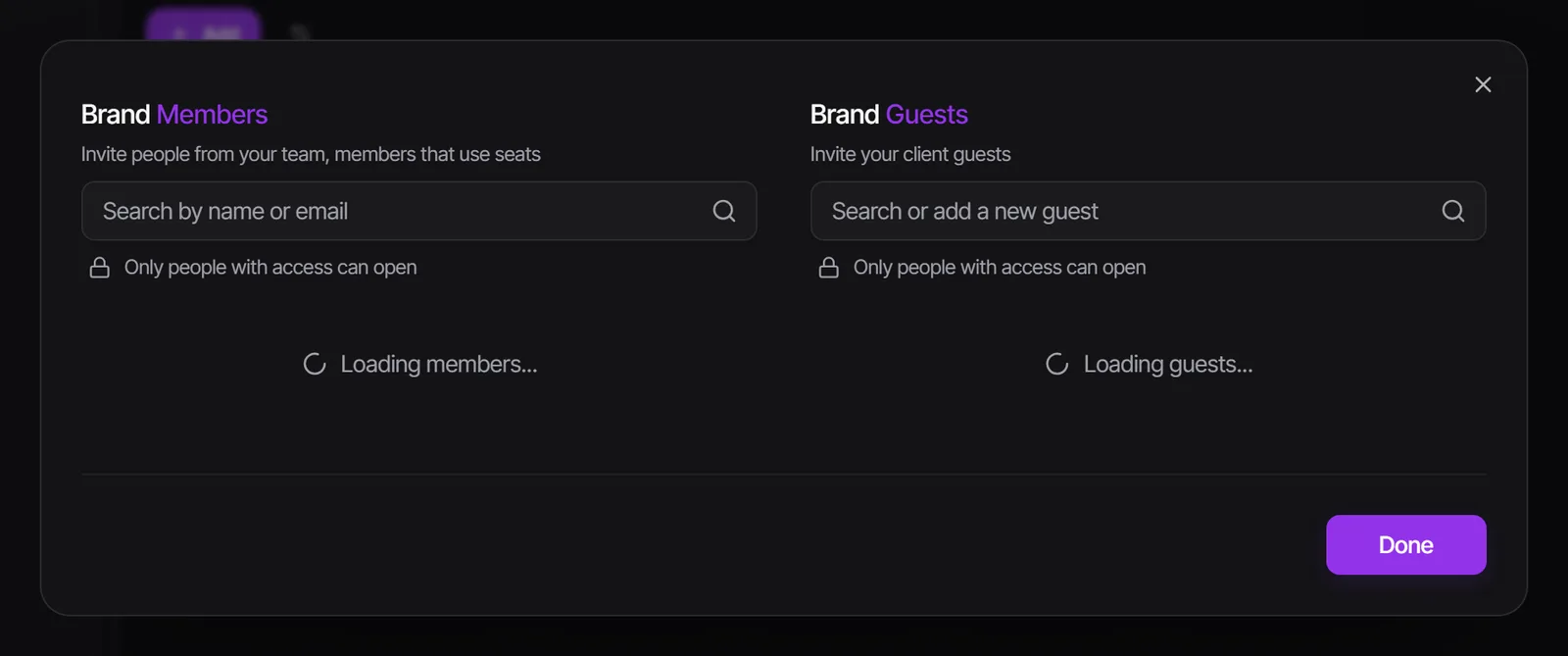
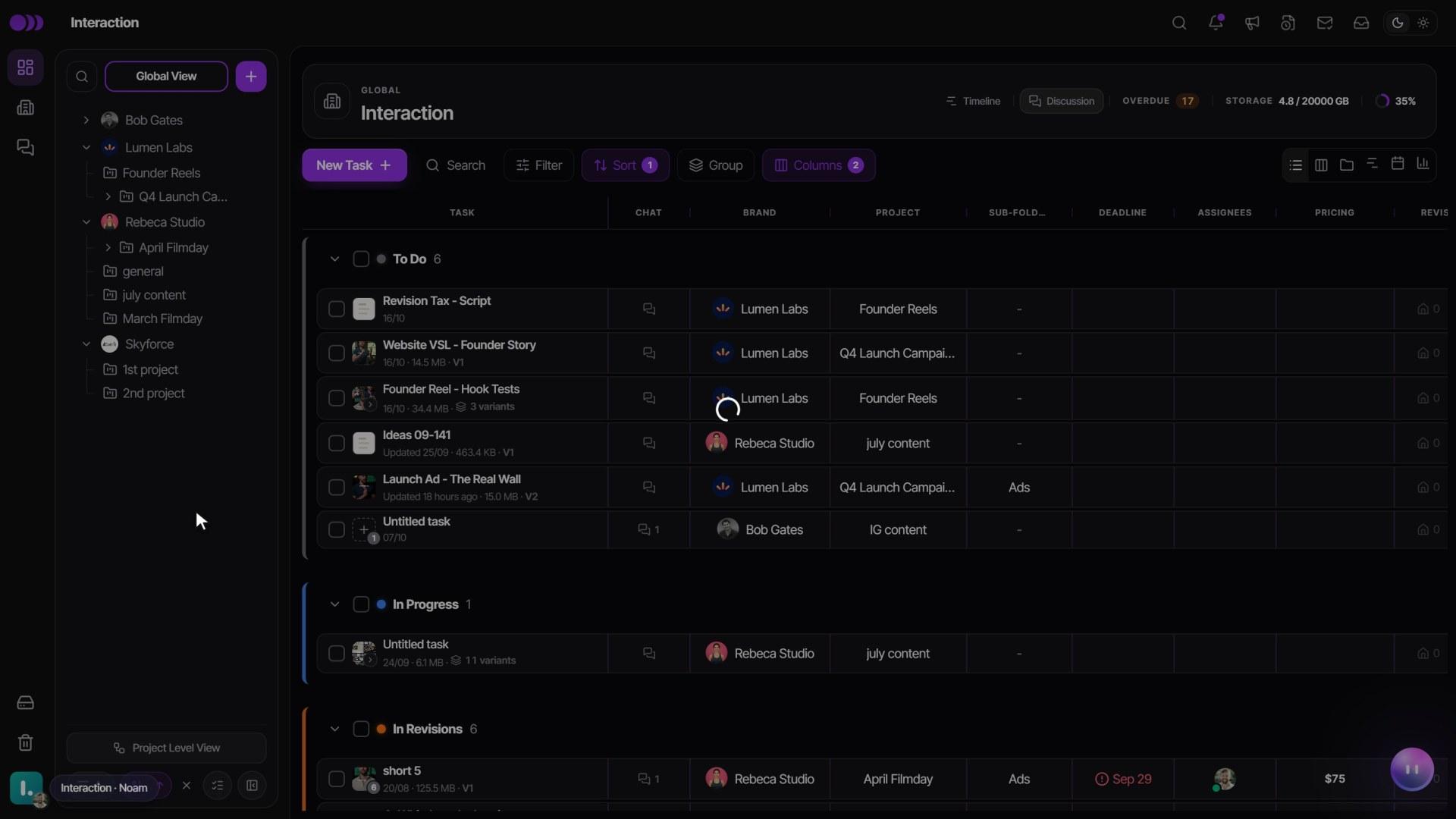
- Check the client has access to that brand or project: open the brand's three-dot Actions menu -> Manage Members.
- Tasks in the optional Archive column are hidden from clients too.
Want clients to see work in every stage as view-only cards? An admin turns on Show clients every workflow stage in Settings -> Clients & portal -> Portal design. It is off by default.
Missing the brief or a deadline on the client's side? Briefs are hidden from clients by default. An admin can turn on Guest Brief Visibility in Settings -> Clients & portal -> What clients see.
My editor (or I) can't see a task
- Editors are not added to brands automatically. Open the brand's three-dot Actions menu -> Manage Members and add them.
- By default editors only see tasks they are assigned to. Assign them on the task.
- To let editors see every task in their projects, an admin turns on Editor Task Visibility in Settings -> Team & permissions -> Permissions. One person can get Can See All Tasks in their member settings instead.
Created a task yourself and it isn't there? Your own filters are probably hiding it. The Filter button shows a count while a filter is on. Click Clear all filters in the confirmation message, or open Filter and click Clear. Filters follow you across brands unless you turn off Keep filters on every brand and project.
My scheduled post didn't go out
- The video wasn't approved in time. With Only post approved videos on, a post publishes only if its task is approved by the posting time. Otherwise it is held. Approve the task and reschedule.
- The network isn't connected for that brand. A network with no connected account is marked Manual and never posts by itself. Connect the account and reschedule.
- The connection expired. The account's tile shows Reconnect. Reconnect it, then pick the network again on the post.
- The network's own rules weren't met, for example an Instagram video longer than Instagram accepts from scheduling apps. The post's failed message says which.
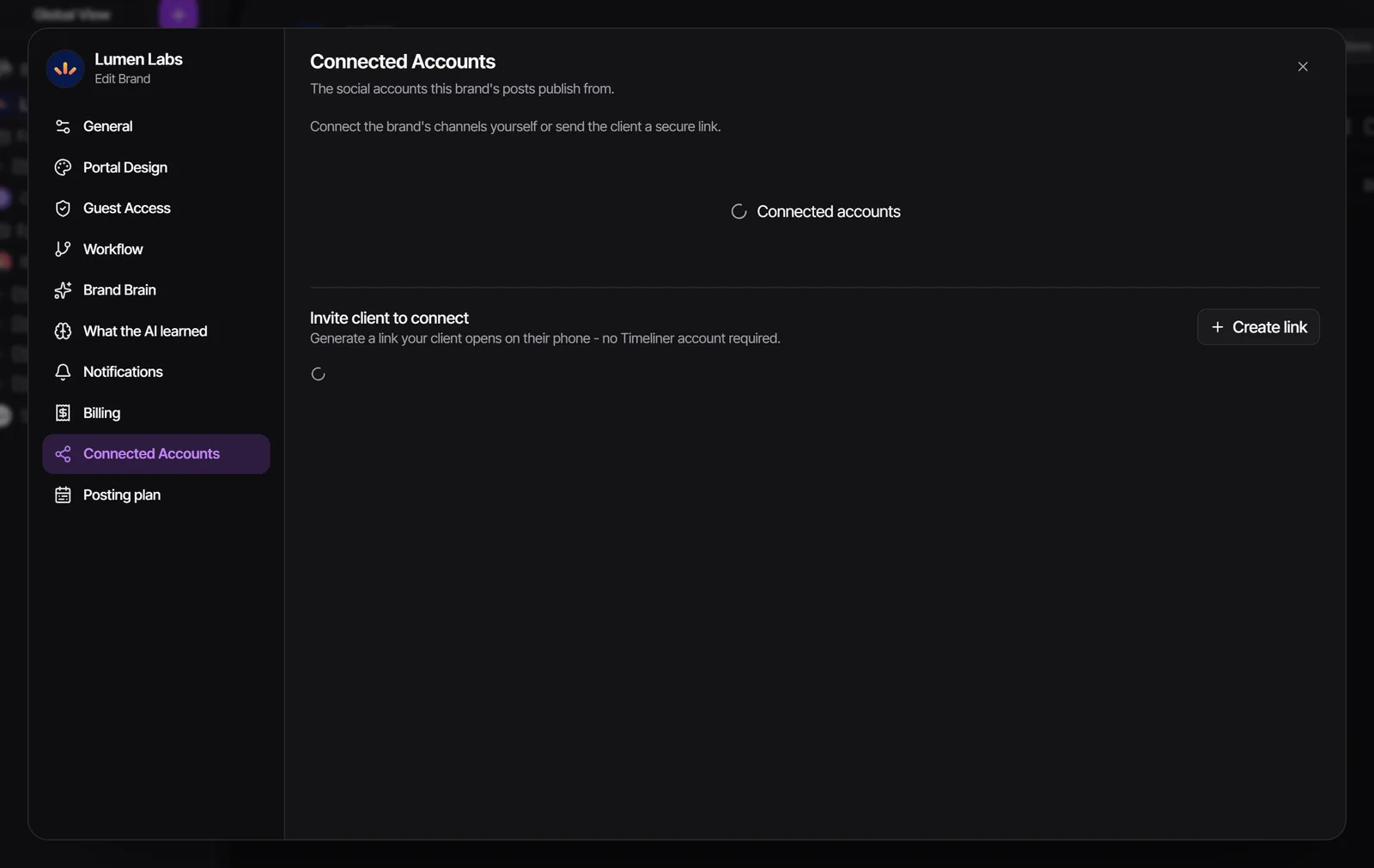
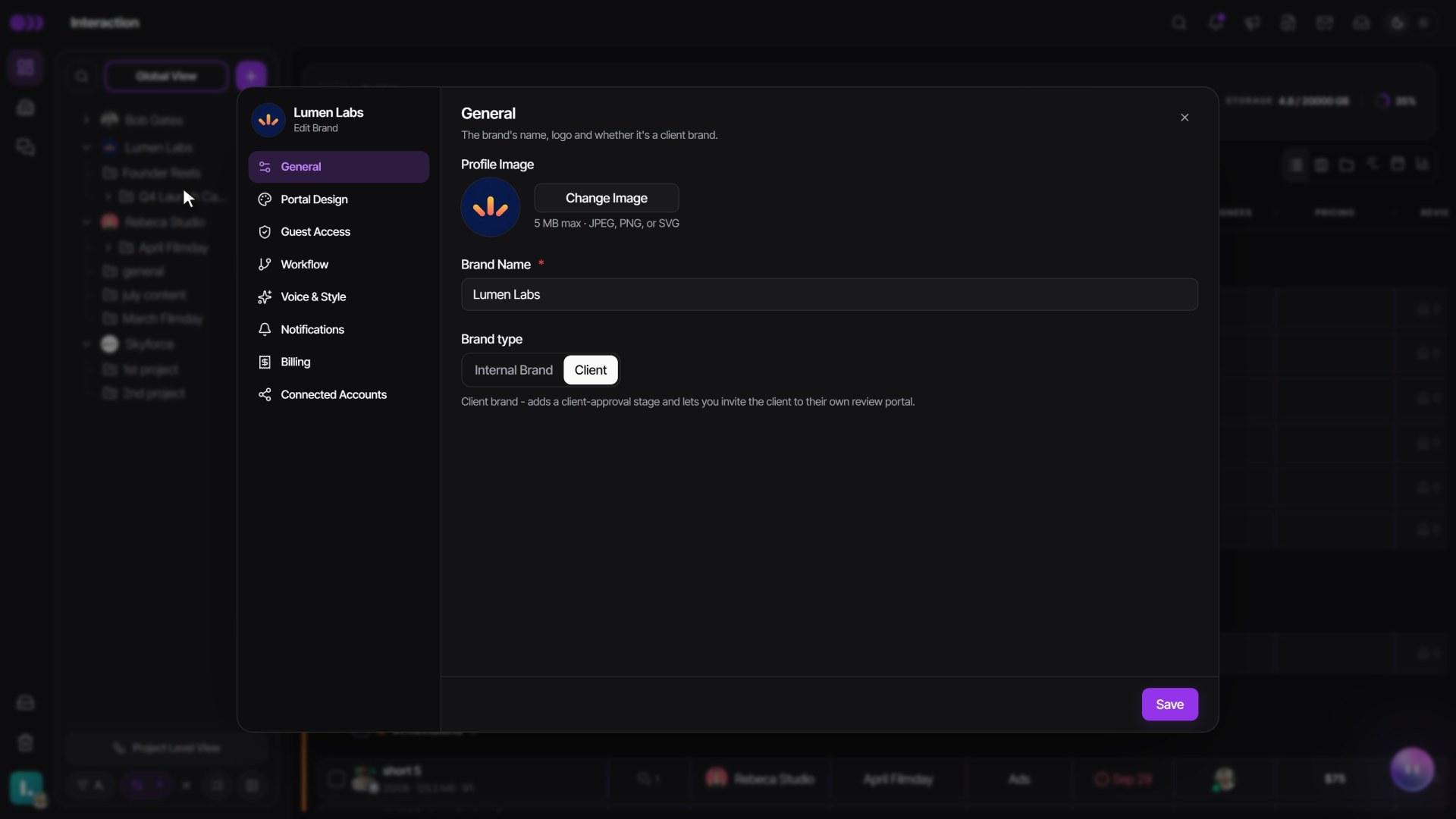
- To connect an account, open the brand's three-dot Actions menu -> Edit Brand -> Connected Accounts.
- Click Connect on the network and sign in. For Instagram, choose Direct Instagram or Instagram with Facebook.
- Don't have the client's login? Under Invite client to connect, click Create link and send it. They connect from their phone with no Timeliner account.
Some Facebook Pages or Instagram accounts don't show up when you connect? Facebook only shares the Pages you tick in its own window. Connect again and tick every Page you manage. More in Connect social accounts.
Notifications: too many, or not arriving
Not getting WhatsApp messages? Three things need to be in place:
- Your number: Settings -> Profile -> Account -> WhatsApp Number, then Save Changes.
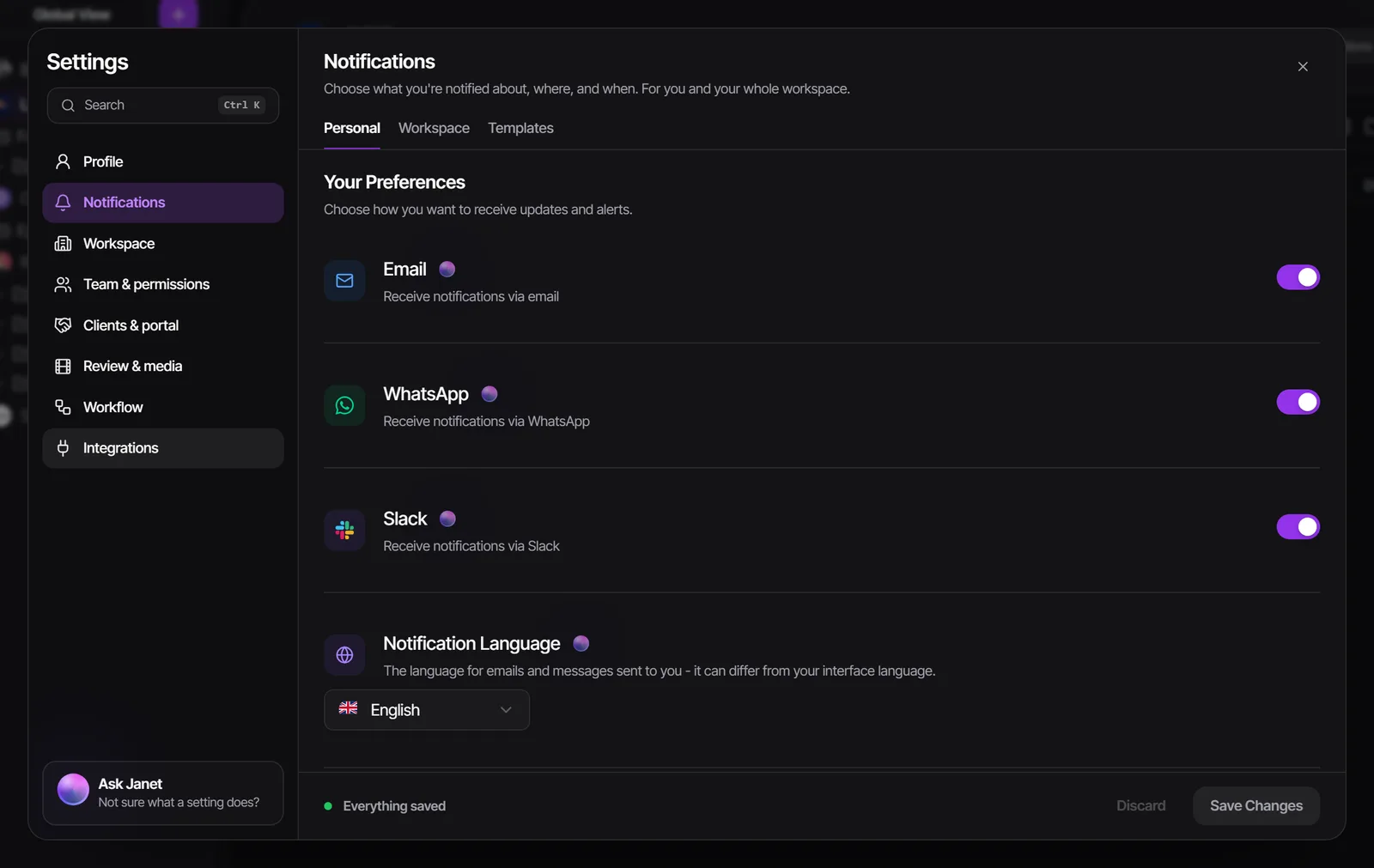
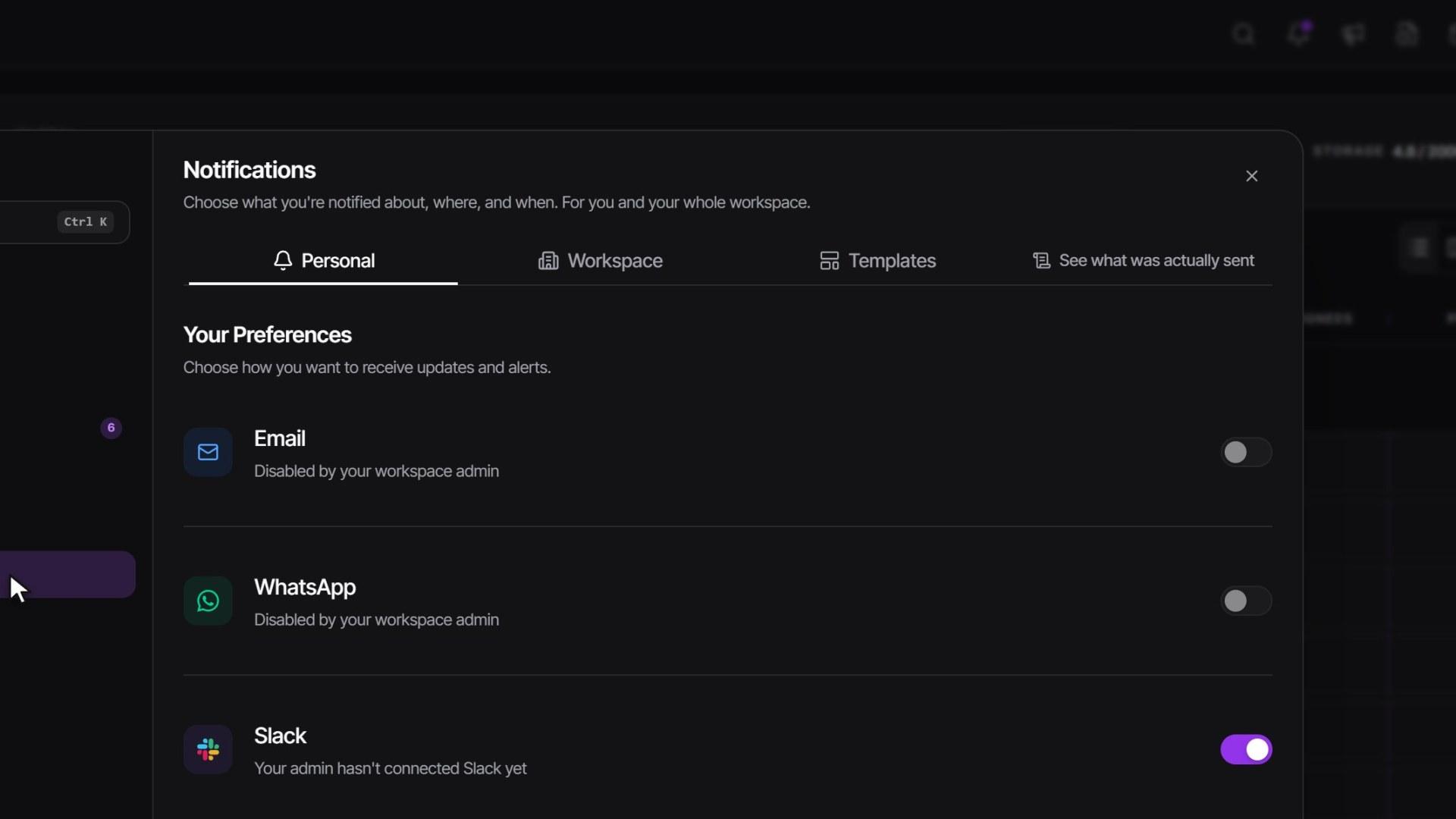
- Your channel: Settings -> Notifications -> Personal -> turn on WhatsApp.
- If the switch is greyed out with "Disabled by your workspace admin", an admin turns on WhatsApp Notifications in Settings -> Notifications -> Workspace.
- You are never notified about your own actions.
- To check whether a message went out, open the Notification log (the envelope icon in the top bar).
- Too many pings? In Settings -> Notifications -> Personal, use Your delivery rules to turn on Batch notifications or Quiet hours & days, mute a noisy brand under Brands, or switch a channel off.
My client can't download, or the link doesn't work
- Downloads are locked before approval under the default Download Policy. Once the task is approved, the client can download. An admin can change the policy to Always Allow in Settings -> Review & media -> Downloads & revisions.
- Under Manual Toggle (Blocked Even After Approval), the client sees Request Download. Supervisors and admins approve it from the notification or the Inbox.
- A share link stopped working when it expired, when someone clicked Recreate (which makes a new link and kills the old one), or when sharing was switched off. Open the Share dialog, check Anyone with the link, and send the current link with Copy.
Upload, sign-in and page problems
- "Can't reach our file storage" on an upload: the network (a VPN, company firewall or proxy) is blocking file storage. Turn off the VPN or try a phone hotspot, then click Resume. For a company network, send IT the IT allowlist.
- "Storage limit reached": the workspace is out of space. See Storage, files and the Trash to free some up.
- An upload stopped halfway: click Resume on its row. After a reload, drop the same file in the same place within 7 days and it continues where it stopped.
- Signed out right after signing in: your computer's clock is wrong. Turn on automatic date and time, reload the login page and sign in again.
- The page refreshed on its own when you closed a task: a new version of Timeliner was released. Nothing is lost.
A feature is blurred, locked or gone
- Blurred with an Upgrade card, or a lock badge: the feature needs a higher plan. It isn't broken. Upgrading unlocks it right away. Compare plans on the pricing page.
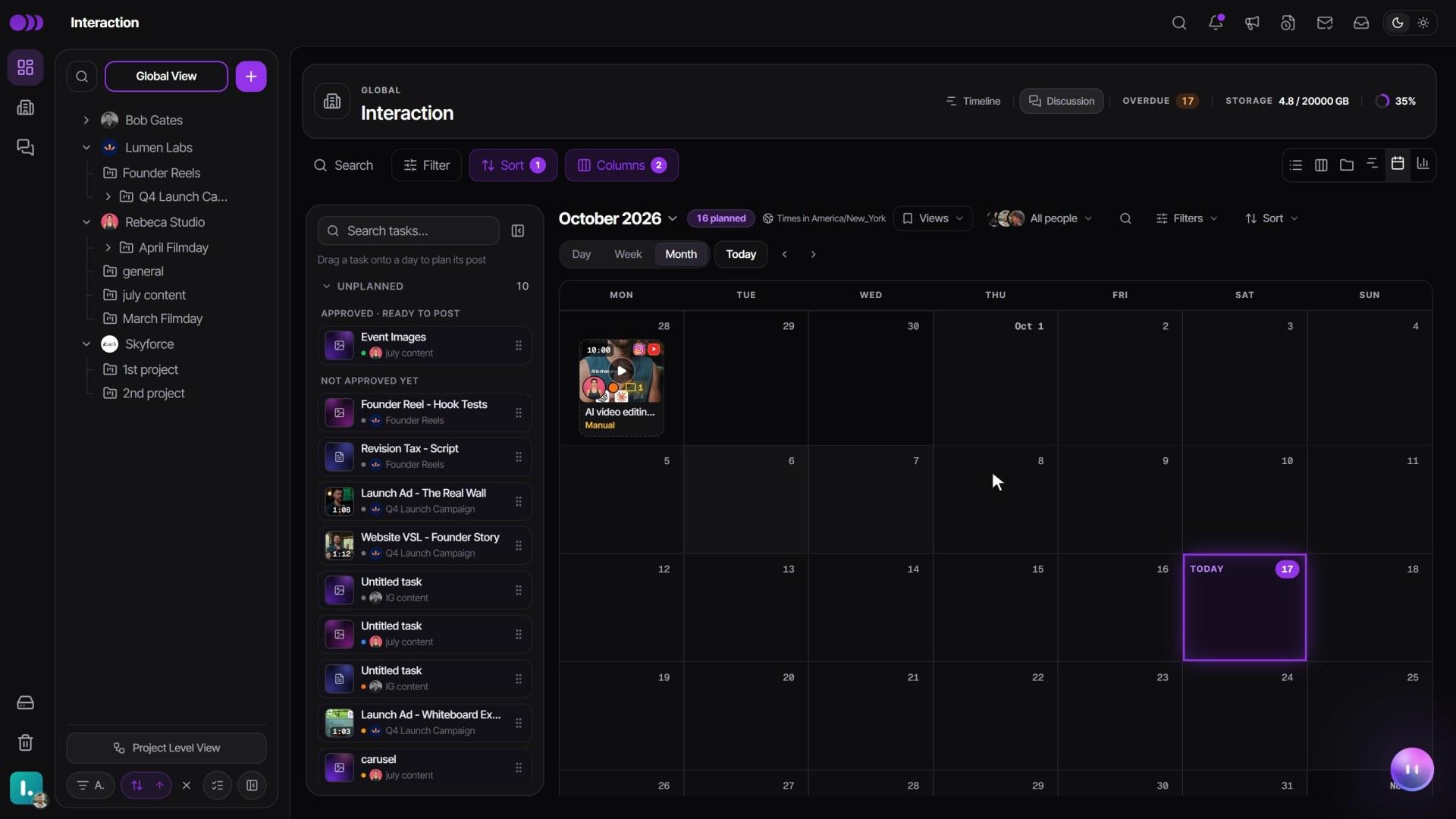
- No Calendar option in the view switcher: the content calendar comes with the Agency and Scale plans. On Studio it isn't shown at all.
- Something you deleted is gone: open Trash in the left sidebar and click Restore. Items stay there for 30 days. Editors only see what they deleted themselves, so ask an admin if you can't find it.
- A notification switch is greyed out: an admin turned that channel off for the whole workspace. Only an admin can turn it back on.
Watch it
Questions people ask
Why didn't my client get an email when I shared a link?
Creating a share link notifies no one. The client only gets it when you send it. Inviting a client as a guest, on the other hand, emails them right away.
I moved a task and my client got an email. Can I stop that?
Moving a task into client review always notifies the client, and the message can't be recalled. Moving it back out of review stops the reminder that would follow a few days later.
Why can't I move a task to Posted?
Posted can only be reached from Approved. Approve the task first, then mark it posted.
My editor says they can't see the brand I just made. Why?
Editors aren't added to new brands automatically. Add them from the brand's Actions menu -> Manage Members.
How do I reach a person on your team?
Open the avatar menu at the bottom of the left sidebar -> Get Help -> Live Support for a WhatsApp chat, or Book Onboarding Call.
Still stuck?
Ask Janet, the assistant inside Timeliner, email our team, or ask the community on Discord. We answer every message.