Share work with clients: invites and share links
Get videos in front of your client: invite them once as a free guest, or send a share link to a project, a brand, one task or a hand-picked set of videos.
5 min readUpdated November 7, 2026
Video lesson: Get Feedback
Overview
There are two ways to bring a client in. You can invite them by email as a guest: they get their own login, see every project you add them to, and are notified each time something is ready. Or you can send a share link: no account, no sign-in, just the work behind that link.
Clients are always free and never use a seat. Setting up a brand, projects, tasks and even a share link notifies no one, so you can prepare everything before your client hears a thing.
Invite or share link: which one?
| Invite as a guest | Share link | |
|---|---|---|
| Account | Their own login, with their name on every comment | None. Visitors who comment are asked their name once |
| What they see | Every project in the brand you invite them to, including future ones | Only what that one link opens |
| Notifications | Emailed when work is ready for their review | None. You send the link yourself |
| Best for | Ongoing clients and retainers | A quick review, or someone you don't want to contact yet |
For a client you work with every month, invite them once to the brand. They keep one login for every project, and nothing needs to be re-sent.
Invite your client by email
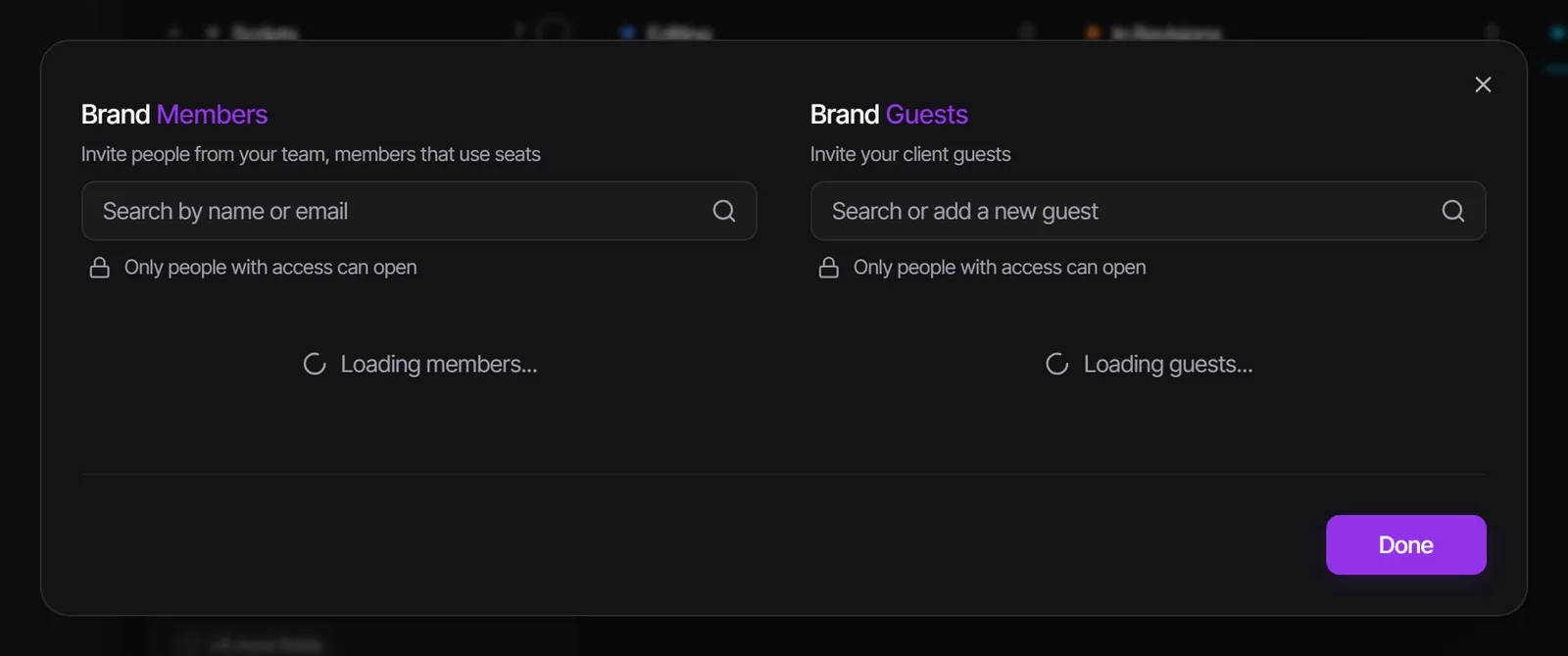
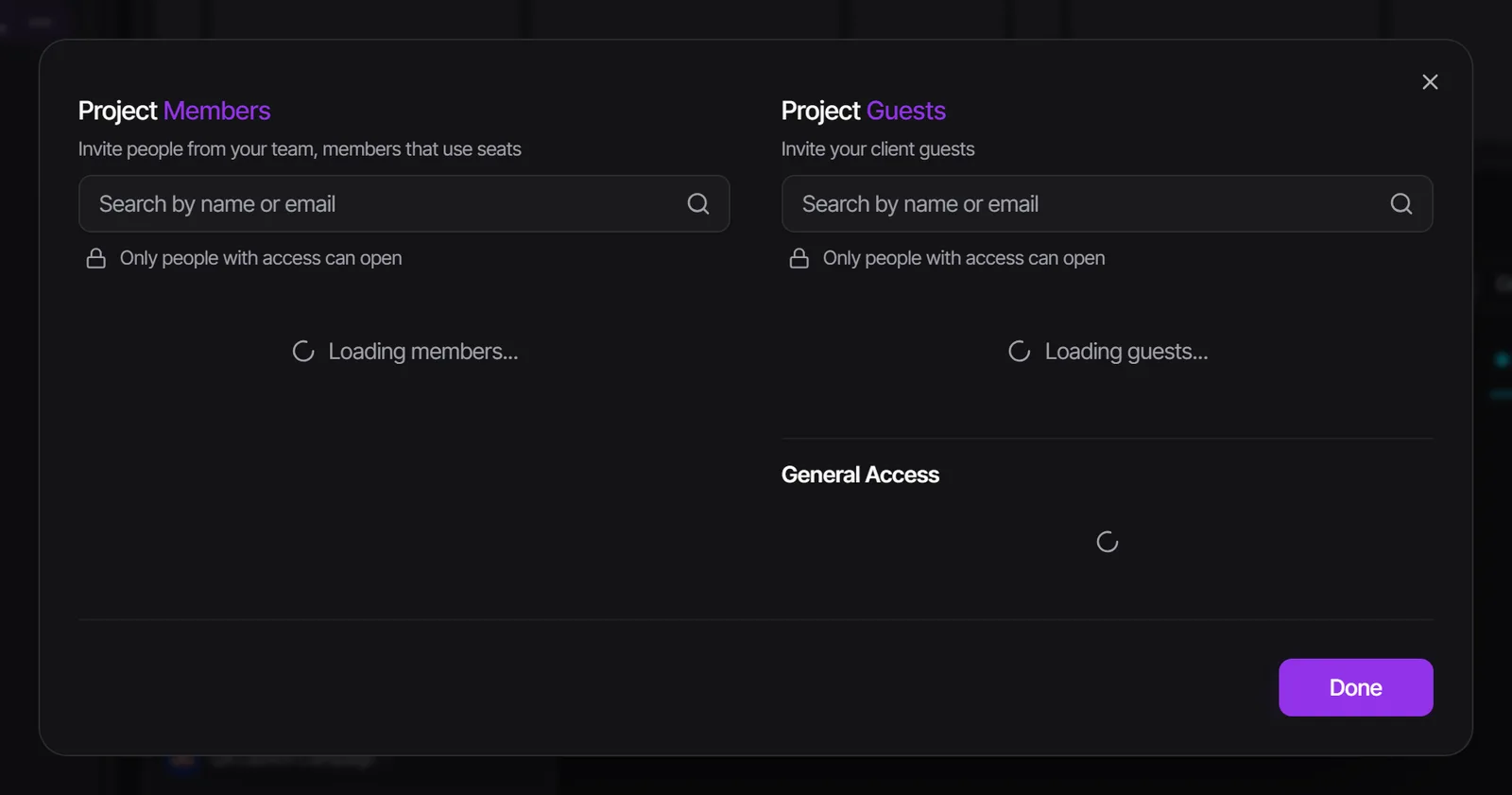
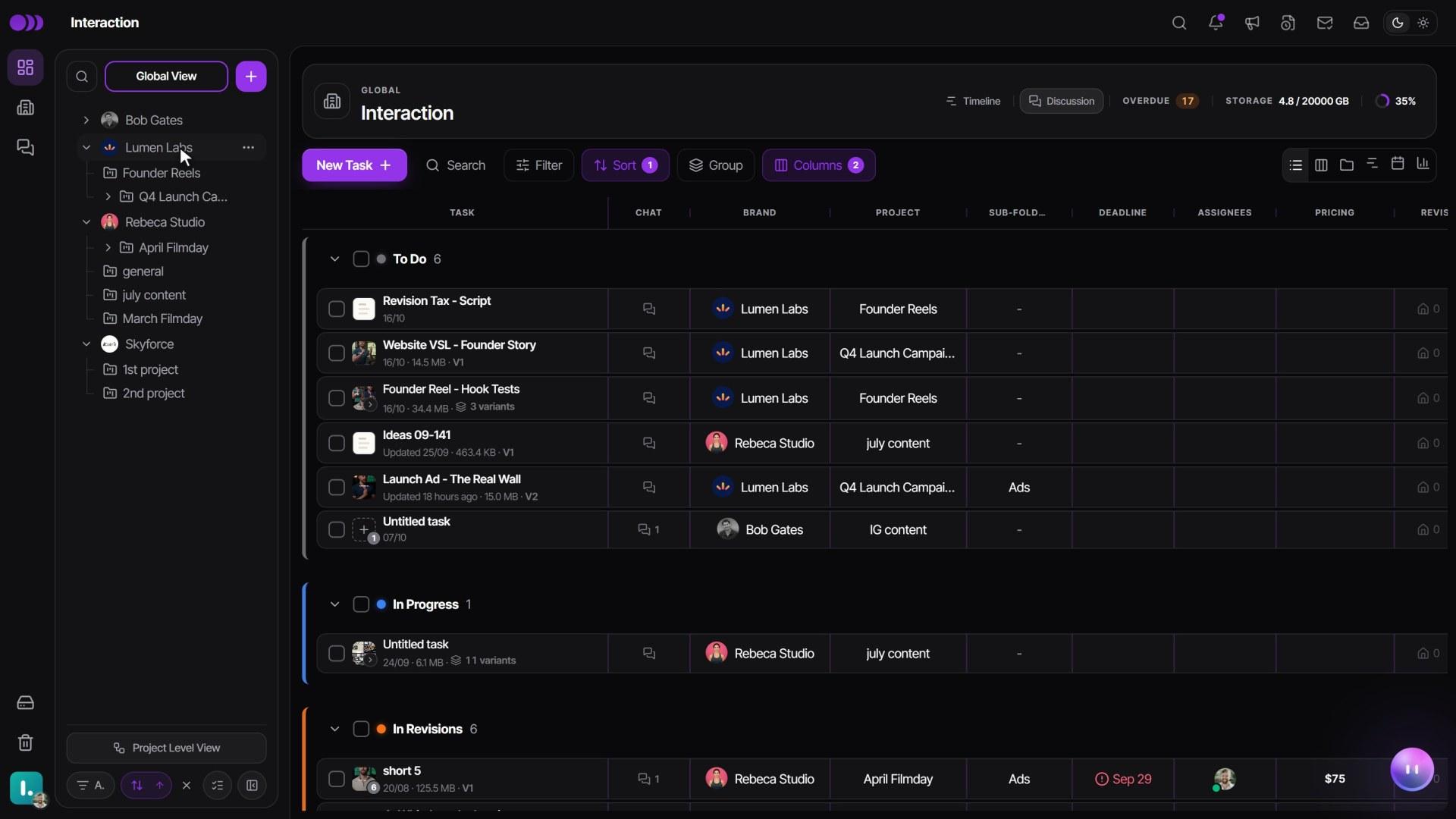
- In the left sidebar, open the three-dot Actions menu on the brand's row (or just one project's row) and click Manage Members.
- In the Guests column, type their email and click Add new guest.
- Click Continue, add their full name, pick a role and their System Language.
- Click Invite New Guest.
- Approver can approve or request changes. Give this to the person who signs off.
- Commenter can comment and upload files but not approve.
- Viewer can only watch.
The invitation email goes out the moment you click, and it can't be unsent. If you add a phone number, a WhatsApp invite goes too. Until they accept, they show a Pending badge. You can also invite from Settings > Team & permissions > Members > Guests > Invite Guest.
Send work for review
Once your client is invited, sending them work is one move.
- Open the task when the video is ready.
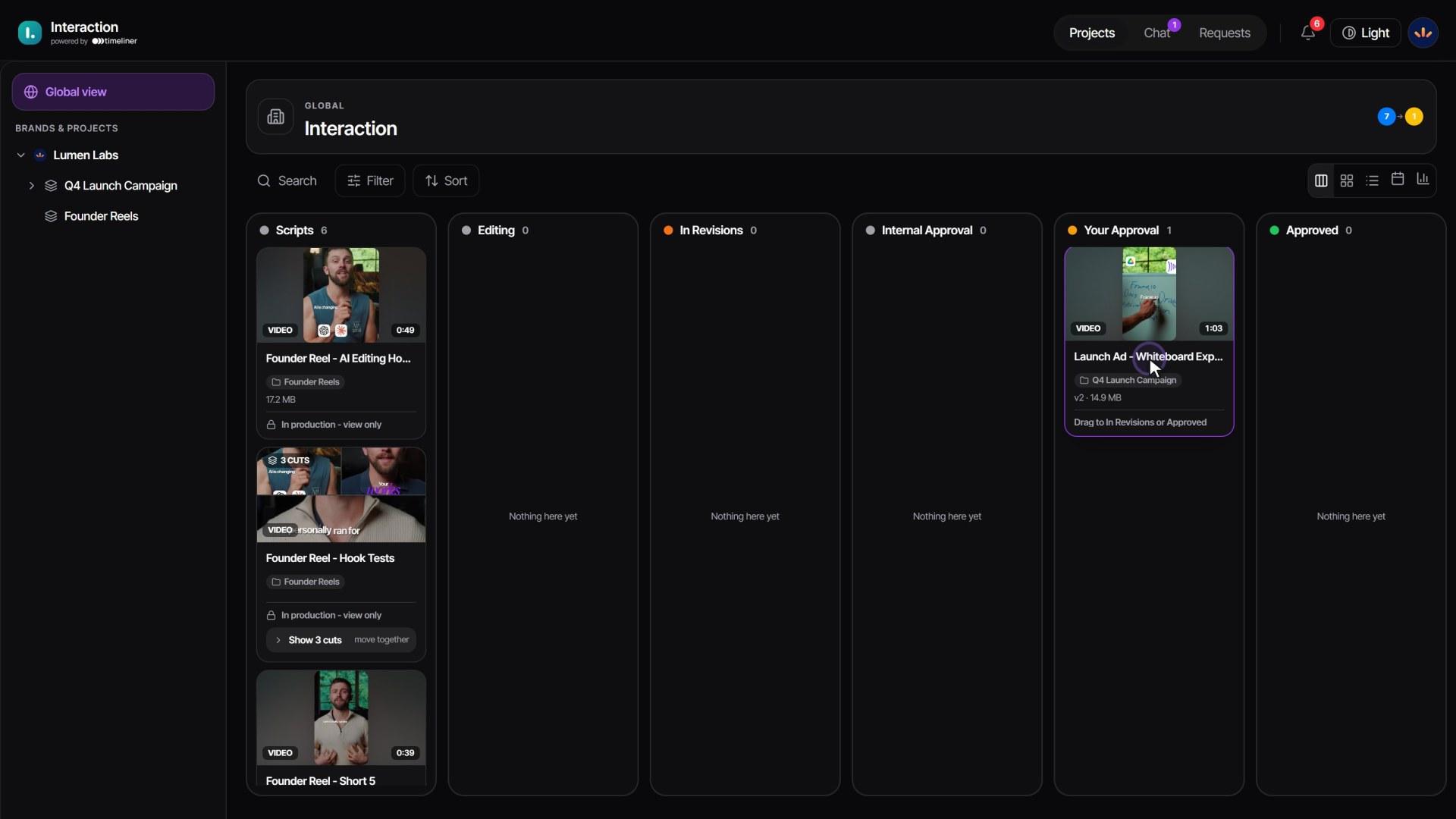
- Move it to Client Approval.
- Your client gets an email with a link that opens that video, already signed in.
- Moving several tasks at once sends one combined email, not one per video.
- A task with no file yet notifies no one. The email goes out when the file finishes uploading.
- If your client doesn't act for about 4 days, they get one reminder email.
How the review itself works is in The client portal. The stages are explained in Approval pipeline and statuses.
Share a project, brand or task as a link
- Open the project from the left sidebar and click Share at the top right of the project header. Brands and folders have the same button in their header; a single task has it in the task's header.
- The dialog creates an Anyone with the link link at Viewer access right away. There is no create button.
- Pick the access level first: Viewer, Commenter or Approver. Each level is its own URL.
- Choose how long it works under Link expires after: (24 hours, 7 days, 30 days, 60 days, 90 days or Forever).
- Click Copy link and send it on WhatsApp, Slack or email. Send to WhatsApp group opens WhatsApp with the message already written.
Copy the link after you pick the level. A link copied while it said Viewer stays view-only.
A project or brand link shows only client-facing work: tasks in Client Approval, Approved and Posted, plus In Revisions once the client has reviewed them, and only media that has a file. Comments marked Internal never reach a link. Click Preview as client to see exactly what they will get.
Advanced lets you set this one link's theme, language and allowed views. Your workspace defaults apply otherwise.
Send several videos as one link
For a client who lives in an email thread, put a hand-picked set of videos from one project on one page.
- In the project's list or Kanban, tick the videos you want.
- Click Share as link in the bar at the bottom.
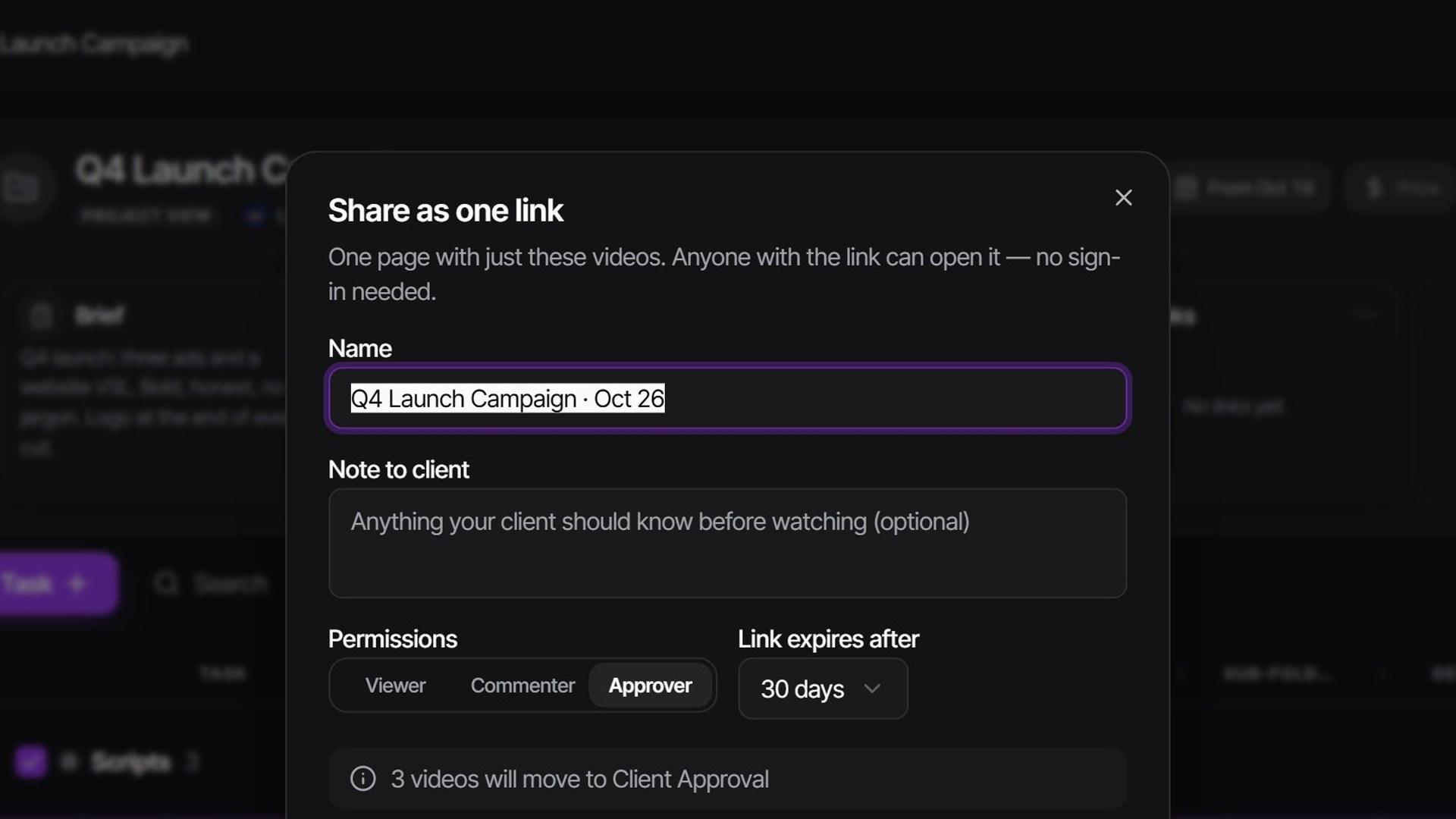
- Give it a name, an optional Note to client, the Permissions level and when it expires. Drag the videos into the order you want them watched.
- Click Create link. It is copied right away.
The page shows only those videos, in that order. An approver link adds a "3 of 5 approved" strip. Creating the link changes no status and notifies no one: to ask for approval, move the videos to Client Approval as usual. Find your links again with the Links button beside Share in the project header.
Passwords, expiry and turning a link off
- Turn a link off: in the Share dialog, set General Access to Restricted. The old address stops working at once. Each level has its own URL, so switch off every level you shared.
- A link leaked: click Recreate for a new address. The old one dies.
- Make it permanent: a link that expires shows Never expire beside its expiry line.
- Add a password (Scale plan): in the Password row, click Add password, type or Generate one, then Copy link + password. You can also set one for a whole brand in Edit Brand or a project in Edit Project.
In a link's last 3 days, both you and the client see a warning that it is about to expire.
Watch it
Questions people ask
Does my client need an account or a password?
Not for a share link: they just open it. An invited guest gets a login, and on a brand set to Regular sign-in they open the review straight from the email with no password.
Does inviting a client cost a seat?
No. Clients are guests, and guests are free and unlimited on every plan.
My client can't see the video I sent. Why?
Check the task's stage and file. Clients only see work in Client Approval or later, and a video task only appears once its file has finished uploading.
Can I unsend an invitation?
No. The email goes out the moment you invite. If you're not ready to contact the client, use a share link and send it when you are.
My client never got the email.
Ask them to check spam, then resend the invite from Manage Members. On a strict company network, send their IT team the IT allowlisting guide.
Still stuck?
Ask Janet, the assistant inside Timeliner, email our team, or ask the community on Discord. We answer every message.