Team roles and permissions: admin, supervisor, editor and clients
What admins, supervisors, editors and client roles can each do in Timeliner, side by side, plus the switches that widen or narrow a role.
9 min readUpdated November 7, 2026
Video lesson: Guest or Team Member
Overview
Every person in a Timeliner workspace has a role. Your team are members: Admin, Supervisor or Editor, and each member uses a seat. Your clients are guests: Approver, Commenter or Viewer. Guests are free and never use a seat.
In one line each: admins own the workspace, supervisors run the day-to-day work inside the brands they belong to, and editors work on the tasks they are given. Clients only see work you have sent them for review.
Rule of thumb: if the person works on the videos, invite them as a member. If they only review, comment or approve, invite them as a guest.
The six roles at a glance
| Role | Who it's for | Uses a seat |
|---|---|---|
| Admin | The owner and partners. Billing, every workspace setting, every brand. | Yes |
| Supervisor | Producers and team leads who run projects, review work and manage the team. | Yes |
| Editor | Editors, designers, motion and sound people who do the work on their tasks. | Yes |
| Approver | The client contact who signs off on the work. | No |
| Commenter | Client-side reviewers who give feedback but don't sign off. | No |
| Viewer | People on the client side who only need to watch. | No |
The order of power is Admin, then Supervisor, then Editor, then Approver, Commenter and Viewer. Pending invitations count toward seats too. See Invite your team for seats and invitations.
What's the difference between an admin and a supervisor?
Both can run production: create brands and projects, invite people, assign editors, set deadlines, review work and see full pricing. The difference is ownership of the workspace. Only an admin can:
- Manage billing, the plan and seats (Plan & Billing). A supervisor can only update the card when a payment fails.
- Change workspace-wide settings: Workspace, Permissions, Clients & portal, Review & media, statuses and templates.
- Invite another admin, or demote one (and that needs the other admin's approval by email).
- Build and edit automation rules. Supervisors can see them, read-only.
- Move a task to Approved. Supervisors can do it only after an admin turns on Supervisor Approval Override.
- Delete anything permanently from Trash, and permanently remove a member or guest.
- Archive projects. Supervisors can archive brands only when Supervisors Can Archive Brands is on.
Admins also see every brand and project automatically, including new ones. A supervisor sees only the brands and projects they were added to, unless an admin turns on Auto-Add Supervisors to Brands. Supervisors can open the Analytics view only after an admin turns on Analytics View.
Want this as a printable guide? Download the Admins & Supervisors guide (PDF), or the Admins, Supervisors & Editors guide (PDF) for all three team roles. Both are in English.
Full comparison: who can do what
This is the default for each role, with no extra switches turned on. The switches that change a cell are listed further down.
| What | Admin | Supervisor | Editor | Approver | Commenter | Viewer |
|---|---|---|---|---|---|---|
| Billing, plan and seats | Yes | No | No | No | No | No |
| Workspace-wide settings (Workspace, Permissions, Clients & portal, Statuses) | Yes | No | No | No | No | No |
| Manage the team list (Team & permissions > Members) | Yes | Yes | No | No | No | No |
| Invite team members | Any role | Supervisors and editors | No | No | No | No |
| Invite clients as guests | Yes | Yes | No | No | No | No |
| Which brands they see | All, automatically | Brands they're added to | Brands they're added to | Brands or projects they're invited to | Same | Same |
| Create, edit or trash brands | Yes | Yes | No | No | No | No |
| Create or rename projects | Yes | Yes | No | No | No | No |
| Create, rename or delete sub-folders | Yes | Yes | No | No | No | No |
| Create tasks | Yes | Yes | Yes | No | No | No |
| Which tasks they see in a project | All | All | Only tasks they're assigned to | Only work sent for client review | Same | Same |
| Upload new versions | Yes | Yes | Yes | No | No | No |
| Delete a version | Any | Any | Their own uploads | No | No | No |
| Trash a task | Any | Any | Tasks they created | No | No | No |
| Assign editors to a task | Add and remove | Add and remove | Add only | No | No | No |
| Edit deadlines | Yes | Yes | No | No | No | No |
| See the internal deadline | Yes | Yes | Yes | No | No | No |
| See the external (client) deadline | Yes | Yes | No | Yes | No | No |
| Move tasks between statuses | Any move | Any move except into Approved | Limited internal moves (below) | Approve or request changes at their review stage, mark approved work Posted | No | No |
| Comment | Yes | Yes | Yes | Yes | Yes | No |
| Upload to a project's files | Yes | Yes | Yes | Yes | Yes | No |
| Share links to projects, brands and folders | Yes | Yes | Single tasks only | Public link to their project only | No | No |
| Pricing | Full prices and pay | Full prices and pay | Only their own pay | Client price (unless hidden) | No | No |
| Analytics view | Yes | Only with Analytics View on | Only their own work and earnings | Client analytics, if you add it to their views | Same | Same |
| Automation rules | Build and edit | Read-only | No | No | No | No |
| HQ boards | Create and use | Create and use | Use | No | No | No |
| Archive brands and projects | Yes | No | No | No | No | No |
| Restore from Trash | Everything | Items in their brands | Items they trashed | No | No | No |
| Delete permanently from Trash | Yes | No | No | No | No | No |
Downloads for clients depend on the workspace download policy, not on the role alone. With the default policy, clients can download once a task is approved.
What editors see and how they move work
An editor who signs in and sees nothing is not looking at a bug. By default editors see only the tasks they are assigned to, even inside a project they can open. Assign them on the task, or let them see more (see the switches below).
Editors move their own work through the internal stages and stop before the client. By default an editor can move a task:
- Between To Do and In Progress.
- From To Do or In Progress to Supervisor Approval, and from Supervisor Approval back to In Progress.
- From In Revisions to Supervisor Approval.
- From Approved to Posted.
Editors can't send work to Client Approval or mark it Approved unless an admin turns on the switches for that. Editors also never see the external deadline or the client price, can't create brands or invite anyone, and can add assignees to a task but not remove them.
Roles per brand and per project
A role isn't one global setting. It can sit at three levels, and the most specific one wins: the project, then the brand that holds it, then the workspace.
- A role on a brand or project can be the same as the person's workspace role or lower, never higher. A workspace supervisor can be an editor on one sensitive brand, and inside that brand the editor rules apply to them. Manage Members adds a teammate with their workspace role; a lower role on one brand can be granted through the Timeliner API.
- For clients it works the other way too: a guest who is a Commenter on a brand can be an Approver on one project inside it. Pick the role in the brand's or project's Manage Members.
- Adding a teammate to a brand gives them every project inside it. Adding them to one project gives them only that project.
To check who holds which role where, an admin opens Settings > Team & permissions > Members and scrolls to Access Overview. It lists every member's workspace role, brand access and project access.
If someone says "I can do this in one project but not in another", the most likely reason is a lower role on that brand or project. That is on purpose.
Switches that change what a role can do
Admins can give supervisors and editors more or less control in Settings > Team & permissions > Permissions. Each switch saves when you click Save Changes.
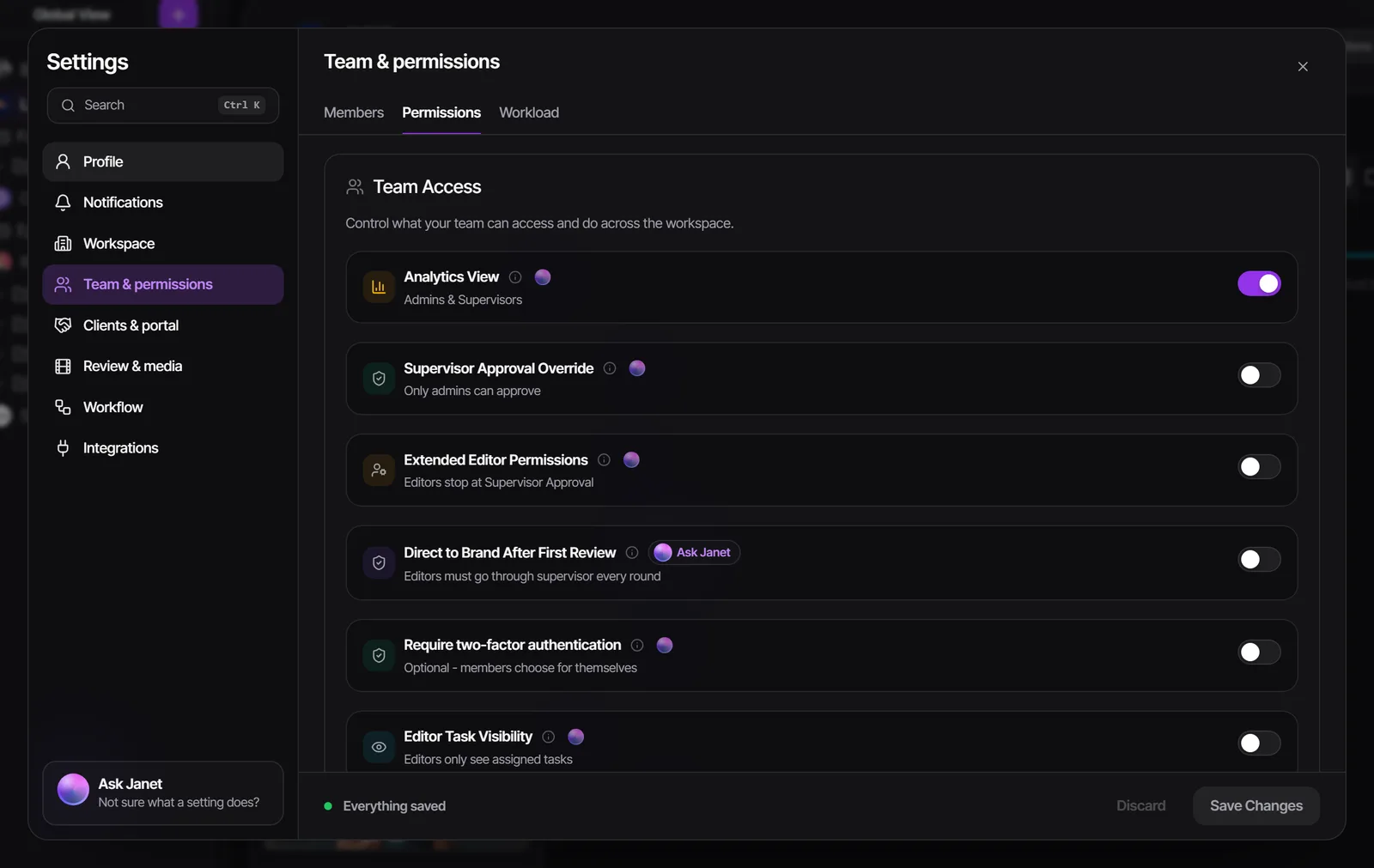
| Switch | Off by default means | Turn it on to |
|---|---|---|
| Supervisor Approval Override | Only admins can move a task to Approved | Let supervisors give final approval |
| Analytics View | Supervisors can't open Analytics | Let supervisors open Analytics alongside admins |
| Auto-Add Supervisors to Brands | Only admins join new brands automatically | Add every supervisor to each new brand |
| Supervisors Can Archive Brands | Only admins archive | Let supervisors archive the brands they manage (projects stay admin-only) |
| Editor Task Visibility | Editors only see assigned tasks | Let editors see all tasks in their projects |
| Extended Editor Permissions | Editors stop at Supervisor Approval | Let editors send work straight to Client Approval |
| Direct to Brand After First Review | Every round goes through a supervisor | Let editors send a revised task back to the client after the first supervisor review |
| Editors Can Create Projects | Only admins and supervisors create projects | Let editors create projects in brands they can open, and trash only the ones they made |
| Block Editors from Creating Tasks | On by default: editors can create tasks | Turn it on to stop editors creating new tasks (they can still upload versions) |
| Editors cannot see or contact other editors | Editors can see and message each other | Hide editors from each other |
Block Editors from Creating Tasks works the other way round: on means editors are blocked. Two per-person overrides beat the workspace default for one editor: Can See All Tasks and Can Create Tasks, in the member's Edit > Role & Access.
Client roles and end clients
- Approver reviews, comments, approves or requests changes while a task is in their review stage, and can mark approved work Posted. They see the client price unless you hide pricing from clients.
- Commenter reviews and comments with every comment tool and can upload to a project's files, but can't approve or request changes.
- Viewer can only watch. No comments, no uploads, no approvals.
Clients never create tasks and never move work through your team's stages. They see only work in Client Approval, Approved and Posted, plus In Revisions once they have reviewed it. More in The client portal.
On agency-to-agency workspaces, guests also have a tier. Your direct client (client tier) can act as a client manager: add end clients under their own brand, create and rename projects there, and invite or remove the end client's people. They still can't create tasks. An End Client sees even less: only End Client Approval, Approved and Posted, with everything earlier shown as one "In Production" step, and they see your client's name and logo, never yours.
Change someone's role
- Click your avatar at the bottom of the left sidebar and open Settings.
- Go to Team & permissions > Members.
- Open the three-dot menu on the person's row and click Edit.
- On the Role & Access tab, pick the new Permission Level, then click Save.
- Admins can change anyone's role. Supervisors can edit members but can't make anyone an admin. Editors can't change roles.
- Promoting someone to Admin gives them every brand and project.
- Demoting or deactivating another admin sends that admin an approval email. Nothing changes until they approve.
- A guest can't be turned into a team member. There is no convert option.
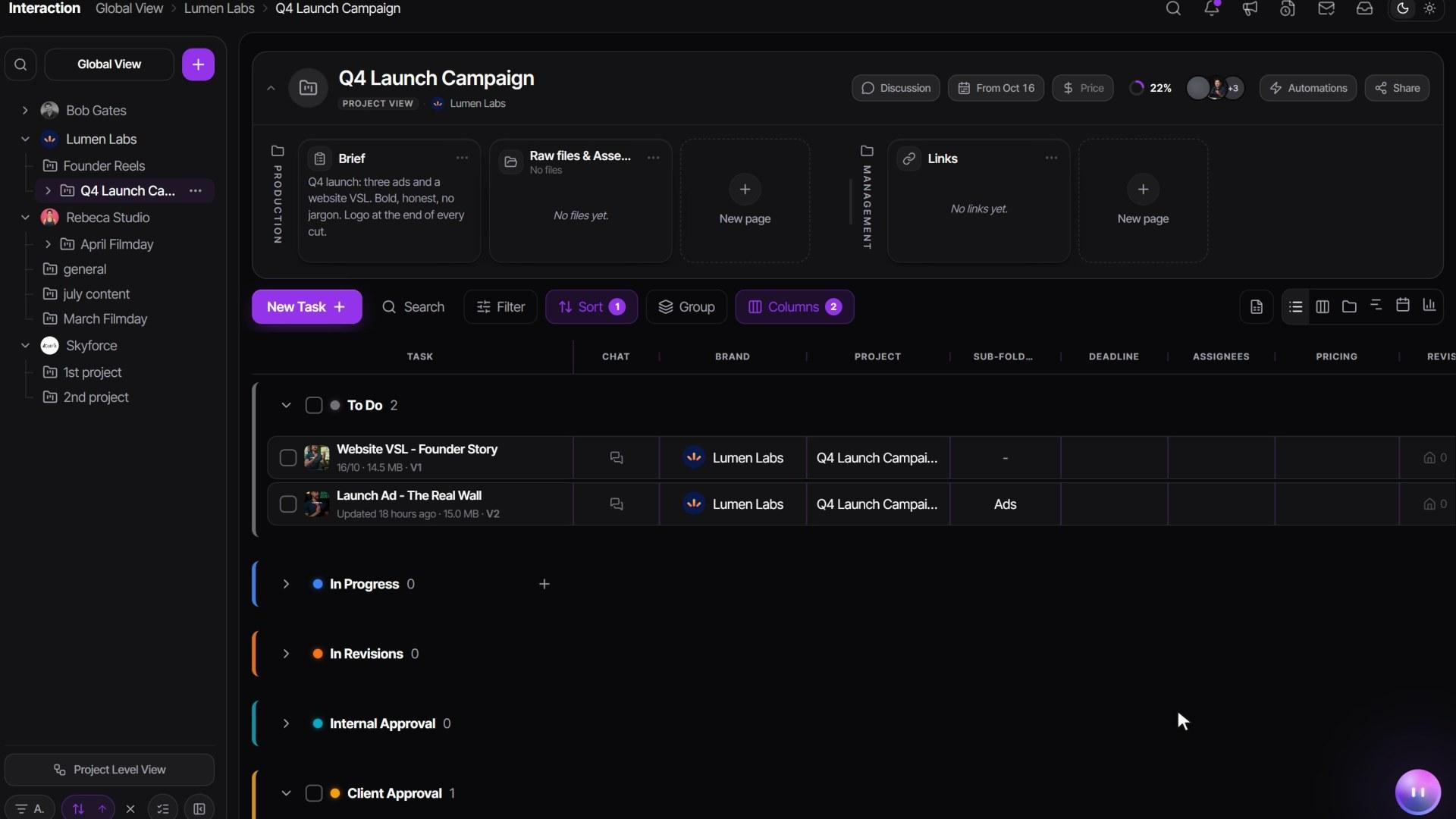
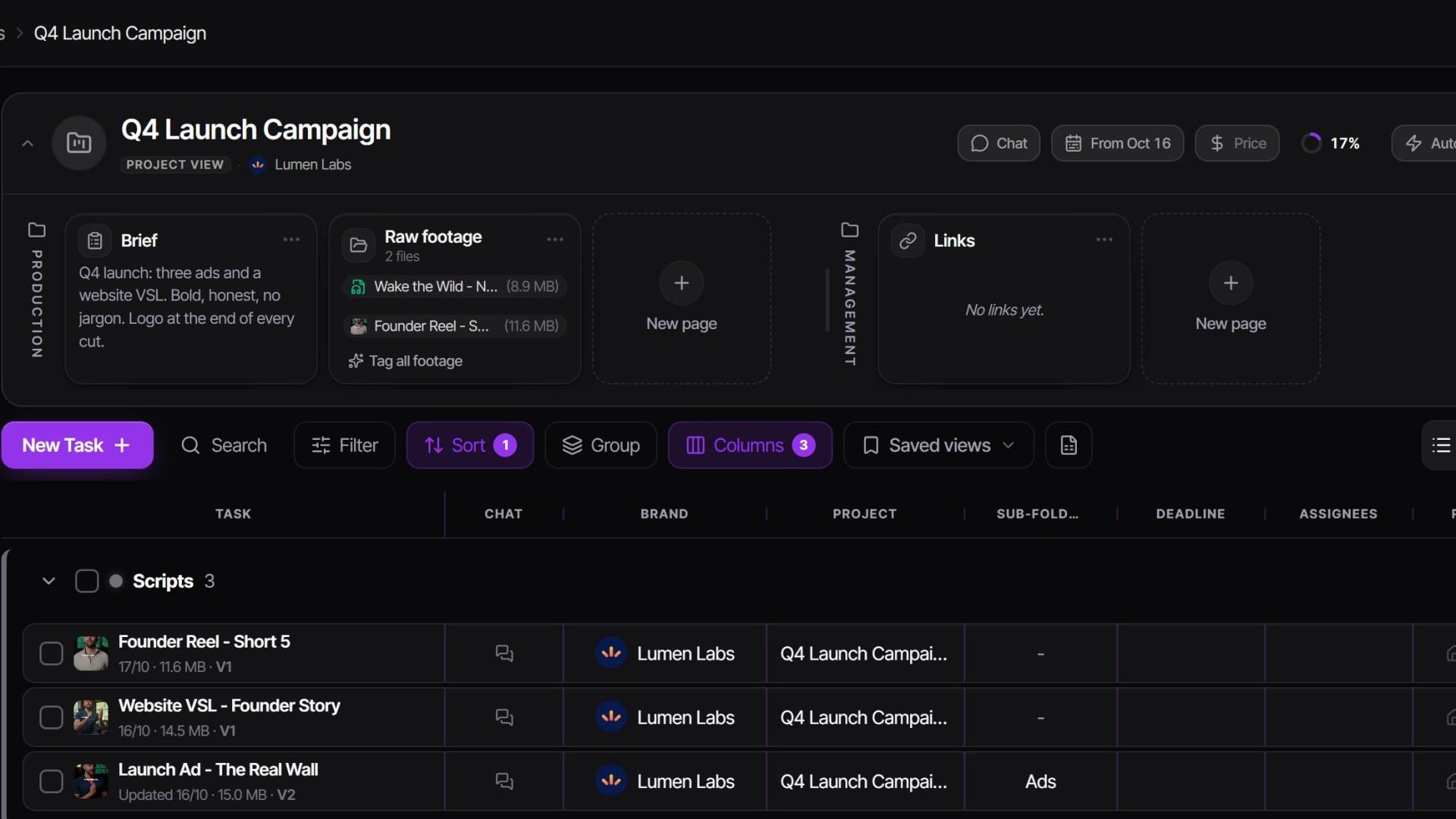
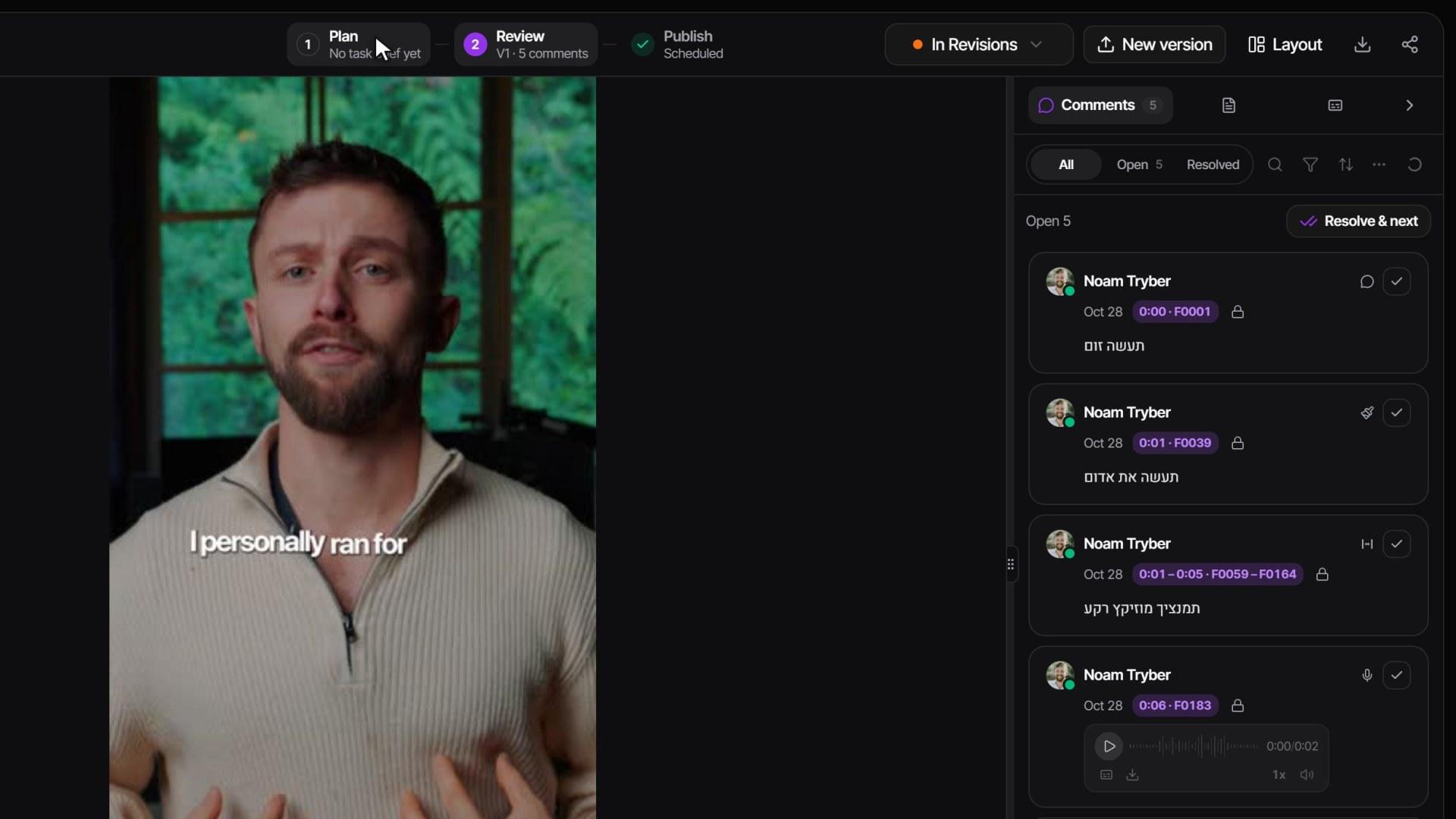
Watch it

Questions people ask
What's the difference between a supervisor and an admin?
An admin owns the workspace: billing, workspace-wide settings, automation rules, permanent deletes and every brand. A supervisor runs the day-to-day inside the brands they belong to, and by default can't move work to Approved until an admin turns on Supervisor Approval Override.
Which role should my video editors get?
In most cases Editor. They see the tasks they're assigned to and can send their work up to Supervisor Approval, never straight to the client unless you allow it.
My editor logs in and sees nothing. Is something broken?
No. Editors see only the tasks they're assigned to, and only in brands they've been added to. Assign them to the task, or turn on Editor Task Visibility in Team & permissions > Permissions.
Do my clients need a seat?
No. Clients are guests, and guests are free and unlimited on every plan. Only admins, supervisors and editors use seats.
Can I turn a guest into a team member?
No, there is no convert option. Guest access and team access are separate kinds of access.
Why can't my supervisor approve a video?
By default only admins can move a task to Approved. An admin turns on Supervisor Approval Override in Settings > Team & permissions > Permissions.
Still stuck?
Ask Janet, the assistant inside Timeliner, email our team, or ask the community on Discord. We answer every message.