Finance: pricing, editor pay and payments
How money works in Timeliner, step by step: price a video, set what each editor earns, see your profit, and track what clients owe and what you owe the team.
8 min readUpdated November 7, 2026
Video lesson: How to Price Your Videos to Always Stay Profitable
Overview
Timeliner's finance tools answer three questions for an agency owner: what does each video earn, what does it cost me in editor pay, and has the money actually moved? You set the numbers once, on the task or the project, and Timeliner adds them up in Analytics -> Finance.
This page starts with the idea behind the numbers and one worked example, then shows each screen. Finance is for admins and supervisors. Editors only ever see their own pay.
How the money works, in four ideas
- Every task can carry two numbers. The Client price is what the brand owes you for that video. Editor pay is what each team member on it earns. The difference is your margin, which Timeliner works out for you.
- Money counts once the work is approved. Until a task reaches Approved (or Posted, or the optional Archive column), its price sits in Not yet billable and its pay shows as "after approval". An admin can move that point with Count work as billable from in Settings -> Workflow -> Pricing.
- Billed is not the same as collected. Billed is what clients owe for approved work. Collected is the cash you marked as received. The gap is what is still outstanding.
- Team cost works the same way. Team cost is what you owe the team for approved work, split into paid and unpaid as you mark payouts.
A worked example: one $1,200 video
Say your client pays $1,200 for a launch video, and you pay the editor a flat $400 for it. Here is what Finance shows at each step.
| What happens | What Finance shows |
|---|---|
| You set the price: Client price $1,200, editor pay $400. The task is still in production. | $1,200 in Not yet billable. The editor's $400 shows as "+$400 after approval". Nothing is billed yet. |
| The client approves the video. | Billed $1,200. Team cost $400 (unpaid). Profit $800, about a 67% margin. Invoiced vs collected shows $1,200 outstanding for that brand. |
| The client pays half up front. You Record a $600 payment. | The row reads "600 paid of 1,200" with $600 due. Collected goes up by $600. |
| You pay the editor and click Mark as paid on their row. | Team cost $400, all paid. Your profit doesn't change; only the paid and unpaid split moves. |
| The client pays the rest. You mark the remaining $600 received. | Collected $1,200, nothing outstanding. |
Once any payment is recorded on a task, its pricing locks so the books stay correct. To change the price later, un-mark the payment (or void the part payment in its Payment timeline) first.
Now the same video priced with a Profit Share template instead: the client price is split by percentage among the roles on the task. With Online Editor at 25% and Rough Cut Editor at 10%, the online editor earns $300 and the rough-cut editor $120. Team cost is $420 and your profit is $780.
Or with Hourly Pricing: an editor at $40 an hour who tracks 10 hours on the task earns $400. If you also set a Brand/Client rate per hour, the client price follows the same tracked hours.
Price a single task
- Assign the editor to the task first, so their pay row appears.
- In the list view, click the task's cell in the Pricing column.
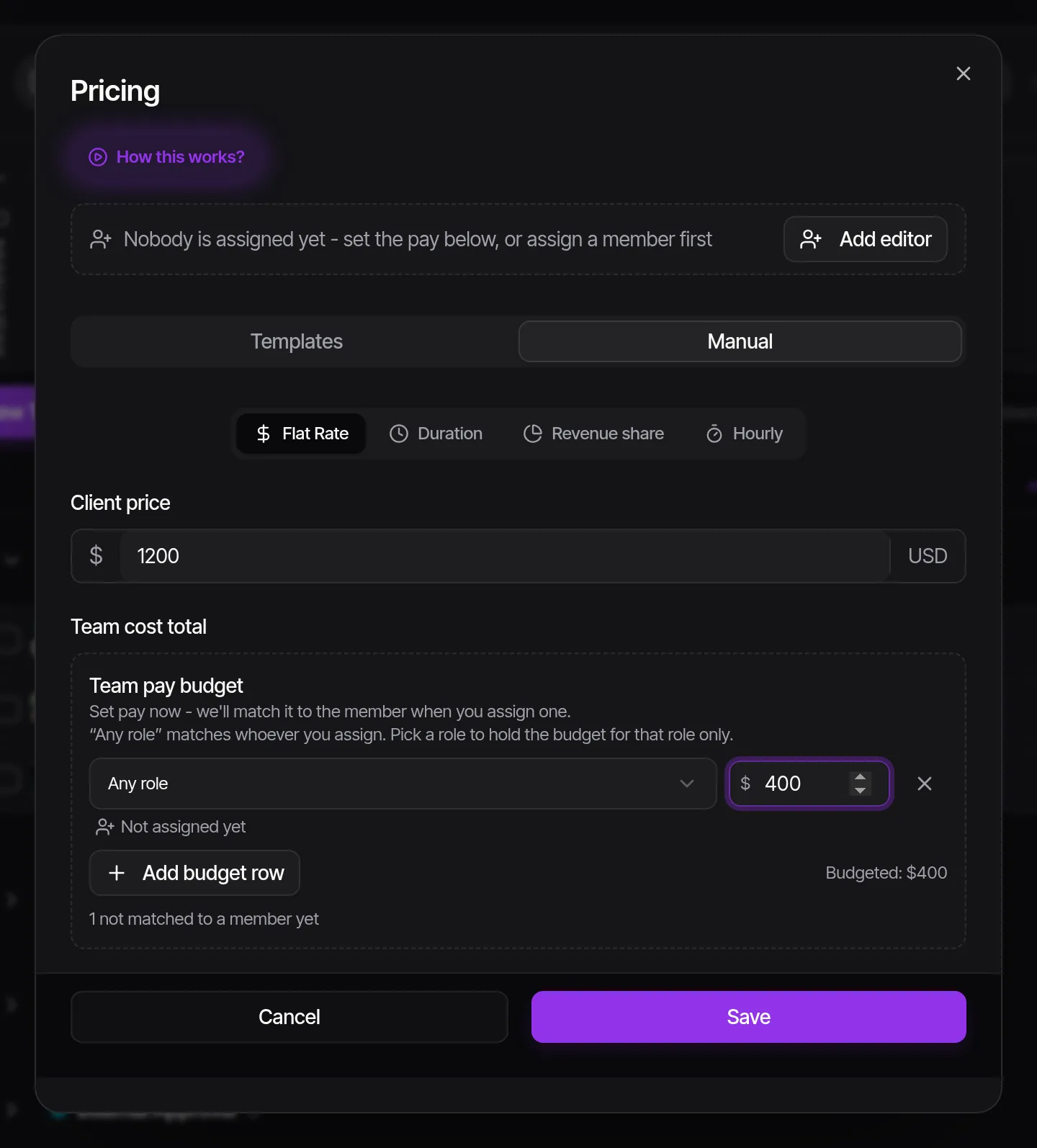
- On the Manual tab, pick a mode: Flat Rate, Duration, Revenue share or Hourly.
- Enter the Client price and each editor's pay. Split Evenly divides one total between the editors.
- Or open the Templates tab and pick a saved template. The dialog shows the calculated breakdown before you save.
- Price several tasks at once: select them, then click the pricing cell of any selected task. The dialog opens as "Apply pricing to N tasks".
- Price before anyone is assigned: add Team pay budget rows on the Manual tab. When someone is assigned later, Timeliner matches them to a row or asks which pay applies.
- A parent task with cuts: choose Set one group price for the whole set, or Price each cut individually.
Set up pricing templates
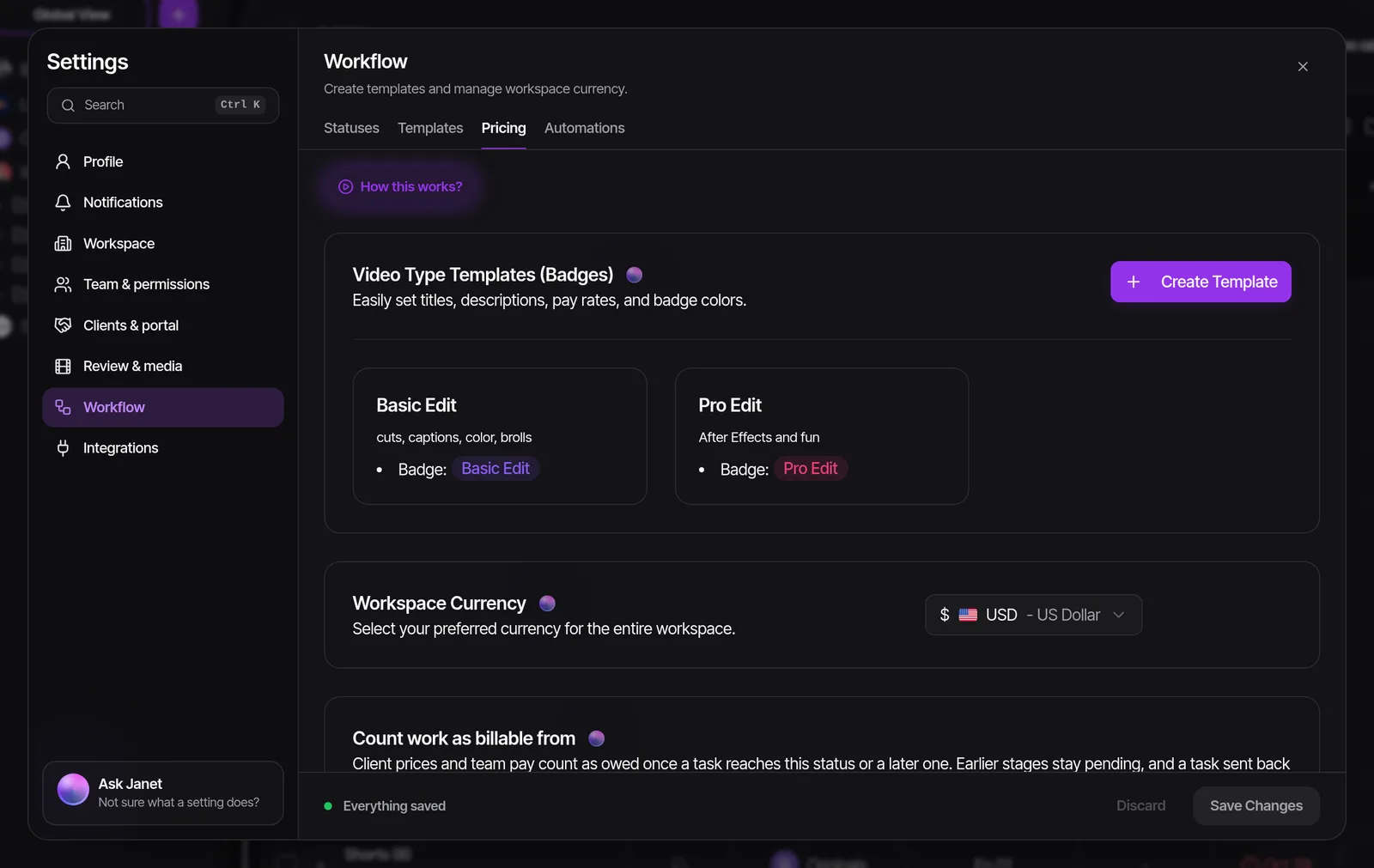
Make one template for each kind of video you sell, such as a basic edit and a premium edit. Each priced task then shows the template's coloured badge, and the price updates on its own when editors change or a new version is uploaded.
- Open Settings -> Workflow -> Pricing.
- Under Video Type Templates (Badges), click Create Template.
- Walk through Name & Badge, Pricing Model, Configure and Review & Save.
- Flat Pricing: a fixed client price and editor pay. Turn on Split editor pay by sub-role to pay a different amount per role.
- Duration Based: the price follows the uploaded video's length, in tiers or per second. A longer new version moves the task into the matching tier.
- Profit Share: the client price is split among roles by percentage. Only editors holding one of those roles are paid. Pick No role (not paid) for someone who shouldn't earn from it.
- Hourly Pricing: a default rate per hour, optional Different rate per sub-role, and an optional Brand/Client rate per hour.
- Additional Rules add an Extra Version Bonus, a Revision Surcharge for too many revision rounds, or a Performance Bonus when the published posts reach view or engagement milestones.
Bill a whole project or a monthly retainer
Not every client pays per video. For a package deal, price the project instead; for a fixed monthly fee, set a retainer on the brand.
- Click the Price chip in the project header to open Project billing.
- Under Client pricing, choose Per task or Fixed price. With a fixed price, that one amount is the project's revenue and the task prices stop counting (they are kept, not deleted).
- Under Team pay, choose Per task or Fixed per member.
- Under Owed, choose when the client starts owing it: Now, When the project is done, or On a date.
Example: a $3,000 package for four videos, owed when the project is done. Until every task is approved, the $3,000 sits in Not yet billable. Then it moves to Billed in one step.
For a monthly retainer, open the brand's Edit Brand -> Billing tab, set the Amount per month and the month it is Starting, and click Save retainer. The full amount is owed on the 1st of each month. Work outside it goes in as One-off charges. Any project or task price on that brand is billed on top of the retainer.
Choose how each team member is paid
Each person has a pay model, set by an admin in Settings -> Team & permissions -> Members -> the person's row menu -> Edit -> Role & Access -> Compensation:
- Per task (the default): paid through task pricing, as in the example above.
- Per project: one fixed fee per project, set in the project's Project billing under Per-project fees.
- Monthly salary: no per-task pay. The salary becomes their cost, spread over the dates you look at.
To pay a group as one, an admin creates a pod under Pods on the same Members page (New pod): one monthly figure, paid to the pod's lead. Members keep their own tasks. One project can mix all of these.
Wondering whether a person is worth what you pay them? Analytics -> Team performance -> Cost compares each person's cost with the revenue their work brought in.
Track what clients owe and what you owe the team
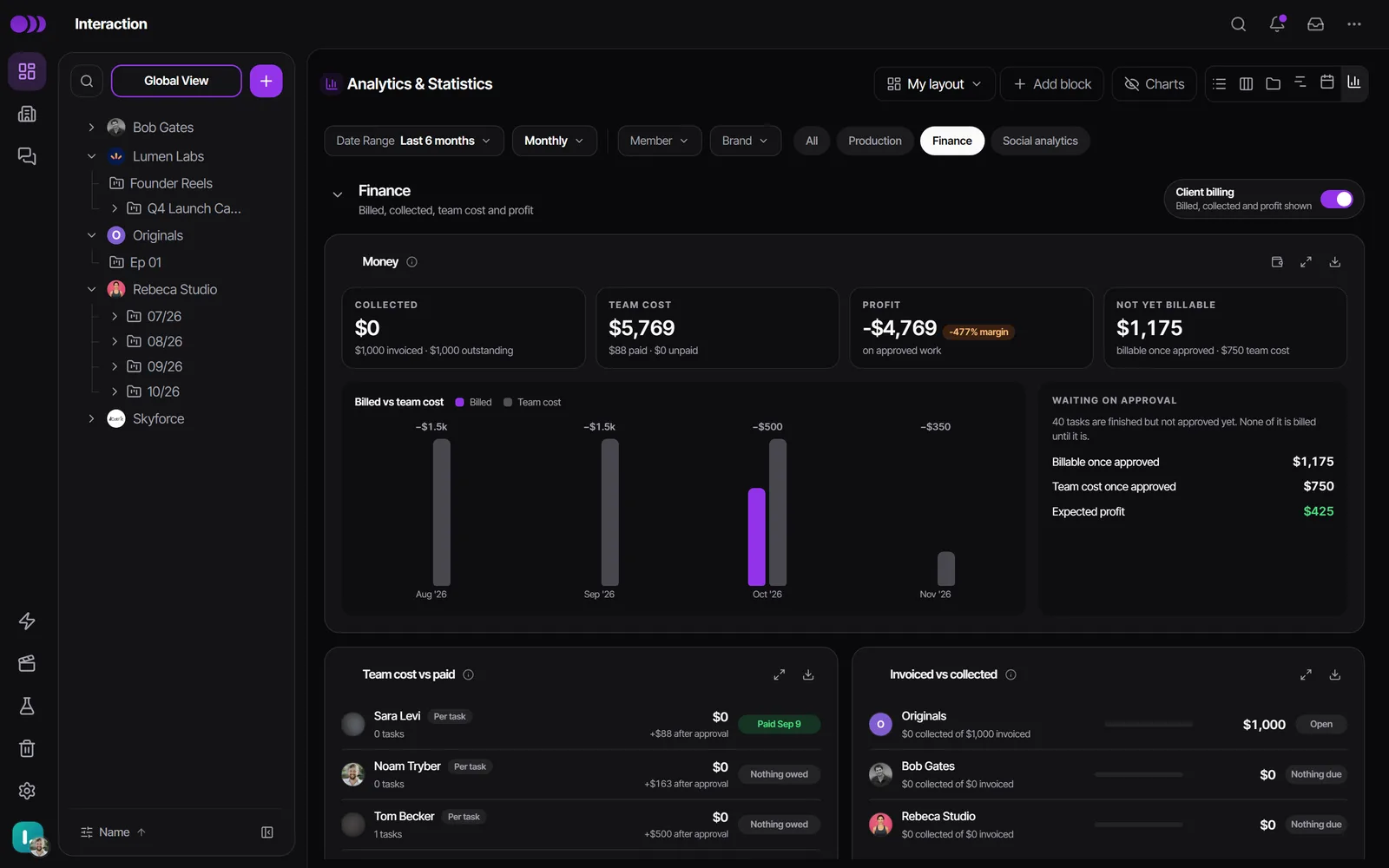
- Open Analytics and pick Finance.
- The Money card shows Collected, Team cost, Profit and Not yet billable. Invoiced vs collected lists what each brand owes, and Team cost vs paid lists what each person is owed.
- To mark money, click the wallet button in the Money card header to open the Payments overview.
- Use Mark as paid on a row, or Record for a part payment. In Record a payment, enter the Amount received now (or pick 25%, 50%, 75% or Full balance), the Payment date, Method and a Note.
- Unpaid client items get an age chip: grey under 15 days, amber at 15 to 29, red at 30 or more.
- Each person or brand has Download statement (a PDF of what was approved, paid and still due), a Payment timeline, and, for brands, Copy reminder, which copies a reminder text for you to send. Timeliner never sends it for you.
- Every payment is saved with its date in a ledger that is never edited. Un-marking a payment adds a reversal, and both stay visible.
- Export Excel and Export PDF sit in the Payments overview header. Each amount has a Why this amount explanation in the detail views and exports.
Who sees which number
| Role | Client price | Editor pay | Margin and profit |
|---|---|---|---|
| Admin | Yes | Everyone's | Yes |
| Supervisor | Yes | Everyone's | Yes |
| Editor on the task | Never | Their own (Your pay) | Never |
| Guest approver (client) | Yes, unless pricing is hidden from clients | Never | Never |
| Guest commenter, viewer or end client | Never | Never | Never |
- Hide pricing from clients (Settings -> Clients & portal -> What clients see) removes every price from all guests.
- The workspace currency is set once by an admin under Workspace Currency in Settings -> Workflow -> Pricing.
- Don't bill clients through Timeliner? An admin can turn off Client billing in the Finance header. Finance then shows team cost only, so nothing reads as a loss.
- Pricing, payments and the Finance section come with the Agency and Scale plans. Time tracking is free on every plan. See pricing.
Watch it
Questions people ask
Can my editors see what the client pays?
No. An editor sees only their own pay on tasks they are assigned to, shown as Your pay. Client prices, revenue and margins are never shown to editors.
Why is my profit lower than the prices I entered?
Profit counts approved work only. Prices on tasks still in production sit in Not yet billable until the client approves them.
The client paid a 50% deposit. How do I record it?
Open the Payments overview, find the task or project, click Record and pick 50%. The row then shows what is paid and what is still due.
Why can't I change a task's price?
Pricing locks once money is recorded against the task. Un-mark the payment, or void the part payment in its Payment timeline, then edit the price.
Can I pay one editor a monthly salary and others per video?
Yes. Set each person's pay model under Compensation in their member settings. Salaried people stop earning per-task pay, and their salary counts as cost.
Does Timeliner send invoices to my clients?
No. Timeliner tracks what is owed and paid. You can download a payment statement as a PDF or copy a reminder text and send it yourself.
Still stuck?
Ask Janet, the assistant inside Timeliner, email our team, or ask the community on Discord. We answer every message.