The approval pipeline and task statuses
How a task moves from To Do to Posted, who can move it where, how client approval works, and how to rename or add your own statuses.
6 min readUpdated November 7, 2026
Video lesson: The Approval Pipeline
Overview
Every task sits in one status, and statuses run in order from To Do to Posted. Moving a task forward is how work gets handed on: from the editor to an internal reviewer, from the team to the client, and from approval to publishing.
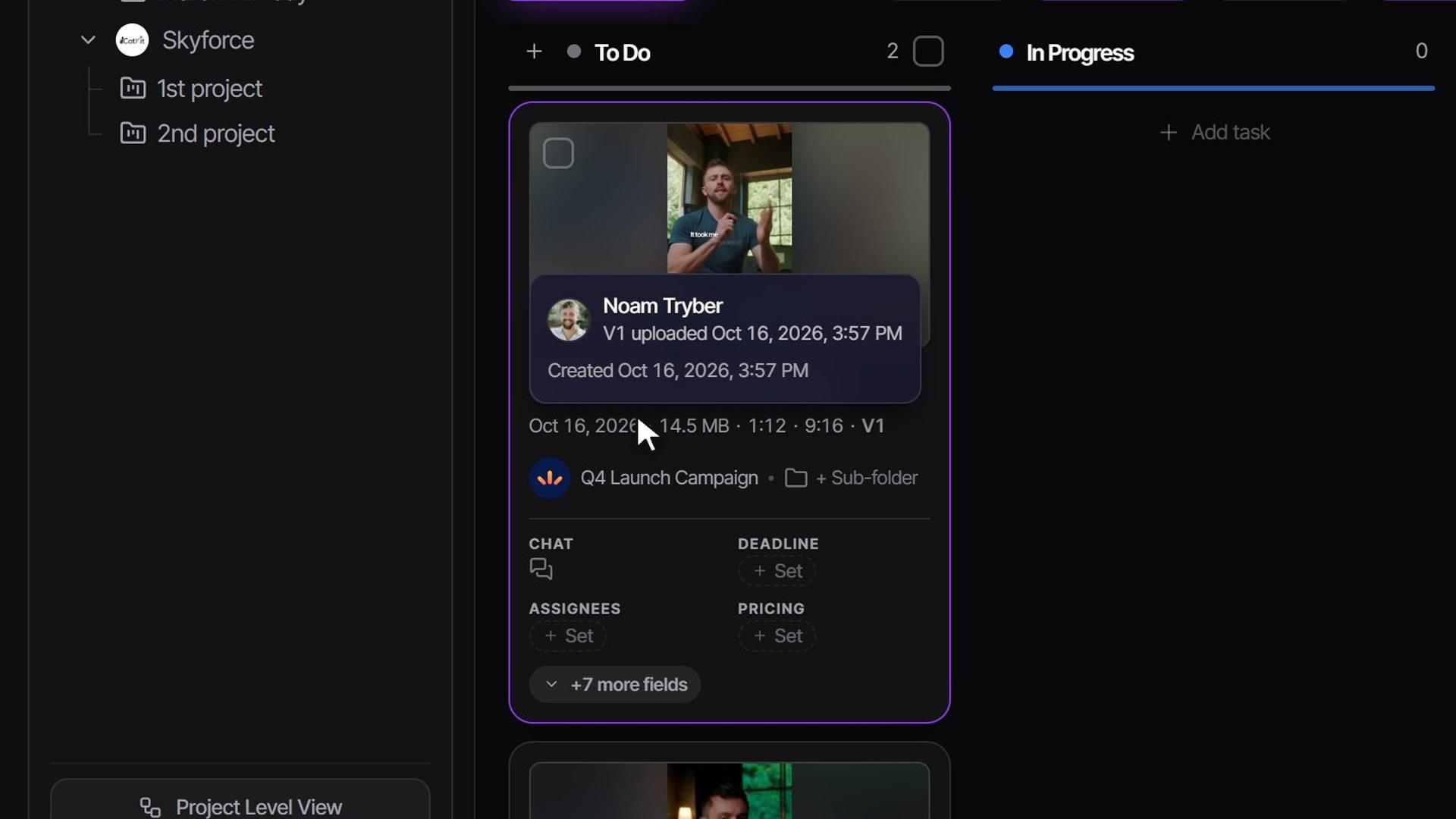
The clearest way to see the whole pipeline is the Kanban view of a project: every column is a status and every card is a deliverable. The same statuses show as groups in the List view.
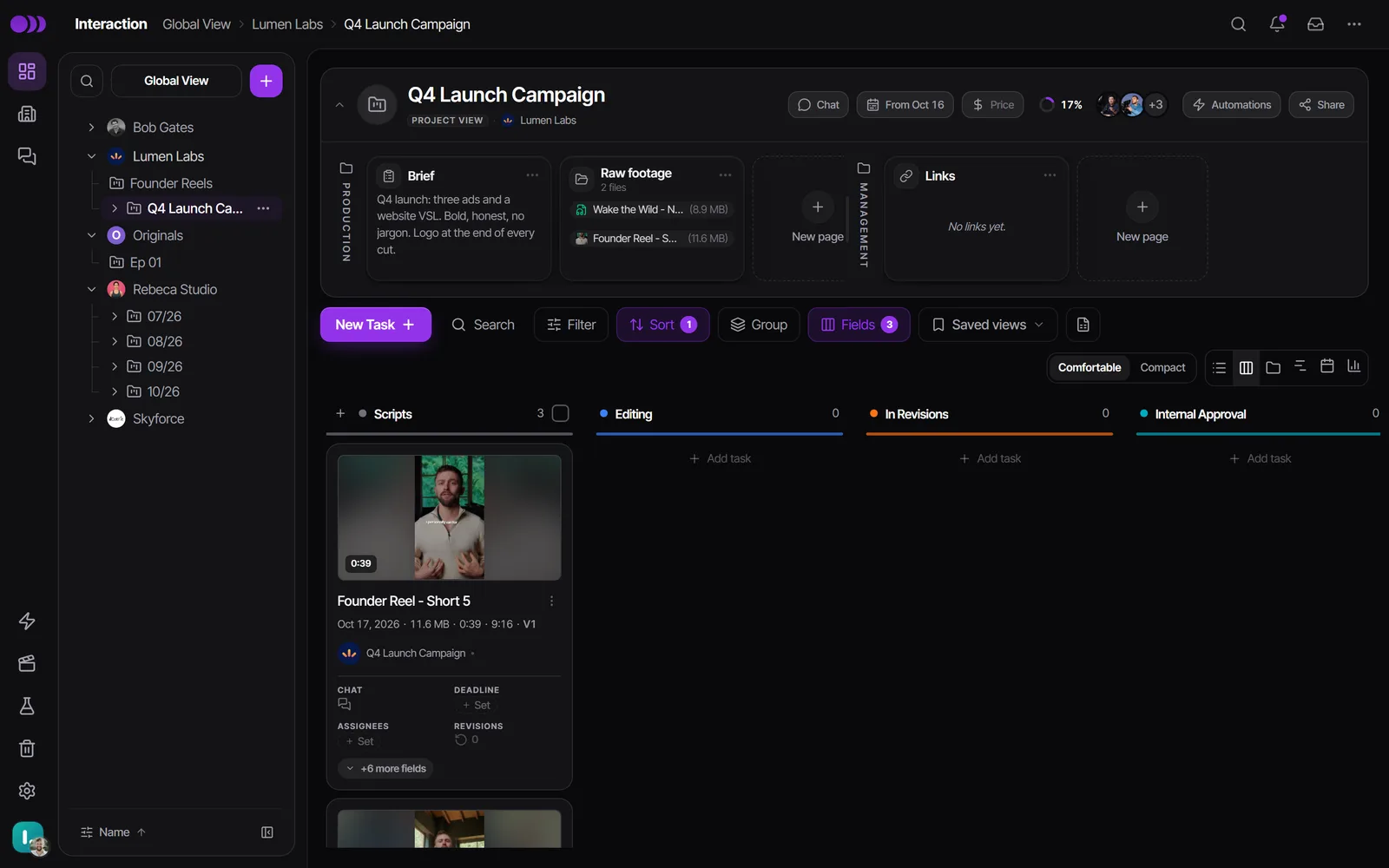
What each status means
| Status | What it means |
|---|---|
| To Do | Not started yet. |
| In Progress | Being worked on right now. |
| In Revisions | Sent back with changes to make. The team is reworking it. |
| Supervisor Approval | Waiting for an internal sign-off before the client sees it. |
| Admin Approval | A second internal sign-off, by an admin. Only on two-approver workflows, or on a brand that switched it on. |
| Client Approval | Waiting for the client to approve or request changes. |
| End Client Approval | Waiting for your client's own client. Only on the Agency + End Client workflow. |
| Approved | Signed off and ready to publish or deliver. |
| Posted | Published or delivered. Only reachable from Approved. |
Your workspace may show fewer columns. The workflow template decides which stages exist, and your admin may have switched off In Progress or Posted, or renamed a stage. For example, Supervisor Approval can be renamed Internal Approval or Internal QA.
Workflow templates
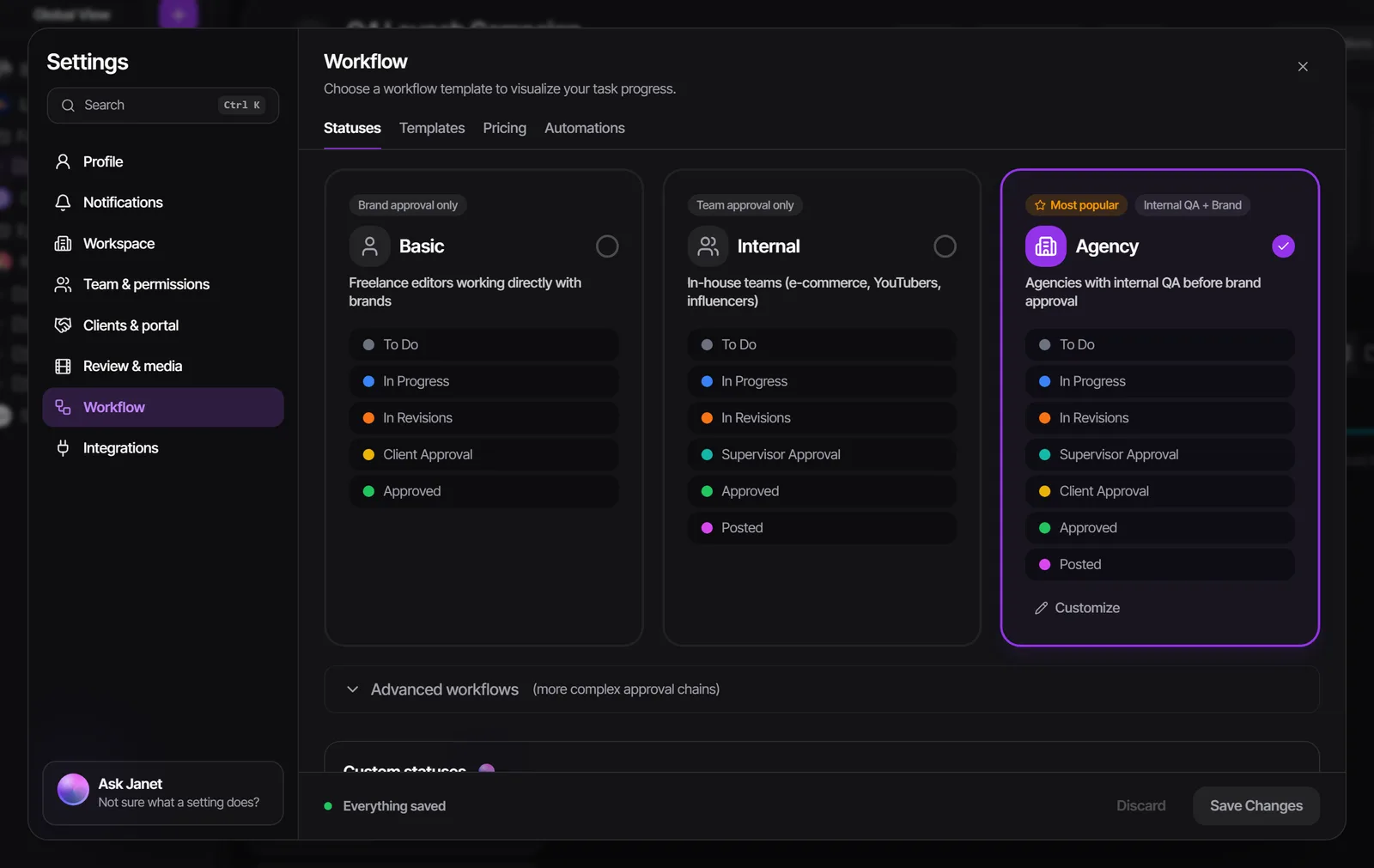
An admin picks the workflow in Settings > Workflow > Statuses. The longer chains are under Advanced workflows.
| Template | Who signs off before it's done |
|---|---|
| Basic | The client only. No internal review stage and no Posted column. |
| Internal | A supervisor or admin. No client stage. |
| Team + Manager + Admin | A supervisor, then an admin. No client stage. |
| Agency | A supervisor or admin, then the client. |
| Agency with 2 Approvers | A supervisor, then an admin, then the client. |
| Agency + End Client | A supervisor, then the client, then the client's own client. |
Switching templates warns you if tasks sit in statuses the new template doesn't have. A workspace can't leave Agency + End Client while end-client brands still exist.
Move a task to the next stage
There are four ways to move a task. Each one only offers the moves your role is allowed to make.
- Drag the card to another column in Kanban, or the row to another group in List.
- Click the colored status pill on a row or card and pick the new status.
- In an open task, use the status menu in the header, or the next-step button beside it: Send for approval, Send to client, Approve or Send Back, depending on where the task is.
- Tick several tasks and pick a status in the selection bar.
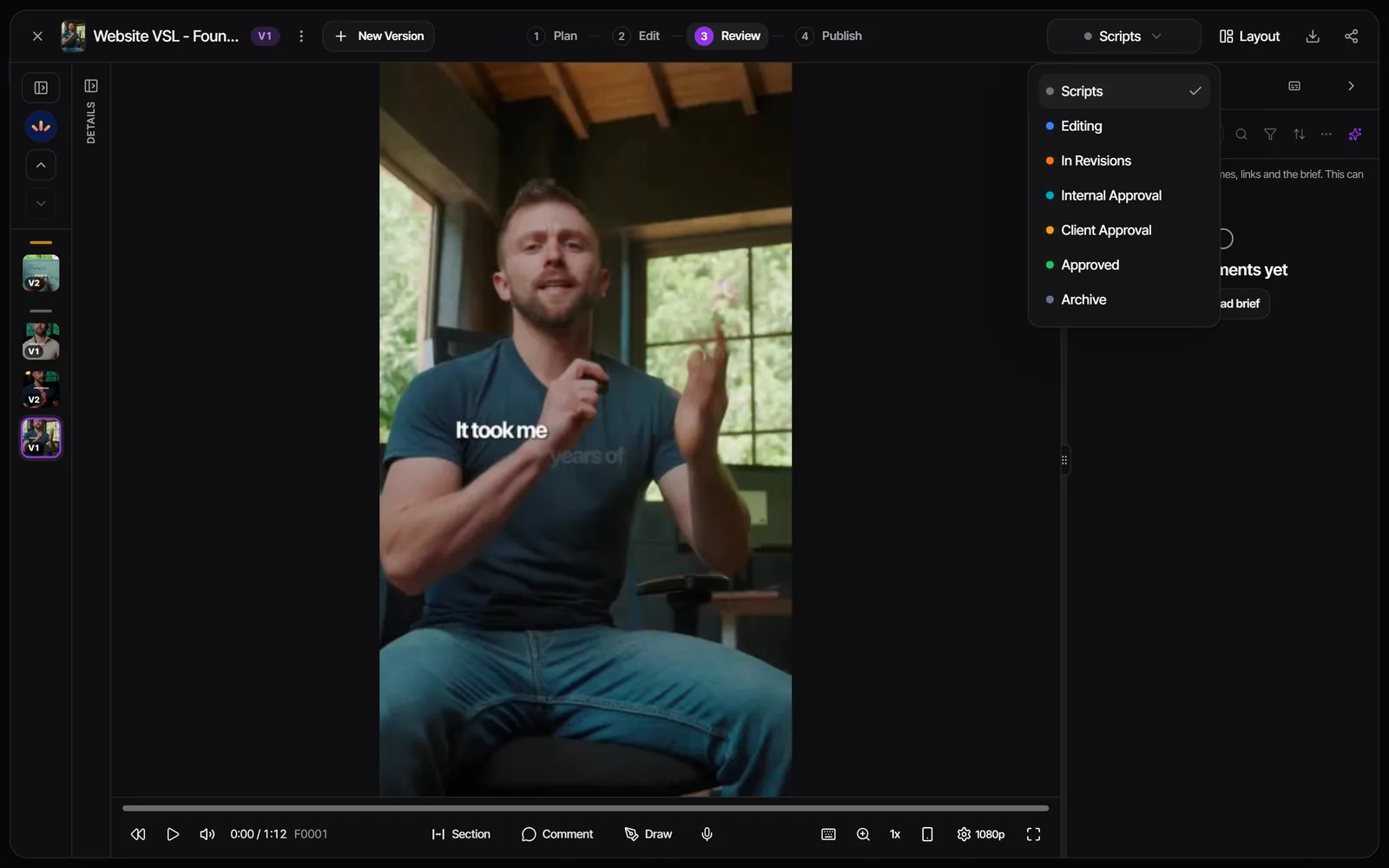
Moves into a review stage notify people, and the confirmation shows Who gets notified before you confirm. Moving into Client Approval tells the client the work is ready to review. If the task has no file yet, the notification waits until a video is uploaded.
Moved something by mistake? After you move one task, a message reads, for example, "Moved to Client Approval · Reversible for 60m" with Undo. On a computer, Ctrl+Z (Cmd+Z on a Mac) undoes your last move too. Notifications that already went out aren't recalled.
How client approval works
When a task reaches Client Approval, your client sees it as waiting for their approval. A client with the approver role can then:
- Approve: the task moves to Approved (or on to End Client Approval when the project is under an end client's brand).
- Request Changes: the task goes back to In Revisions, with their comments attached, and counts as one client revision round.
- Mark approved work as Posted once it's live.
Clients only ever see tasks in the client-facing stages, plus In Revisions once a task has been in client review. Work in To Do, In Progress or Supervisor Approval stays invisible to them unless an admin turns on Show clients every workflow stage.
For a parent task, the client approves each cut on its own or all of them at once. When every cut is approved, the parent moves on by itself.
Who can move what
| Role | Status moves |
|---|---|
| Admin | Any move. Approving before the client did asks for a confirmation. |
| Supervisor | Any move except into Approved, unless an admin turns on Supervisor Approval Override. |
| Editor | To Do to In Progress or Supervisor Approval; In Progress to To Do or Supervisor Approval; Supervisor Approval back to In Progress; In Revisions to Supervisor Approval; Approved to Posted. |
| Guest approver | Approve or request changes at their own review stage, and mark approved work Posted. |
| Guest commenter or viewer | No moves. |
Two switches in Settings > Team & permissions > Permissions widen what editors can do: Extended Editor Permissions lets them move work all the way to Client Approval, and Direct to Brand After First Review lets them send a task the client already reviewed straight back to the client, skipping a second supervisor review. Only supervisors and admins can move a task back out of Posted.
Rename, switch off or add statuses
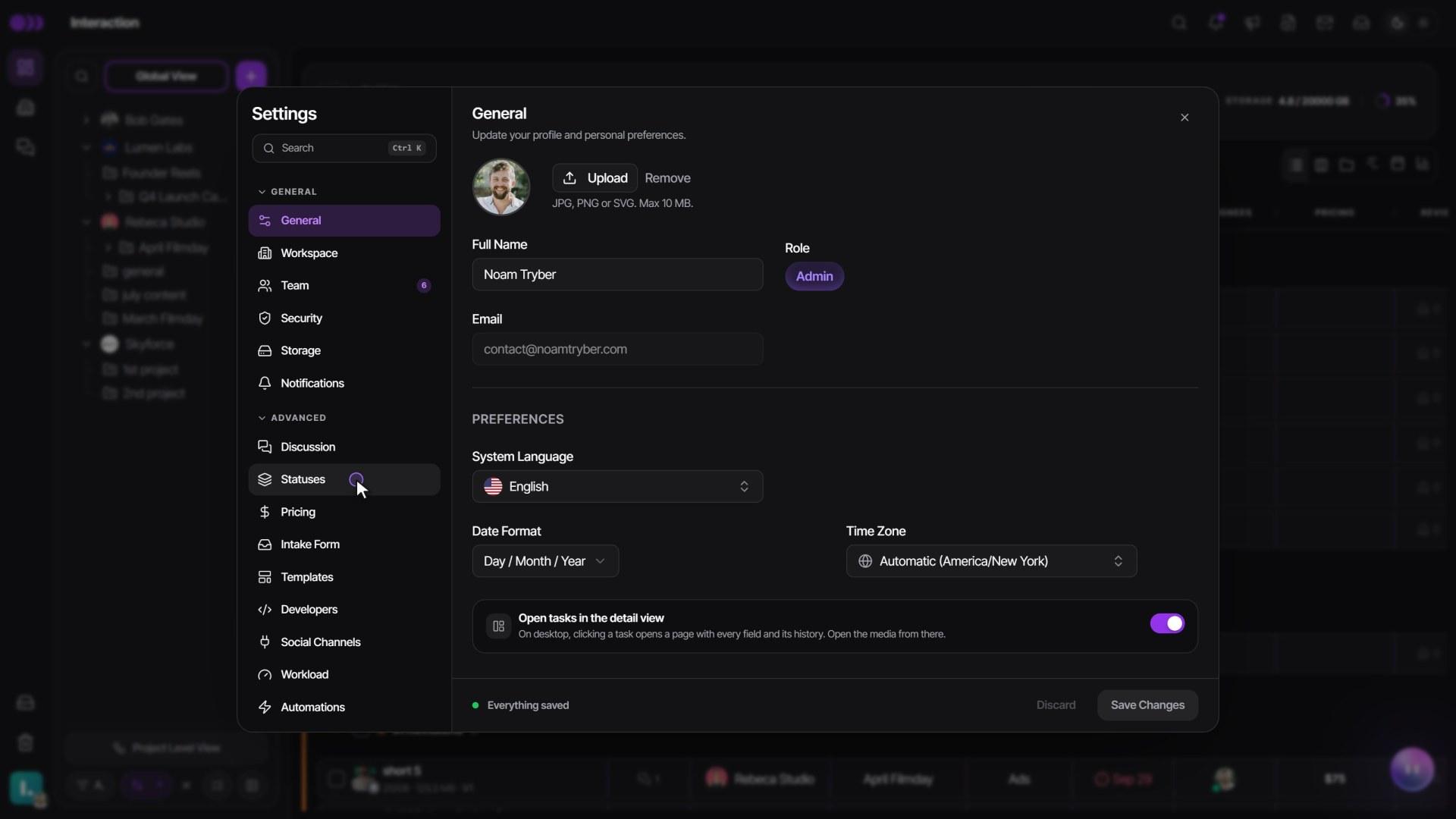
Admins shape the pipeline in Settings > Workflow > Statuses:
- Customize on the template card opens Optional Statuses (switch off In Progress or Posted), Customize Status Names (rename stages in your own words) and Archive Status (an Archive column after Posted, which clients never see).
- The Custom statuses card adds your own steps, such as "Legal sign-off". Click the + after a status, name the step and save. You can add up to 15.
- Click a custom step to rename it, change its color, move it Earlier or Later, or choose Add automation.
- Under Editors who can move tasks here, pick All editors, No editors or Only chosen editors. Supervisors and admins can always move tasks there.
A custom status gets its own Kanban column, but everywhere else it counts as the status it sits after, including what clients can see and who may move it. Custom statuses send no notifications by themselves; add an automation if you want one. A brand can also have its own steps under Edit Brand > Custom statuses for this brand.
Watch it

Questions people ask
Why can't my editor move a task to Client Approval?
By default editors send work to Supervisor Approval, and a supervisor or admin sends it to the client. An admin can turn on Extended Editor Permissions to let editors go further.
Why can't my supervisor approve a task?
Out of the box only admins can move a task into Approved. An admin can turn on Supervisor Approval Override in Settings > Team & permissions > Permissions.
My client says they can't see the video. Why?
Clients only see tasks once they reach a client-facing stage. Move the task to Client Approval and make sure it has a file uploaded.
Can I add a step like "Legal sign-off"?
Yes. An admin adds it in Settings > Workflow > Statuses > Custom statuses, and chooses which editors may move tasks into it.
Can I undo a status move?
Yes, for a single task you moved yourself: click Undo in the message, or press Ctrl+Z (Cmd+Z on a Mac). Moves of several tasks at once can't be undone.
Still stuck?
Ask Janet, the assistant inside Timeliner, email our team, or ask the community on Discord. We answer every message.