Workload and team capacity
See who is overloaded and who has room, step by step: time estimates, weekly capacity, scheduling work, time off, reassigning and auto-assign.
7 min readUpdated November 7, 2026
Video lesson: Workload: Drag to Reassign
Overview
The Workload view answers the staffing questions every agency owner asks: who is overloaded, who has room this week, and can we take on a new client? It shows one row per team member and, for each day or week, the hours they are booked against the hours they have.
It only works if Timeliner knows two things: how long each task should take, and how many hours each person has. This page explains both, with a worked example, before going through the screens. Workload is for your team only; clients never see it.
How Workload counts hours
- Capacity is how many hours a person has. Each workspace sets a Default weekly capacity (40 hours unless you change it) and its Working days. You can give any person their own number.
- A task books hours once it has a start date, a due date, at least one assignee and a Time estimate. The estimate is spread evenly over the working days between the start and the due date.
- Several people on one task split its hours evenly, unless you set each person's hours in the Per-assignee breakdown (for example 22 hours for the editor and 2 for the thumbnail designer).
- Blocks change the picture: a Production or Other block (a shoot day, a location scout) adds hours; a Time off block (vacation, a public holiday) removes capacity for those days.
- Internal work from HQ boards counts too, so someone busy on internal projects never looks free.
Each person then gets a status: Available, At capacity, Overbooked, On vacation, or No estimates when nothing they hold has hours yet. Team pulse counts how many people are in each.
A worked example: Dana's week
Dana is an editor with the default 40 hours a week, Monday to Friday. That is 8 hours a day.
| What you do | What Workload shows for Dana |
|---|---|
| Book a launch ad with a 24-hour estimate, Monday to Wednesday. | 8 hours a day Monday to Wednesday. Those days are full; Thursday and Friday are free. Status: Available. |
| Add a 16-hour reel, Wednesday to Thursday. | The reel books 8 hours on each of its two days, so Wednesday now has 16 hours against 8. Timeliner warns you while you schedule it, and Dana shows as Overbooked. |
| Add a Time off block for Friday. | Friday's capacity drops to 0, so her week has 32 hours to give, not 40. A task dropped on Friday is refused. |
| Drag the reel's bar onto Sam's row. | The reel and its 16 hours move to Sam. Dana is back to 24 hours this week, with Thursday free. |
Not sure who should take it? Look at the free hours in each person's row for that week. The person with the most room under their capacity is your best pick.
Open Workload and read the grid
- From your workspace home, click Workload in the view switcher.
- Pick Timeline for the capacity grid (one row per person) or Calendar for the same bookings on a Month, Week or Day calendar.
- On the Timeline, switch between Days and Weeks. Use Previous, Today and Next to move in time.
- Open View to filter: Filter by brand, Filter by member, Hide done, and Work shown (all work, client work or internal work).
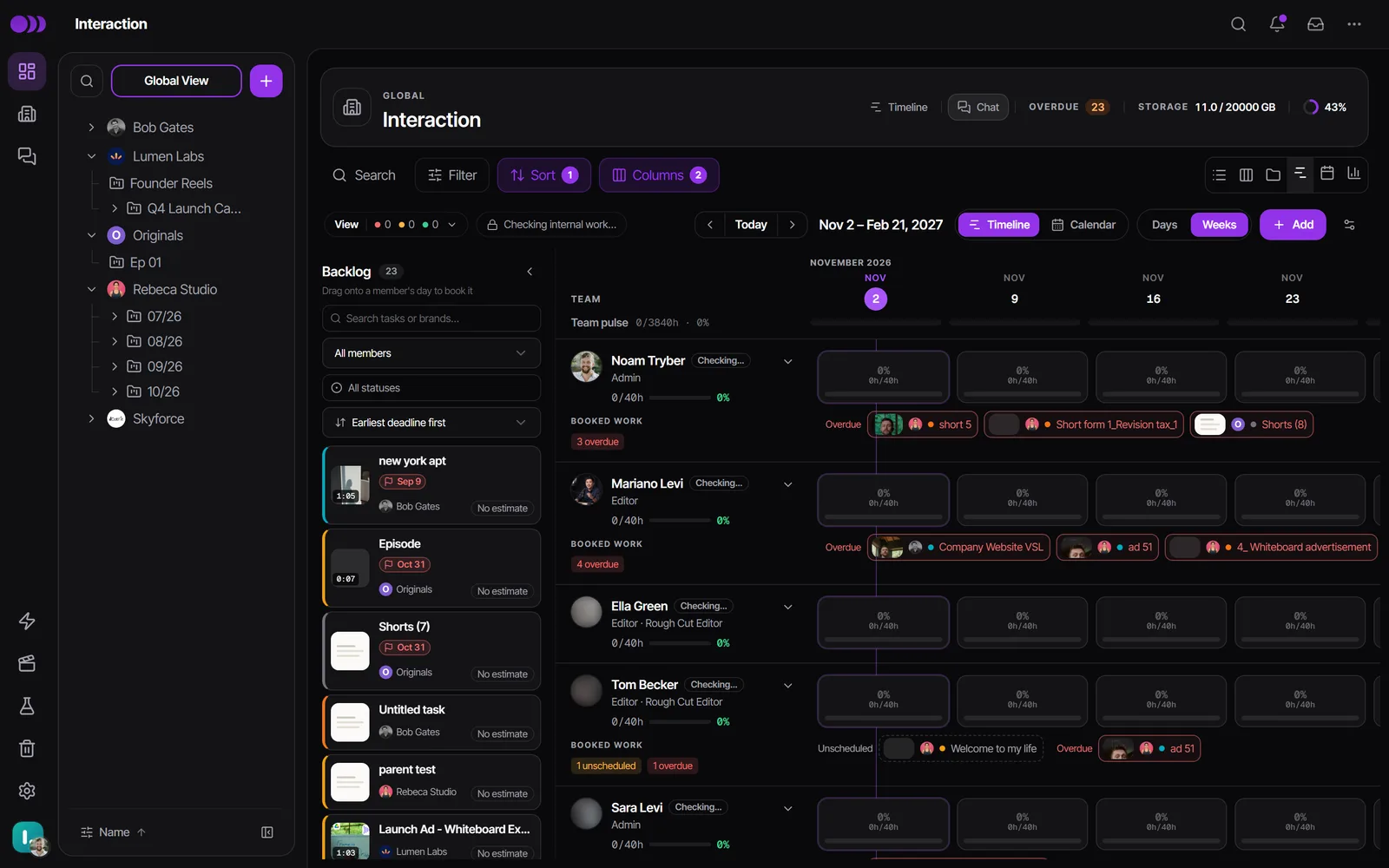
- Hover a task to see its frame, brand, project, stage, dates, hours and assignees.
- Unscheduled lists a person's tasks that have no dates yet; they book no hours. Overdue lists work whose window has ended.
- Inside one brand, only that brand's bars are drawn, but each person's meter still counts all their hours, with the rest shown as a muted share. So someone busy on another client never looks free.
- Show task counts in the view menu switches the day tiles from hours to the number of open tasks, which is handy for "how many ads per editor per day".
Estimate and schedule work
- Click a task's estimate chip on its bar, its card, or the Time est. column in the list view to open the Time estimate popover.
- Enter the total in hours and minutes ("1h 40m" is typed as 1 and 40). Use Per-assignee breakdown to give each person their own hours, or Split evenly.
- To book it, drag a task from the Backlog onto a person's day. Dropping it on a different person adds them as an assignee.
- Drag a bar to move it, or drag its edge to make it longer or shorter. Remove from timeline sends it back to the Backlog.
- In Calendar, dropping an unassigned task opens Assign & schedule: click a person and the task is theirs from that day.
- While you schedule, Timeliner warns about clashes, such as "Dana is over capacity on Tue — 10h booked vs 8h" or someone's time off.
- Save time with task types: in Settings -> Team & permissions -> Workload, pick a Task type column and give each type an estimate and a length in days. Setting a task's type fills in its empty estimate and dates.
Rebalance the team and book time off
- To hand work to someone else, hold a task bar on the Timeline and drop it on their row. They replace the first person and take over the hours. Hold Alt (Option on a Mac) while dropping to add them alongside instead.
- To book a shoot day or a vacation, click Add block in the header.
- Fill in Member, Title and Type (Production, Time off or Other), the Start date, End date and Hours per day. For several days, choose Per day or In total.
The person who receives a task gets the usual assignment notification. The person it moved away from is not notified. When someone leaves or goes on long leave, Reassign work in their row menu in Settings -> Team & permissions -> Members moves all their open tasks in one go.
Capacity settings and auto-assign
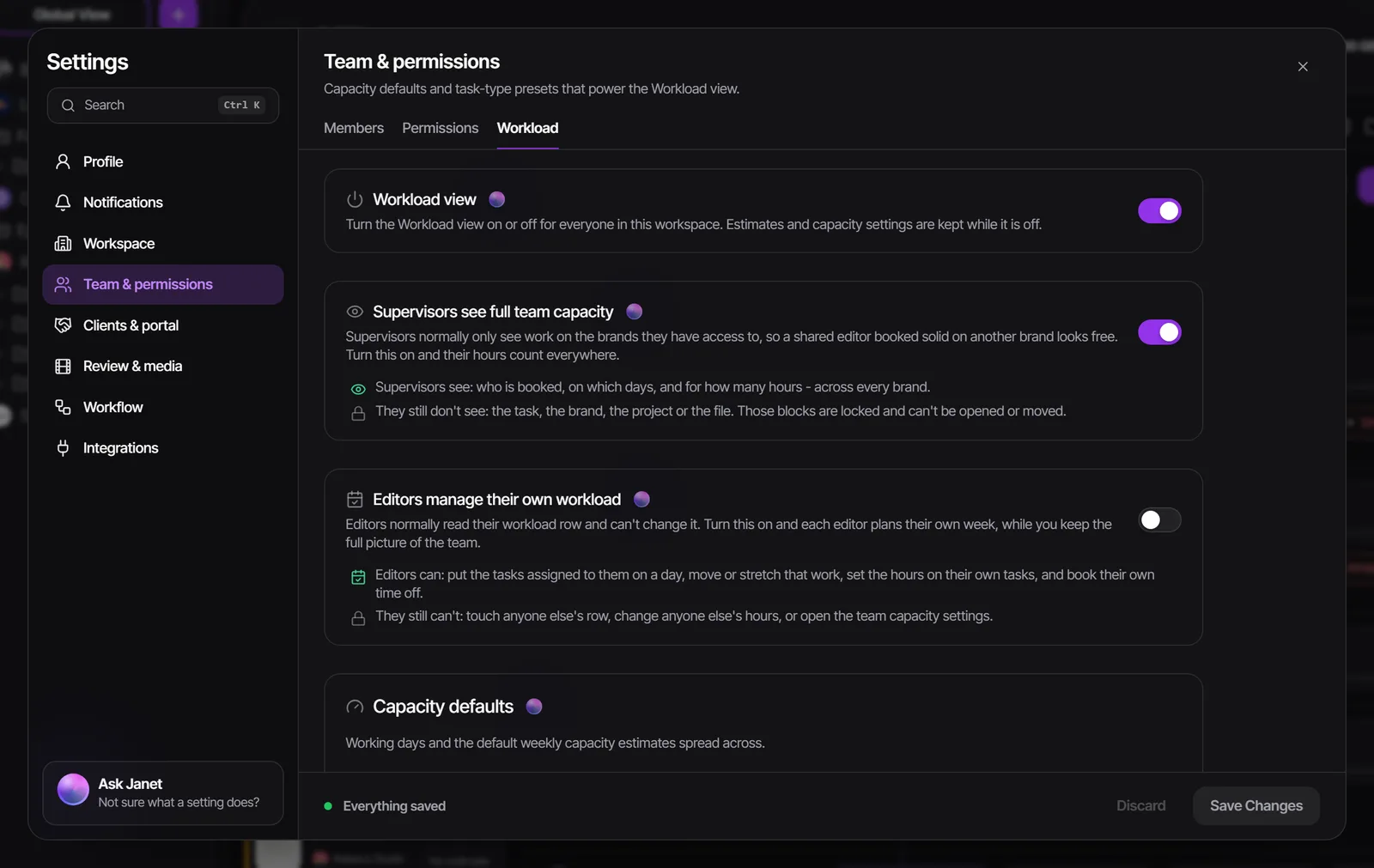
- Open Settings -> Team & permissions -> Workload (admins).
- Under Capacity defaults, set the Working days and the Default weekly capacity.
- For one person's hours, use Capacity settings -> Member capacities in the Workload header.
- Under Auto-assign, pick the Auto-assign method: Lowest workload gives a new task to whoever has the lightest next two weeks; Monthly target gives it to whoever is furthest below their monthly number of tasks.
- Set A task with no time estimate counts as so people holding un-estimated tasks don't look free to auto-assign.
- Auto-assign runs from an automation rule with the Auto-assign action. See Automations.
- Editors manage their own workload lets editors schedule and estimate their own tasks and book their own time off, on their own row only.
- Supervisors see full team capacity shows supervisors the hours people have booked on brands they can't open, as locked Booked elsewhere blocks with no task details.
- When work slips can move unfinished work to the person's next working day each morning, and tell someone. It is off by default and never moves a client-facing deadline.
See your schedule in Google Calendar or Outlook
- In Workload, open View -> Calendar sync.
- Click Create calendar link, then pick Google Calendar, Outlook or Apple Calendar.
It is a live, one-way feed of your own scheduled tasks and blocks. New and moved work appears on its own; Google Calendar can take up to 24 hours to refresh. Each person makes their own link. Get a new link replaces it and Disconnect stops it.
Who can do this
| Role | What they can do in Workload |
|---|---|
| Admin | See everyone, schedule and reassign work, add blocks, set capacity, turn the view and its settings on or off. |
| Supervisor | See everyone on the brands they belong to, schedule and reassign work, add blocks, set member capacity. |
| Editor | See their own row, read-only. With Editors manage their own workload on, schedule their own tasks, set their own hours and book their own time off. |
| Client | No access. |
Workload and time estimates come with the Agency and Scale plans. On other plans the view opens as a blurred preview with an upgrade card. See pricing.
Watch it
Questions people ask
Why does someone look free when I know they're busy?
Their tasks probably have no time estimate or no dates, so they book no hours. Check their Unscheduled list and add estimates. Internal HQ work only counts once the card has a due date, an assignee and a time estimate.
Can my editors plan their own week?
Yes. An admin turns on Editors manage their own workload in Settings -> Team & permissions -> Workload. Editors then schedule and estimate only the tasks assigned to them.
Does Workload sync with Google Calendar?
One way, yes. View -> Calendar sync -> Create calendar link gives each person a live feed of their own bookings. Changes in Google Calendar don't come back to Timeliner.
How do I move all of someone's work to another editor?
Drag single tasks between rows in Workload, or use Reassign work in the person's row menu in Settings -> Team & permissions -> Members to move all their open tasks at once.
Can I turn Workload off?
Yes. An admin switches off Workload view in Settings -> Team & permissions -> Workload. Estimates and capacity settings are kept for when you turn it back on.
Still stuck?
Ask Janet, the assistant inside Timeliner, email our team, or ask the community on Discord. We answer every message.