Storage, files and the Trash
Where each kind of file belongs, how storage is counted, how to see what uses space and clean it up, and how to restore something from the Trash.
5 min readUpdated November 7, 2026
Video lesson: Storage Management
Overview
Video files are big, so it pays to know where each file lives and what takes up your space. Every file in Timeliner sits in one of a few places, all of them reachable from the Library. Admins and supervisors also get a Storage card there that shows what is using space and offers one-click cleanups.
Nothing you clean up is gone right away: it goes to the Trash first, where it can be restored for 30 days.
Where each file goes
| The file | Where to put it |
|---|---|
| Raw footage, audio, b-roll for one project | The project's Raw footage |
| Logos, fonts, LUTs, anything the brand reuses in every project | The brand's Brand assets |
| Sound effects, music or templates every brand uses | Workspace assets, uploaded once from the Library |
| The cut you send for review | The task itself |
| A new cut after feedback | The same task, with Upload new version, so the comments and history stay together |
| The Premiere, After Effects or Resolve project | The task's Media tab, under Editing project file |
Videos, audio, images and documents (PDF, Word, PowerPoint, Excel) open for review right in Timeliner. Editing projects, camera raw and design files can't be a task's file; keep them in Raw footage, where they upload and download but have no preview. The full list is on the supported formats page. There is no size limit per file, only your workspace's storage.
Uploading a whole shoot? In the project's Raw footage, click Add -> Upload Folder (or drag the folder in). Every subfolder is kept, no zipping needed.
How storage is counted
- Each plan includes storage: 3TB on Studio, 8TB on Agency and 20TB on Scale. Every extra seat adds 250 GB. See pricing.
- Everything your team and clients upload counts: deliverables and their older versions, raw footage, brand files, comment attachments and HQ files.
- Files in the Trash still count until they are deleted for good, either automatically after 30 days or when an admin deletes them permanently.
- Admins and supervisors see storage used at the top of the avatar menu.
When storage is full, new uploads stop with "Storage limit reached". Free up space (below), or an admin adds seats or moves to a bigger plan, then upload the file again.
See what uses your space
- Click Library in the left sidebar. (The Storage & cleanup link in the Library opens the card directly.)
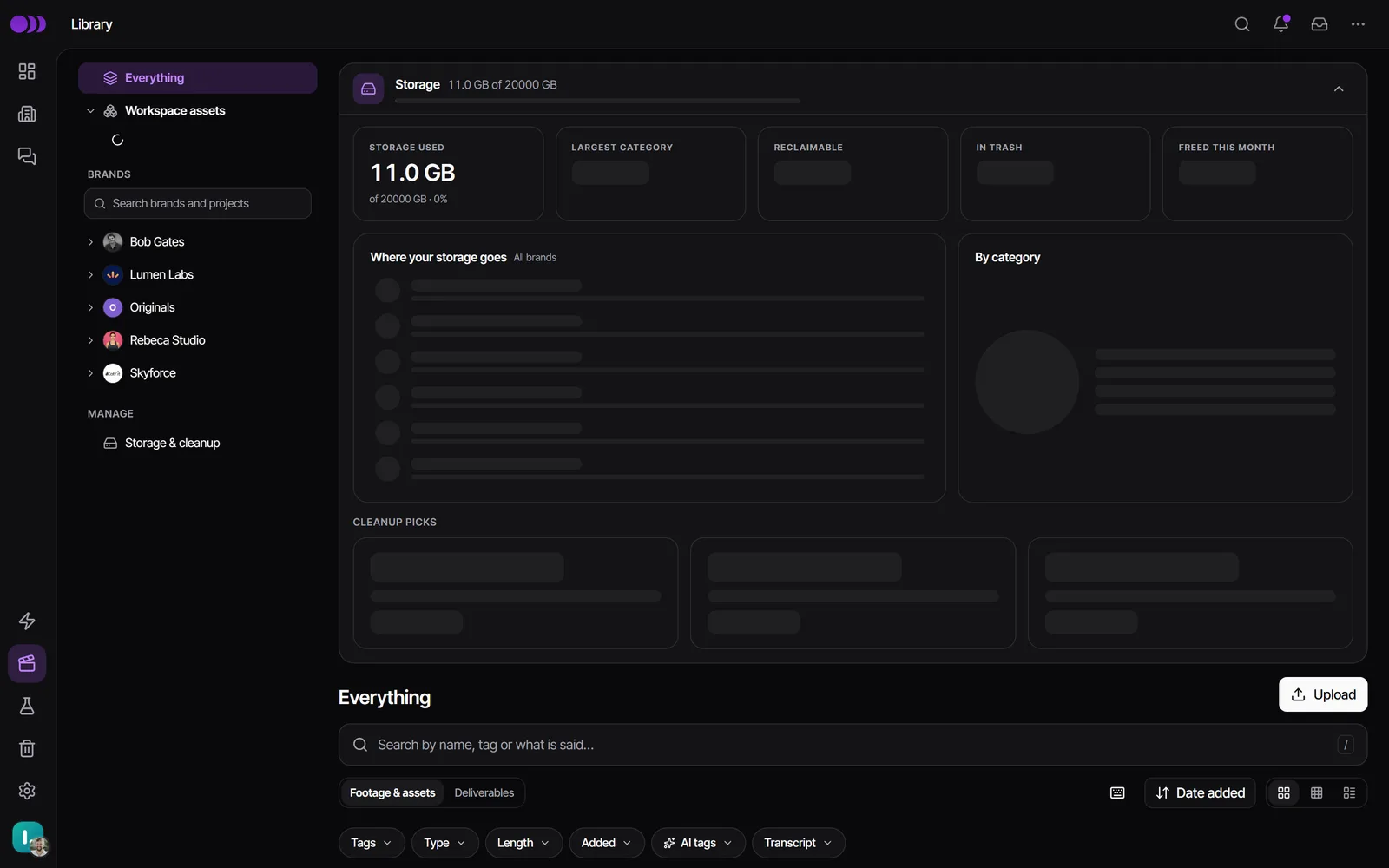
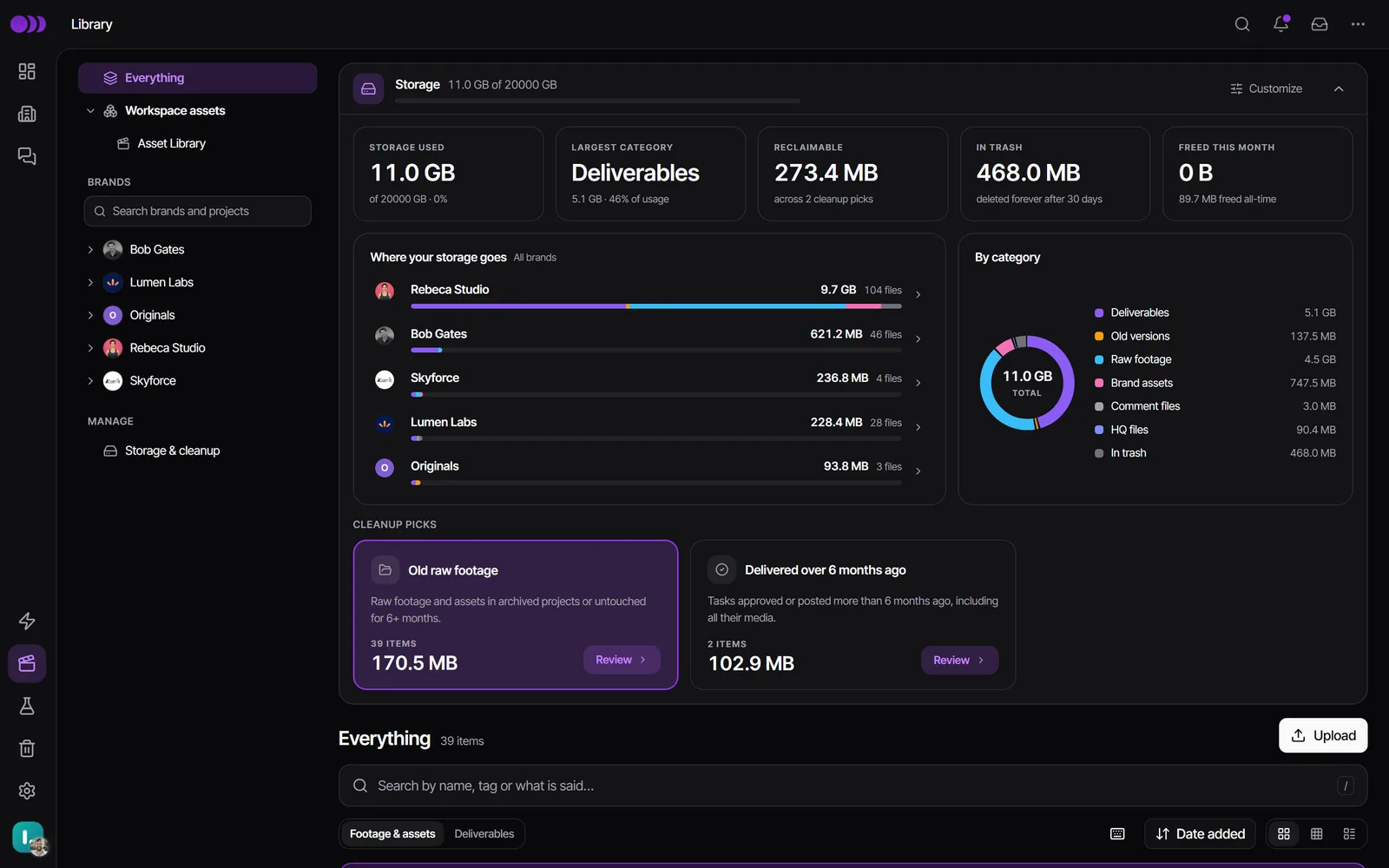
- Open the Storage card at the top. The tiles show Storage used, the largest category, Reclaimable, In trash and Freed this month.
- Below them, Where your storage goes breaks usage down by category (deliverables, old versions, raw files and so on) and by brand and project. Click a row to open it.
Supervisors see only the brands they belong to. Editors use the Library but don't get the Storage card. An admin can use Customize on the card to choose its parts and Start collapsed for everyone.
Free up space
- In the Storage card, look at the cleanup suggestions: Old versions of delivered tasks (each task's final version stays), Delivered over 6 months ago, Archived task media, Old raw footage and Large stale files (over 1 GB, untouched for 6 months or more).
- Click Review on one. Its files are listed in the Library so you can check them.
- Click Move all to trash, then Done. An Undo message appears right away, with View in Trash.
To pick files yourself, filter the Library by brand, type or size (for example Over 1 GB), sort by size, select the files and use Download to keep a copy, then Move to trash.
Janet can do this for admins and supervisors too: ask "what's using my storage?" and she'll read the breakdown and offer to move a cleanup pick to the Trash after you confirm.
Restore something from the Trash
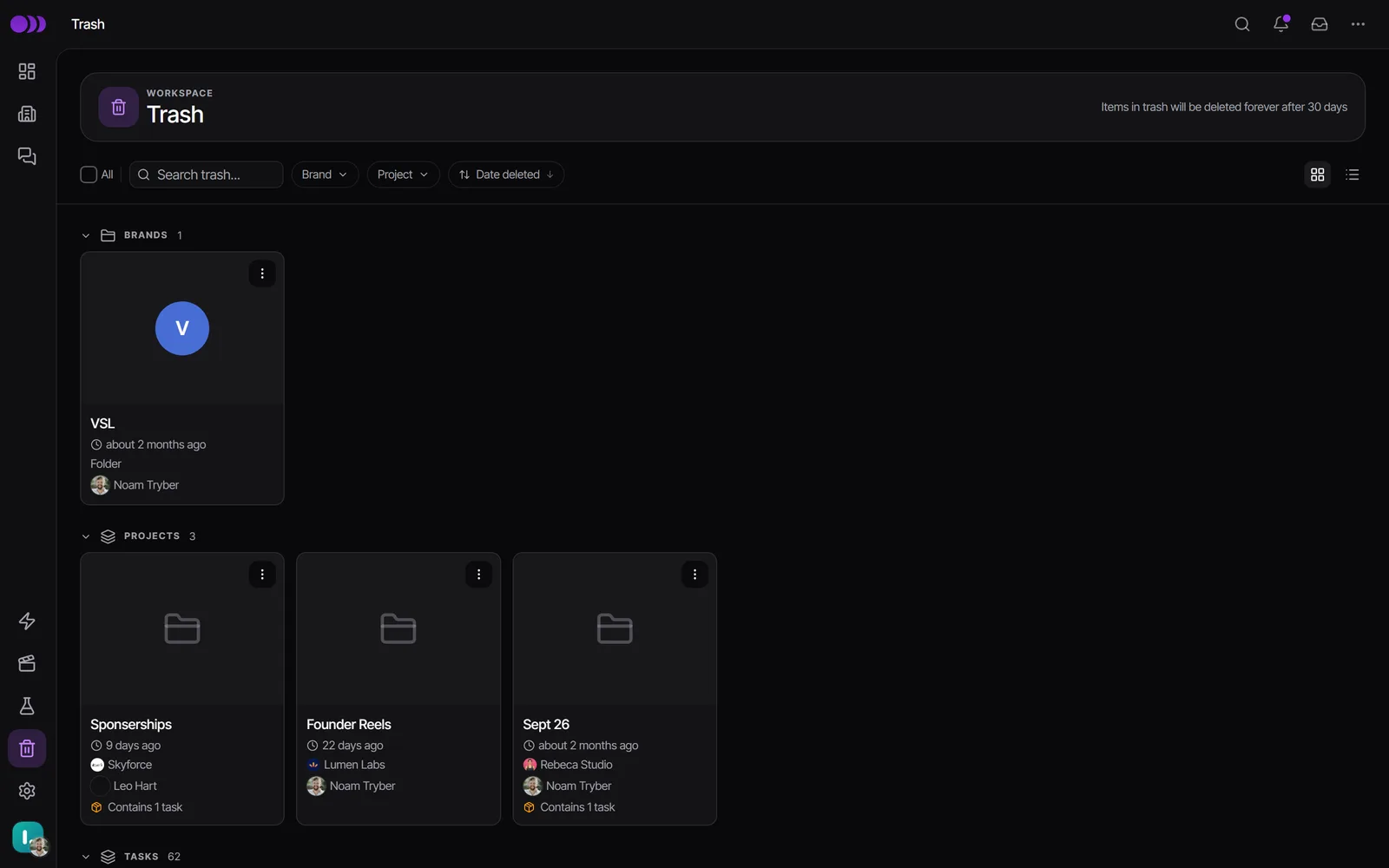
- Click Trash in the left sidebar.
- Find the item with Search trash... or the brand and project filters. It is listed under Brands, Projects, Tasks, Task versions or Raw footage.
- Click Restore on it (or select several and click Restore once). It goes back where it was, with everything inside it.
| Role | Sees and restores | Deletes permanently |
|---|---|---|
| Admin | Everything | Yes, with Delete permanently (can't be undone) |
| Supervisor | Items in the brands they belong to | No |
| Editor | Only what they deleted themselves | No |
| Client | No Trash page | No |
Every row shows who deleted it under Deleted by. Items are deleted for good 30 days after they were moved to the Trash, so restore what you need soon.
Downloads and the Files guide
- Your team can download any file they can open. Clients download according to the Download Policy an admin sets in Settings -> Review & media -> Downloads & revisions: Always Allow, Allow After Approval (the default) or Manual Toggle (Blocked Even After Approval).
- A company network or VPN can block file storage. If uploads stop with "Can't reach our file storage", send your IT team the IT allowlist.
- For a printable overview, the Files, Storage & Downloads guide (PDF) covers where files go, uploading, storage and downloads on six pages. Get it from Janet by asking "how does storage work?".
Questions people ask
I cleaned up but my storage still says full. Why?
Cleaned-up files wait in the Trash and still count until they are deleted for good, 30 days later or sooner if an admin deletes them permanently. The In trash tile shows how much that is.
Do old versions of a video use storage?
Yes. The Old versions of delivered tasks cleanup moves them to the Trash and always keeps each task's final version.
Is there a file size limit?
No per-file limit. Only your workspace's total storage limits uploads.
Can I get back something I deleted a while ago?
Open Trash and search for it. Items stay there for 30 days. If it isn't there, contact support through Get Help -> Live Support.
Do my clients' uploads count toward my storage?
Yes. Everything uploaded into your workspace counts, whoever uploaded it.
Still stuck?
Ask Janet, the assistant inside Timeliner, email our team, or ask the community on Discord. We answer every message.