Janet and the AI tools
Ask Janet, Timeliner's AI assistant, to find and change things for you, and use transcripts, AI footage tags and AI captions in your daily work.
6 min readUpdated November 7, 2026
Video lesson: Janet Starts With Actions
Overview
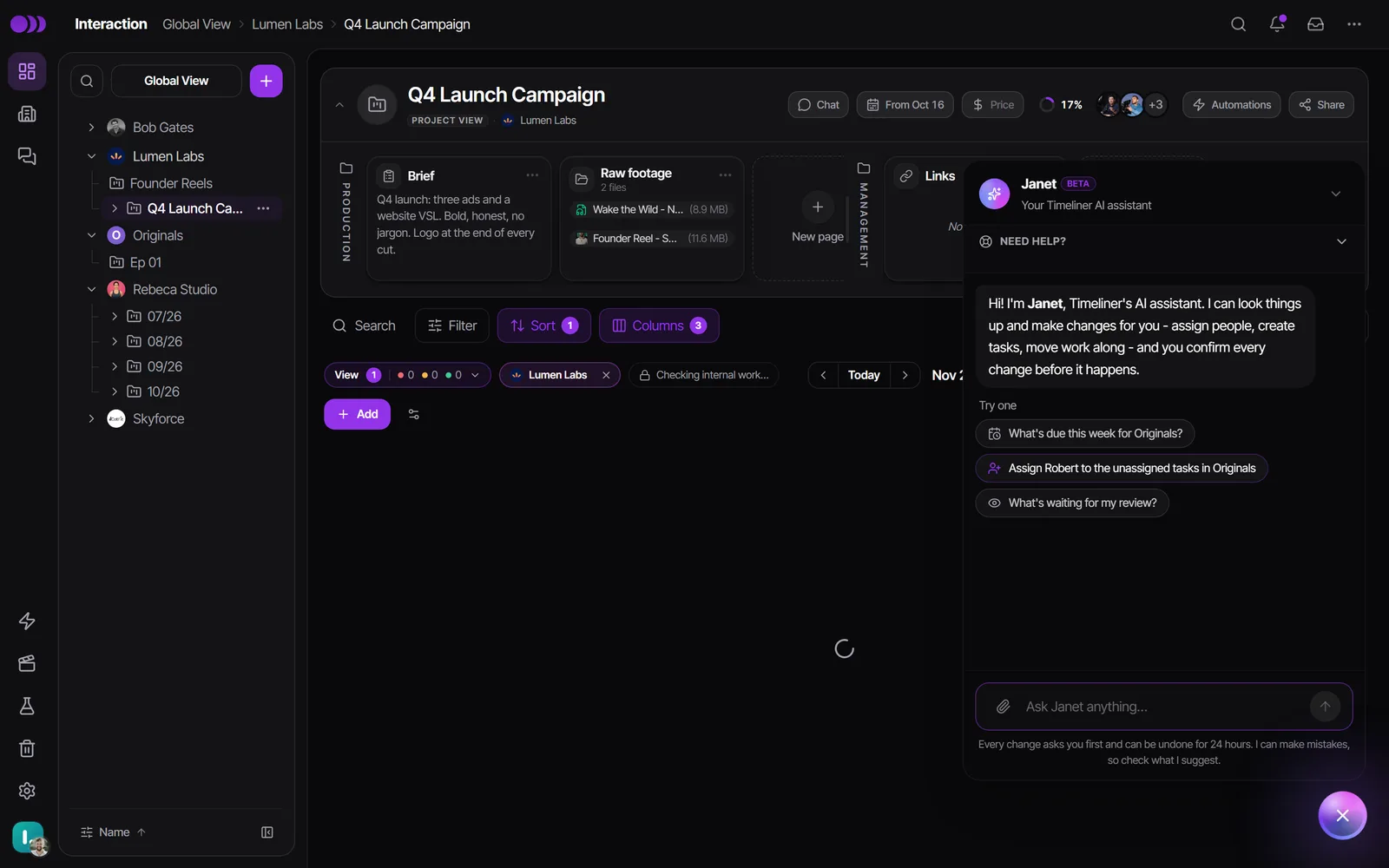
Janet is Timeliner's AI assistant. She answers questions about how Timeliner works, looks things up in your workspace ("what's due this week?", "who has room next week?") and makes changes for you after you confirm them. Admins, supervisors and editors can use her; clients can't.
Around Janet sit a few AI tools you use inside your normal work: video transcripts, AI tags for footage, and AI captions for social posts. If your team already lives in Claude or ChatGPT, you can also connect them to your workspace.
Talk to Janet
- Click the round Janet button in the bottom-right corner of the app (Chat with Janet).
- Type a question in Ask Janet anything…, or tap one of the buttons under Try one. They are built from your real work, for example "What's due this week?" or "Which tasks have no one assigned?".
- To start over, use Start a new chat.
- She replies in the language you write in.
- You can attach a screenshot (JPG, PNG, GIF or WebP) and ask about it.
- When she points you to a screen, she can offer Take me there to open it for you.
- Editors get their own starter buttons, such as "What's on my plate this week?".
What Janet can look up and change
Looking things up is instant and changes nothing: brands, projects, tasks, deadlines, comments, your team, scheduled posts, workload, storage and transcripts. Admins and supervisors can also ask about money, analytics and tracked time. She only sees what you could see yourself.
Making changes always goes through a confirm card. Depending on your role, she can create brands, projects and tasks, rename things, set deadlines and briefs, assign editors, move a task to another status, add someone to a brand, change a workspace setting, write a post caption, schedule a post, book time in Workload and more.
- Ask for the change in plain words, for example "Assign Robert to the unassigned tasks in Originals".
- Janet checks the details first, then shows a Confirm this action card that says exactly what she will do and who, if anyone, will be notified.
- Click Confirm to go ahead, or Cancel.
- After a change she offers Undo. Most changes can be undone for 24 hours.
Moving a task to Approved or Posted can't be undone, and some changes notify people (for example, inviting someone emails them right away). The confirm card says so before you click. Janet can't upload files, watch videos, change billing or delete anything permanently.
Janet in other places
- In a task's brief: under Plan -> Task brief, team members get Plan it with Janet, Write it for me and Improve it. Janet writes the script and brief from the brand's guidelines, voice and best posts and saves it to the brief.
- In Settings: every setting has a small help icon, and the Ask Janet row opens her on top of Settings to explain what a setting does or recommend one for your setup.
- In the automation builder: a flow's Janet tab helps you build the automation by describing it.
Transcripts
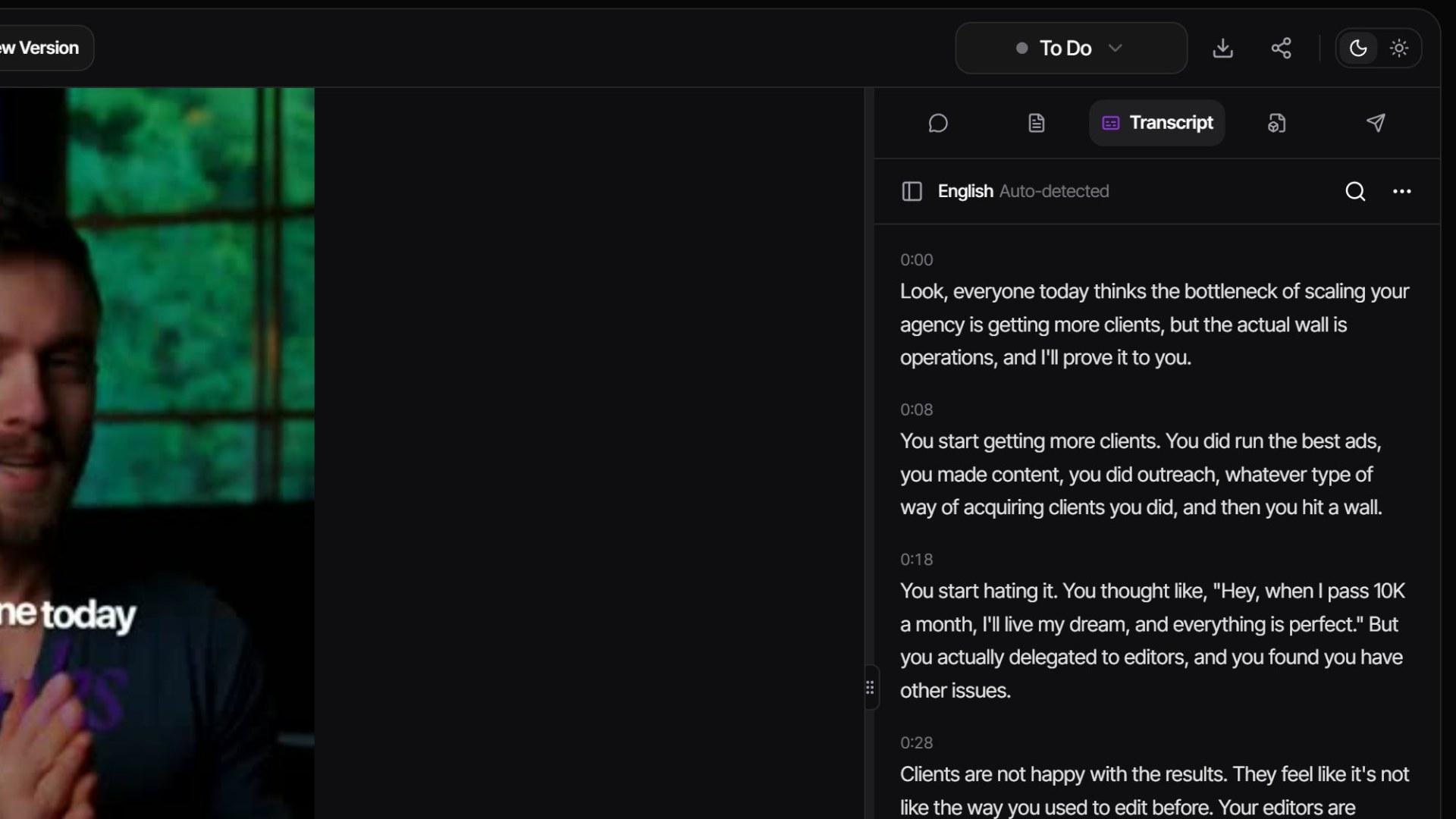
- Open a video for review and go to the Transcript tab.
- Click Transcribe. A small chip shows the credits it will use before it starts.
- Click any line to jump the video to that moment, or search for a word.
- Drag across a few words to leave a comment on exactly that part of the video.
- Download it as SRT or TXT from the transcript's menu, for captions or for your editor.
Transcripts come with every current plan (Studio and up). Admins can turn the tab on or off with Transcripts in Settings -> Review & media -> Video review. Clients with comment or approval access can transcribe too.
AI footage tags and AI captions
AI footage tagging looks at a clip's frames (and its transcript, if it has one) and tags it with things like shot type, setting and mood, plus a short summary and quality flags such as shaky or low light. That makes footage easy to find later in the Library.
- An admin opens Settings -> Review & media -> Video review and sets AI footage tagging to On request or Automatic on upload (it starts Off).
- On request: select clips in the Library and click Tag with AI, or use Tag all footage. A dialog shows how many credits it can use before anything is charged.
- When it finishes, the AI tags appear with a sparkle. In the file's Tags panel, click Keep or Not right on each one.
- The AI never names or identifies people. Tags a person added are never overwritten.
- Detail sets Standard (most detail) or Light (much cheaper, for big archives).
- In a tag column, Suggest tags proposes tags for a task from its title, brief and transcript.
- In the post composer, the AI button writes a caption from the video, tuned for each network. For YouTube it can draft the title and tags too.
Use Claude or ChatGPT with your workspace
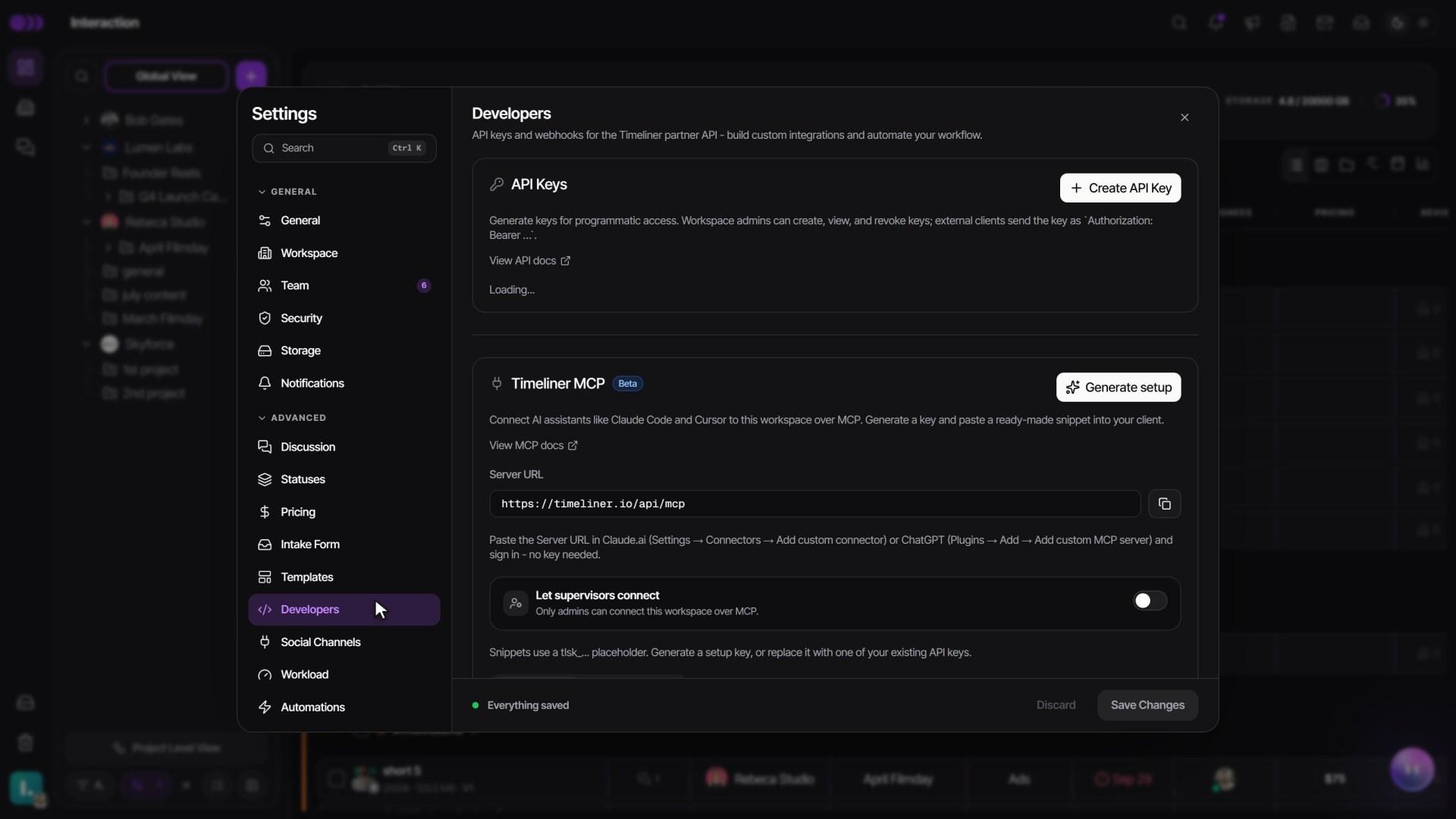
If you already use Claude or ChatGPT, connect it to Timeliner through the Timeliner MCP and ask your questions there: "What's waiting on my client?", "Which videos worked best for this brand?", "Move this to approved". It only ever sees your one workspace. An admin sets it up in Settings -> Integrations -> API & webhooks, on the Agency and Scale plans. Step by step: Integrations and API.
Plans and credits
- Janet is on every plan, for admins, supervisors and editors. Each plan includes free messages to her every month; after that, each message uses the workspace's credits.
- Transcripts, AI footage tagging, AI captions and tag suggestions, and WhatsApp notifications also use credits.
- AI QC checks use credits too (they are free during the beta), and so do AI thumbnails, made with image models like Nano Banana 2 and GPT Image 2. The price shows before anything runs, and work that fails is never charged.
- Credits renew every month: Studio includes 1,200, Agency 2,500 and Scale 3,400, and each extra seat adds 250 more. Enterprise credits are sized to the organization.
- Admins see the balance, this month's free Janet messages and what uses credits in Plan & Billing -> Credits (from the avatar menu). Monthly credits per plan are on the pricing page.
Watch it
Questions people ask
Can Janet change things without asking me?
No. Every change shows a confirm card first and only happens when you click Confirm. Most changes can be undone for 24 hours.
Can my clients use Janet?
No. Janet is for your team: admins, supervisors and editors.
Can Janet watch my video and give feedback?
No, Janet can't watch or listen to video. She can read a task's comments and its transcript, and you can play two versions side by side with Compare in the review player.
Does Janet see everything in the workspace?
She sees only what the person asking could see. An editor asking about money gets only their own pay.
Is Janet free?
Every plan includes free messages each month. After those, messages use the workspace's credits. Admins can see how many free messages are left on the Credits tab.
Still stuck?
Ask Janet, the assistant inside Timeliner, email our team, or ask the community on Discord. We answer every message.