Versions and comparing cuts
Upload each new cut as a version of the same task, see who uploaded what and when, and compare two versions side by side in sync.
5 min readUpdated November 7, 2026
Video lesson: Version Compare
Overview
When your editor finishes the next cut, don't make a new task for it. Upload it as a new version of the same task. The task keeps its brief, deadline, assignees and approval history, and every round of feedback stays attached to the cut it was about.
Each version starts with a clean comment list, so old notes never get mixed up with the new cut. To check that every note was fixed, compare the two versions side by side.
Upload a new version
- Open the task.
- Click New Version in the header. The Upload New Version window opens.
- Drag the file in, paste it, or click to pick it, then upload. One file at a time.
- The version pill next to the title moves up, for example from V1 to V2, and the new version opens.
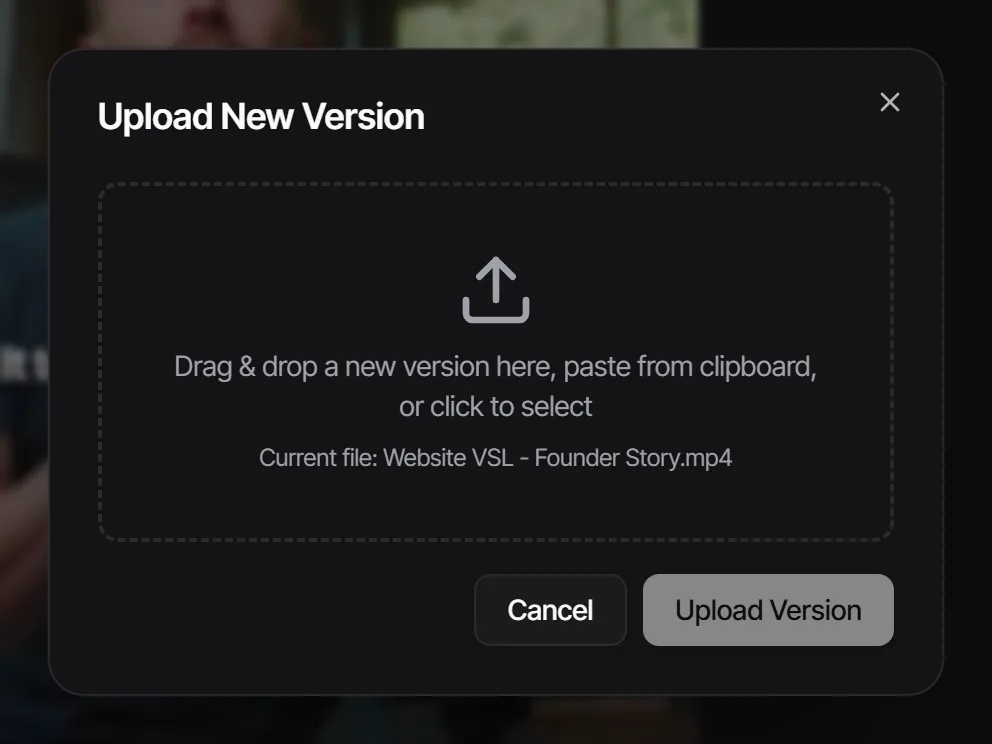
Two shortcuts do the same thing. Drag a file from your desktop onto the video in Review: a Drop to add a new version zone appears, and Upload new version confirms it. Or drop a file on a task's thumbnail in the list: Timeliner asks whether to add it as a new version of that task.
New Version is greyed out while a task is Approved or Posted. Move it back to a working stage first. When you upload to a task in To Do, In Progress or In Revisions, Timeliner then offers to move it on to the next review stage, or you can choose Not now.
See every version
Click the version pill ("V3") next to the task's title to switch between versions. For the full history, open the Details panel on the left and go to History > Versions. Each row shows who uploaded it and when, marks the Current one, and has download and delete buttons.
In the task list and on Kanban cards, the date reads "Updated" with when the newest version landed. Hover it to see who uploaded the latest version. Version numbers are never reused, so a deleted version leaves a gap.
Compare two versions side by side
- Open a task that has at least two versions.
- Click Compare at the top of the comments panel, then Split. The previous version plays on the left and the latest on the right.
- Use each side's picker to choose any version. The header reads, for example, "Comparing V2 and V5 of 6".
- Click Play both to play them in sync, and Pause both to stop. Choose which side you hear under Audio.
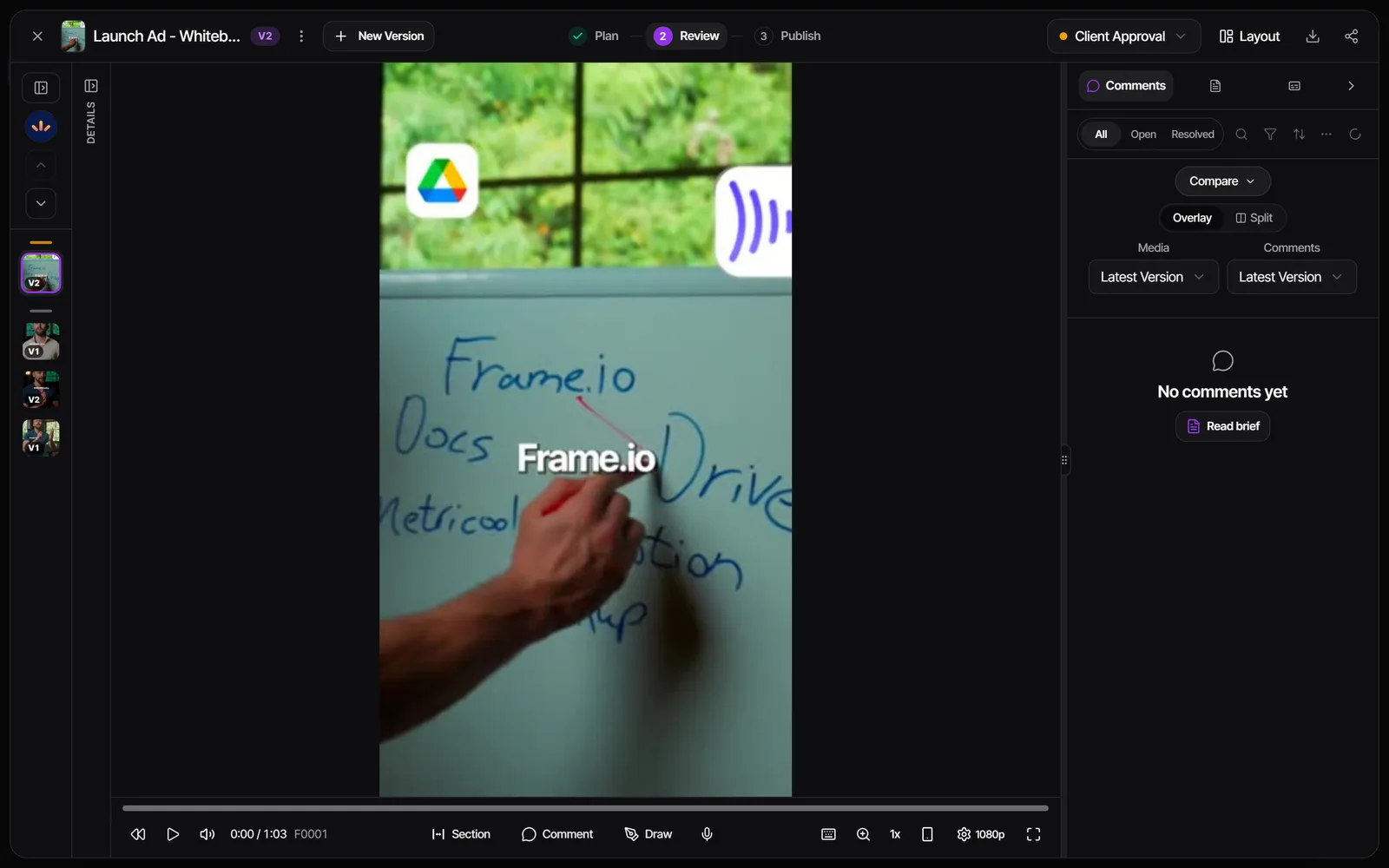
Comments start on Both: each version's notes get their own section, and notes on the older version say Resolved or Still open, so you can see at a glance whether the new cut fixed them. Click a side's version chip to show only that version's notes. Clicking a comment jumps both sides to that moment.
You can also start from the history: in History > Versions, use Compare with… on a version, or Compare two, tick two versions and click Compare.
Split view is for looking. To leave a new note, click the comment, draw or section tool in the shared bar: compare closes and the tool opens on the latest version at that frame.
Choose how your workspace compares
An admin picks the comparison style in Settings > Review & media > Video review > Version Comparison:
- Overlay toggle (current): one player, with a menu to switch which version plays.
- Split side-by-side: both versions on screen at once.
- Both - let members choose (the default): Compare offers Overlay and Split.
Compare works on cuts inside a parent task too, but only between versions of one task, never between two different tasks. Images and PDFs sit side by side without a play bar. On a phone the two versions stack one above the other.
What your client sees
Clients only see the versions that were actually sent to them, numbered from V1. If your team went through four internal rounds before the client's first look, that first look reads as V1 for them, and the uploader shows as "Team member".
To hide versions, history and compare from clients completely, an admin turns off Task Versions in Settings > Clients & portal > What clients see. It is on by default.
Delete or download versions
- Delete one: supervisors and admins open the task's three-dot menu and choose Delete a version; editors delete their own uploads from the version history. If you delete the current version, the one before it becomes current. Deleted versions go to Trash, where they can be restored.
- Delete several: Delete a version > Select several…, or the Delete versions bin icon in the version history. Tick them and confirm. Deleting every version clears the media but keeps the task, its brief and its comments.
- Download several: in History > Versions, click Download versions, tick the ones you want, then Download as ZIP or Download each file.
Uploaded the next cut as a separate task by mistake? A supervisor or admin can drag that task onto the original until it says Drop to add version, then choose Add as new version. Its versions and comments move over, the extra task goes to Trash, and Undo is available for 10 seconds.
Who can do this
| Action | Admin | Supervisor | Editor | Clients (guests) |
|---|---|---|---|---|
| Upload a new version | Yes | Yes | Yes | No |
| Compare versions | Yes | Yes | Yes | Yes, their own versions |
| Delete a version | Any version | Any version | Only their own uploads | No |
| Stack one task onto another as a version | Yes | Yes | No | No |
| Set the comparison style | Yes | No | No | No |
Side-by-side comparison is included on Studio, Agency and Scale. See pricing.
Watch it
Questions people ask
Should I create a new task for each revision?
No. Upload each new cut with New Version on the same task. The task keeps its history, and the client always sees the latest cut.
Why is the comment list empty after I uploaded V2?
Every version starts with its own clean list. The V1 notes are still there: switch back with the version pill, or compare the two versions with comments on Both.
My client sees V1 but we are on V5. Is something wrong?
No. Clients only see the versions that were sent to them, numbered from V1. Your internal rounds stay hidden.
Why can't I upload a new version?
New Version is locked while the task is Approved or Posted. Move the task back to a working stage, then upload.
Can I compare two different tasks?
No. Compare works between versions of the same task. If the second cut was uploaded as its own task, stack it onto the first with Add as new version.
Still stuck?
Ask Janet, the assistant inside Timeliner, email our team, or ask the community on Discord. We answer every message.