Uploading videos and raw footage
Upload cuts for review and raw footage for your editors, see which formats play, fix stuck uploads, and find the right clip again later.
6 min readUpdated November 7, 2026
Video lesson: Upload Videos
Overview
Files in Timeliner live in one of three places, and each has a job:
- The task itself: the cut you want reviewed. Each upload to the same task becomes a new version.
- Raw footage of a project: the source clips, recordings and photos your editor cuts from.
- Brand assets of a brand: files you reuse in every project for that client, like logos, fonts, music and LUTs.
The Library in the left sidebar shows all of them in one place for your team, with search across every brand.
Upload a video for review
- Open the project in the List or Kanban view.
- Drag your files from your computer onto a status group, for example To Do. One file or fifty, it doesn't matter.
- With more than one file, Timeliner asks How would you like to upload? Choose Create separate tasks for one task per file, or Group under one task to put them in one parent task as cuts.
- Each task is named after its file and the upload runs in the background, so you can keep working.
- Into an empty task: open it and drop the file on the upload area, or click Browse files.
- The next cut of an existing task: drop the file on the task's thumbnail, or use New Version in the open task. See Versions and comparing cuts.
- A screenshot: with a media task open, press Ctrl+V (Cmd+V on a Mac) to upload a copied image.
If the file names match tasks already in the project, the same window also offers Match files to tasks, so each file can land as a new version of its task instead of a new task.
Upload raw footage for your editors
- Open the project and click the Raw footage card in the project header.
- Drag files or whole folders into the window, or use its upload button.
- If a file with the same name is already in that folder, This file already exists asks you to Skip, Stop or Replace. Replace moves the old copy to Trash.
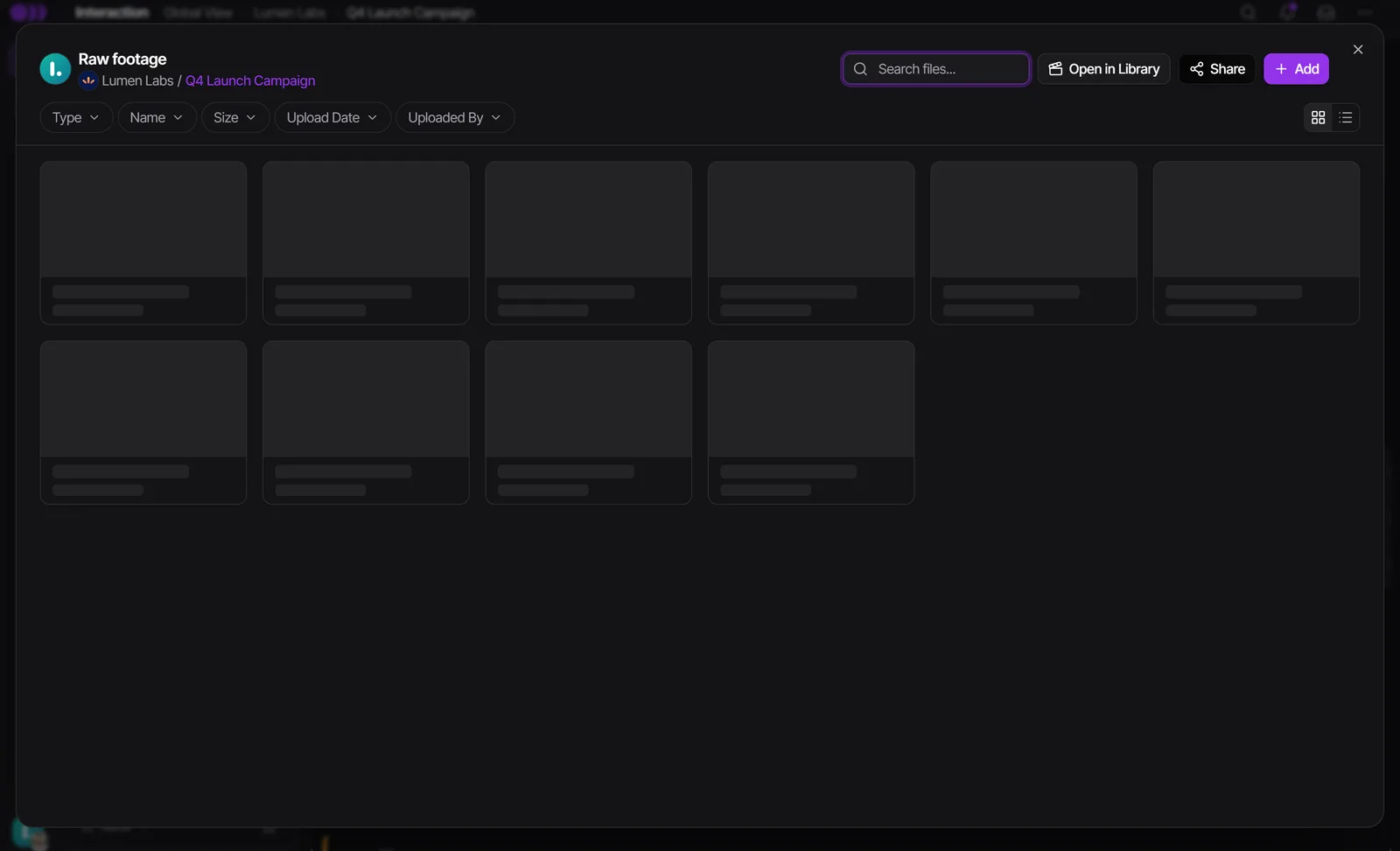
In grid view you can skim a video without opening it: move the mouse across its thumbnail and the picture follows. Open a clip you like and click the heart in its preview: it is marked Liked for the whole team, so every editor sees the best takes first.
Got a finished video sitting in Raw footage? Right-click it and choose Create task from this file. It becomes a task with the file already on it, without uploading again.
Which files play in Timeliner
| What you upload | What reviewers get |
|---|---|
| Video: MP4, MOV, WebM, AVI, MKV, MXF, M4V and more. Audio: MP3, WAV, AAC, M4A and more | A player with timecoded comments. MP4, MOV and WebM play right away; the rest after processing. |
| Images: JPEG, PNG, GIF, TIFF, HEIC, WebP and more | A viewer with comments and drawings. |
| Page-by-page review with pins, drawings and comments. | |
| Word, PowerPoint, Excel, TXT, subtitle files | A read-only preview. |
Editing projects (Premiere, After Effects, DaVinci Resolve), camera RAW (RED, BRAW, ARRI and raw photos), design files, LUTs and archives can't be a task's reviewable file, but they upload and download fine in Raw footage. Camera RAW can't be played in the browser: export an H.264 or ProRes proxy and upload that as the task's version. The full list is on Supported formats.
There is no size limit per file. Your workspace's storage is the only ceiling. Comment attachments are capped at 50 MB each.
While it uploads, and if it gets stuck
The upload panel in the bottom corner shows each file's progress, speed and time left. Up to three files upload at once. Videos are then processed for smooth playback in several qualities, which usually takes about a minute.
- Interrupted: an upload retries by itself, then shows Resume. After a page reload, drop the same file in the same place within 7 days and it continues where it stopped.
- "Couldn't read this file from your computer": the file is on an external, network or cloud drive (Google Drive, Dropbox, iCloud, OneDrive). Copy it to your computer's own drive and drop it again.
- "Can't reach our file storage": your network, VPN or firewall is blocking the address where files are stored. Turn off the VPN or try another network, then press Resume. Send your IT team the IT allowlist.
- "Storage limit reached": the file doesn't fit in your workspace's remaining storage. An admin or supervisor frees up space in the Storage card at the top of the Library, or an admin adds seats, which adds storage.
Find the right clip again
Open Library in the left sidebar. Search looks in three places at once: the file's Name, its Tags, and the Spoken words of its transcript. A spoken-word match shows the line and its time, and opening the file starts it at that moment. Filter by tag, type, length, or date added.
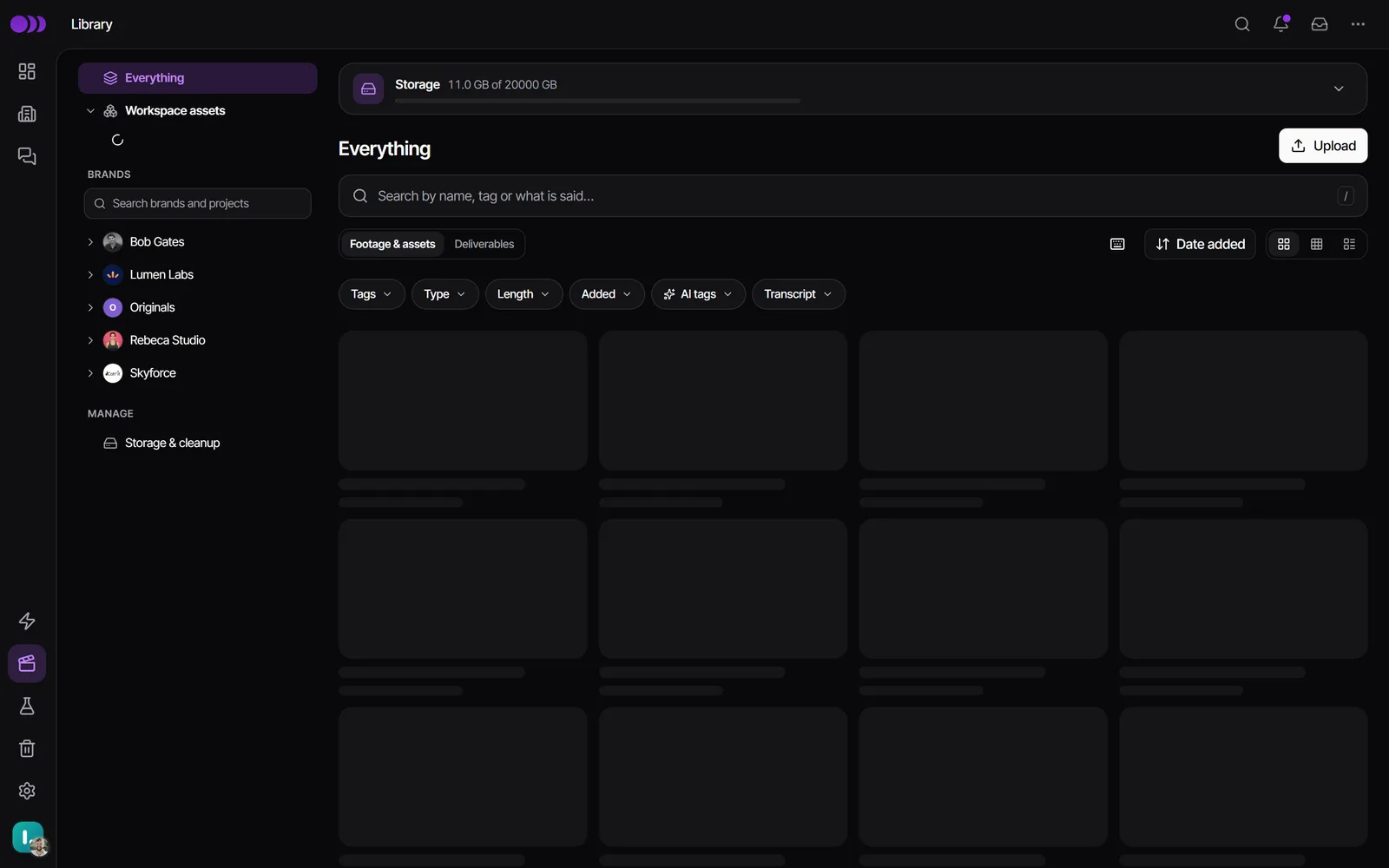
From a project's or brand's Raw footage, Open in Library jumps to the same place in the Library. Only footage that has a transcript can be found by what was said.
Hand footage to the task it's for
- Open the task and go to Plan > Media.
- Click Upload for new files, or Add existing for footage already in Timeliner.
- Under Liked in this project and brand you'll see the clips your team liked. Or type in Search what's said in the footage to find a clip by a line someone said.
- Click Link to task on a result, or Browse all to tick any file or folder.
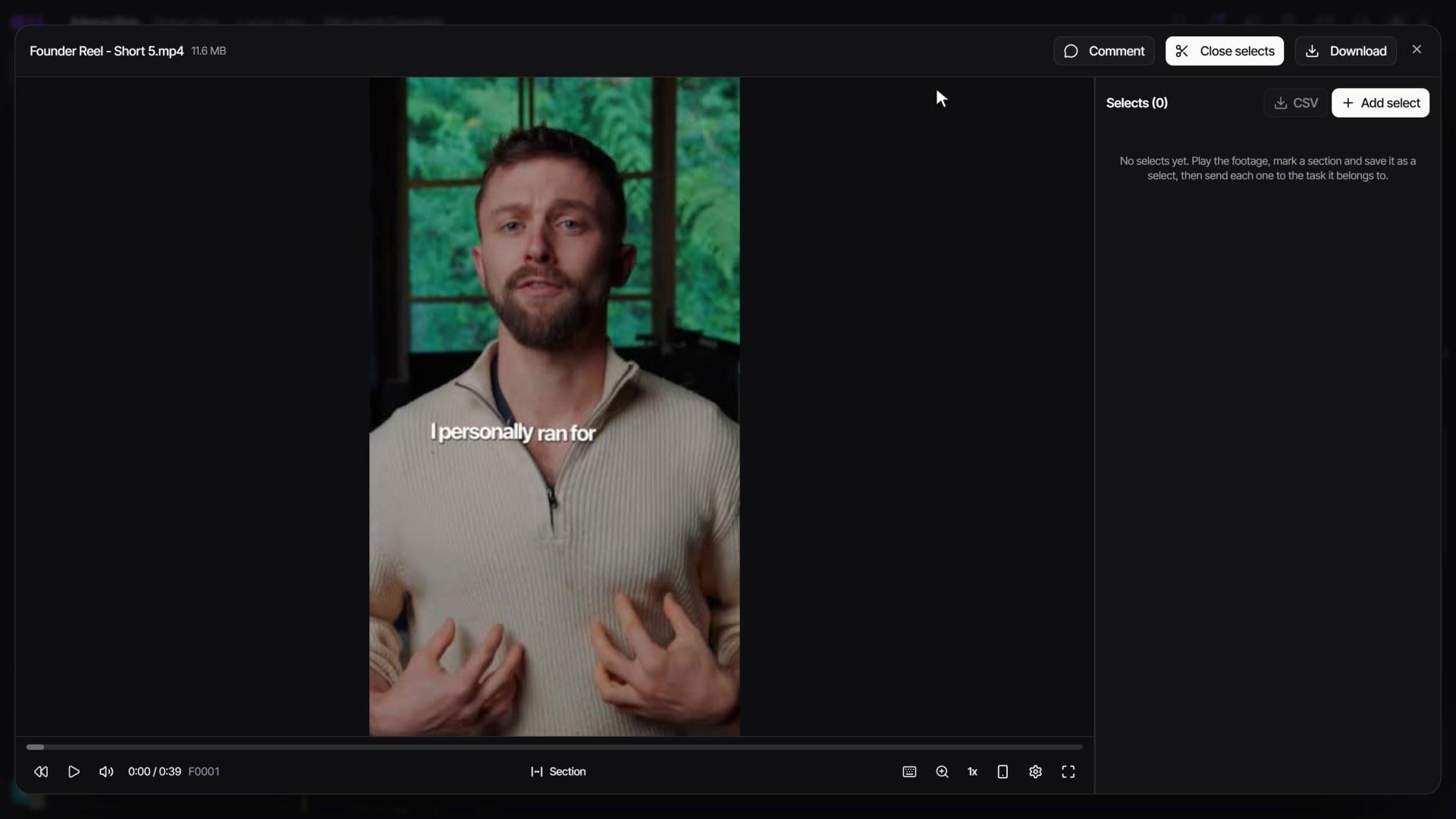
For long shoots, mark the best moments as selects instead of keeping a separate log. Open a video from Raw footage, click Selects, mark a range with Section and click Save select, or use Add select at the current moment. Add a topic and Notes for the editor, then Send to task, or Save & create task to make a new task for it in one step. The task lists its selects under Plan > Media, and clicking one opens the raw clip at that moment.
Who can do this
| Action | Team (admin, supervisor, editor) | Guest approver or commenter | Guest viewer |
|---|---|---|---|
| Upload a task's file or a new version | Yes | No | No |
| Upload to a project's Raw footage | Yes | Yes | No |
| Use the Library | Yes | No | No |
| Make footage selects | Yes | No | No |
| Create a task from a raw file | Team members who may create tasks | No | No |
Clients can also send you files straight on a task: they see a simple Send us files area under Plan > Media.
Watch it

Questions people ask
Is there a file size limit?
No per-file limit. The only ceiling is your workspace's storage, which grows with your plan and seats.
Can I upload RED or BRAW footage?
Yes, into Raw footage, where it uploads and downloads untouched. It can't play in the browser, so export an H.264 or ProRes proxy and upload that for review.
Where should I put logos and fonts?
In the brand's Brand assets, so they are available in every project for that client. Raw footage belongs in the project's Raw footage.
My upload keeps failing at the same point. What should I do?
Read the message on the file's row. Most often the file sits on a cloud or network drive, or a VPN is blocking the storage address. Copy the file locally or switch networks, then press Resume.
Can I store the Premiere project file with the edit?
Yes. In the task's Plan > Media, the Editing project file section keeps your Premiere, After Effects or Resolve project and its earlier backups, for your team only.
Still stuck?
Ask Janet, the assistant inside Timeliner, email our team, or ask the community on Discord. We answer every message.