The client portal: what your clients see
What your client sees when they open Timeliner, how they review and approve, and how to brand the portal and choose where clients land.
5 min readUpdated November 7, 2026
Video lesson: Welcome, Client
Overview
The client portal is your client's side of Timeliner. They see your logo and colours, only the brands and projects you gave them, and only the work you sent for review. There is no sidebar, no team chatter and nothing from your other clients.
Admins design the portal once for the whole workspace and can give any brand its own version. Signed-in guests and share-link visitors get the same branded experience.
What clients see, and what stays private
- Only the brands or projects they were invited to, or the one their link opens.
- Only tasks in Client Approval, Approved and Posted, plus In Revisions once they have reviewed that task. To Do, In Progress and Supervisor Approval stay hidden.
- Video tasks only once a file has finished uploading.
- Only the versions you actually sent them, numbered from V1. Rounds between your editor and supervisor stay private.
- Never comments marked Internal, never assignees and never your internal deadline.
A row of coloured stage circles above the work shows where everything stands. The stage waiting on them is labelled Your Approval.
A client who wants to see planned and in-progress work too is asking for Show clients every workflow stage (below). It shows earlier stages as view-only cards, with nothing to play, comment on or approve until the work reaches them.
Where clients land
By default the portal opens on All media, on its To review tab: everything waiting on them, from every project and folder at once. The other tabs are All, In revisions, Approved and Posted. When nothing is waiting it says Nothing waiting on you.
The Projects link shows their brands and projects as cards, with a greeting that counts what awaits their review. Clients can switch between the views you allow. The default set is Grid, List and Calendar.
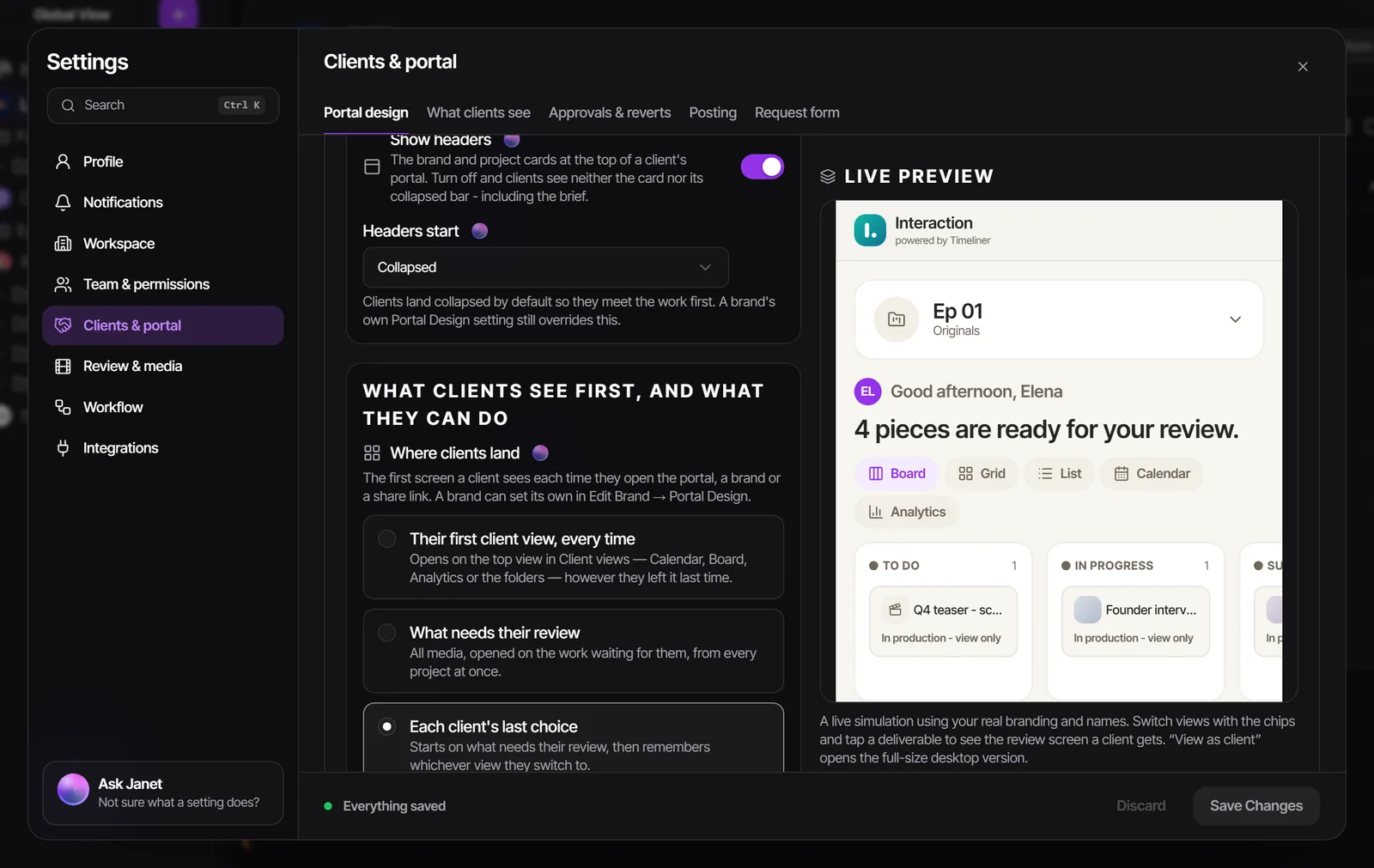
You decide which screen they open first with Where clients land:
- Each client's last choice (the default): the portal remembers the view each client last used.
- Their first client view, every time: always the top view in Client views, for example Calendar.
- What needs their review: always All media on To review.
On a phone, signed-in clients get a bottom bar. Clients can also use Timeliner's iPhone app, which is shared through TestFlight. Ask the Timeliner team for an invite through Live Support.
How a client reviews and approves
- The client opens the task from their email or from To review.
- They watch it in the player and leave feedback with Section (a time range), Comment (a timecoded note), Draw (on the frame) or Voice (a voice note).
- An approver clicks Approve, or Request Changes to send it back to your team.
- Approver can approve, request changes and comment. Commenter can only comment. Viewer can only watch.
- Approvers can review several tasks at once: select them and use Approve or Request Changes in the bar that appears.
- On the Board view an approver can drag a card to approved or to revisions, and drag approved work to Posted once it's live.
- Marking work Posted only records that it's live. It doesn't publish anything. Turn off Clients can mark approved work as Posted to keep that step for your team.
- A client can undo a revision request for a short time, and an approval too if you turn that on in Approvals & reverts.
Brand and set up the portal
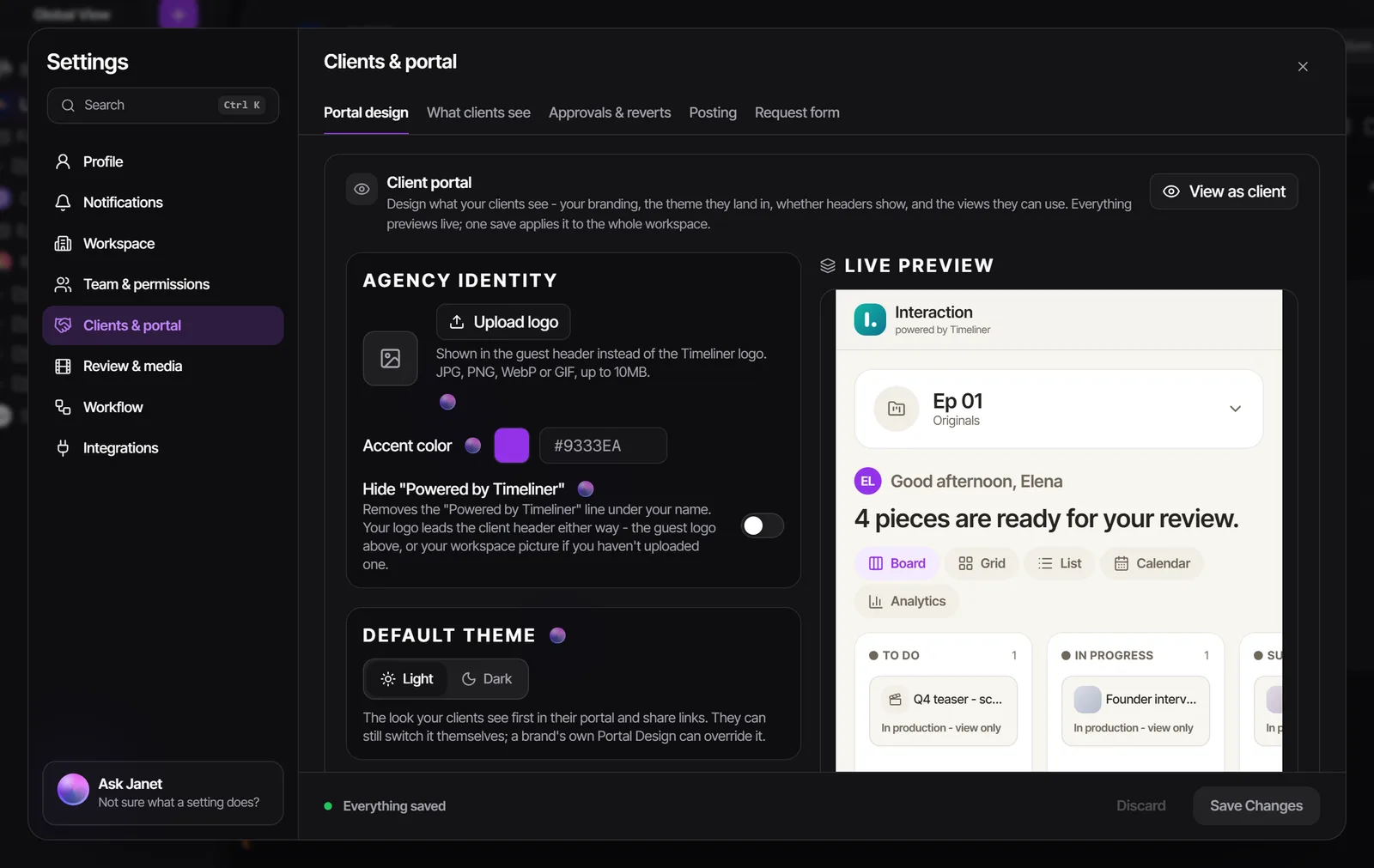
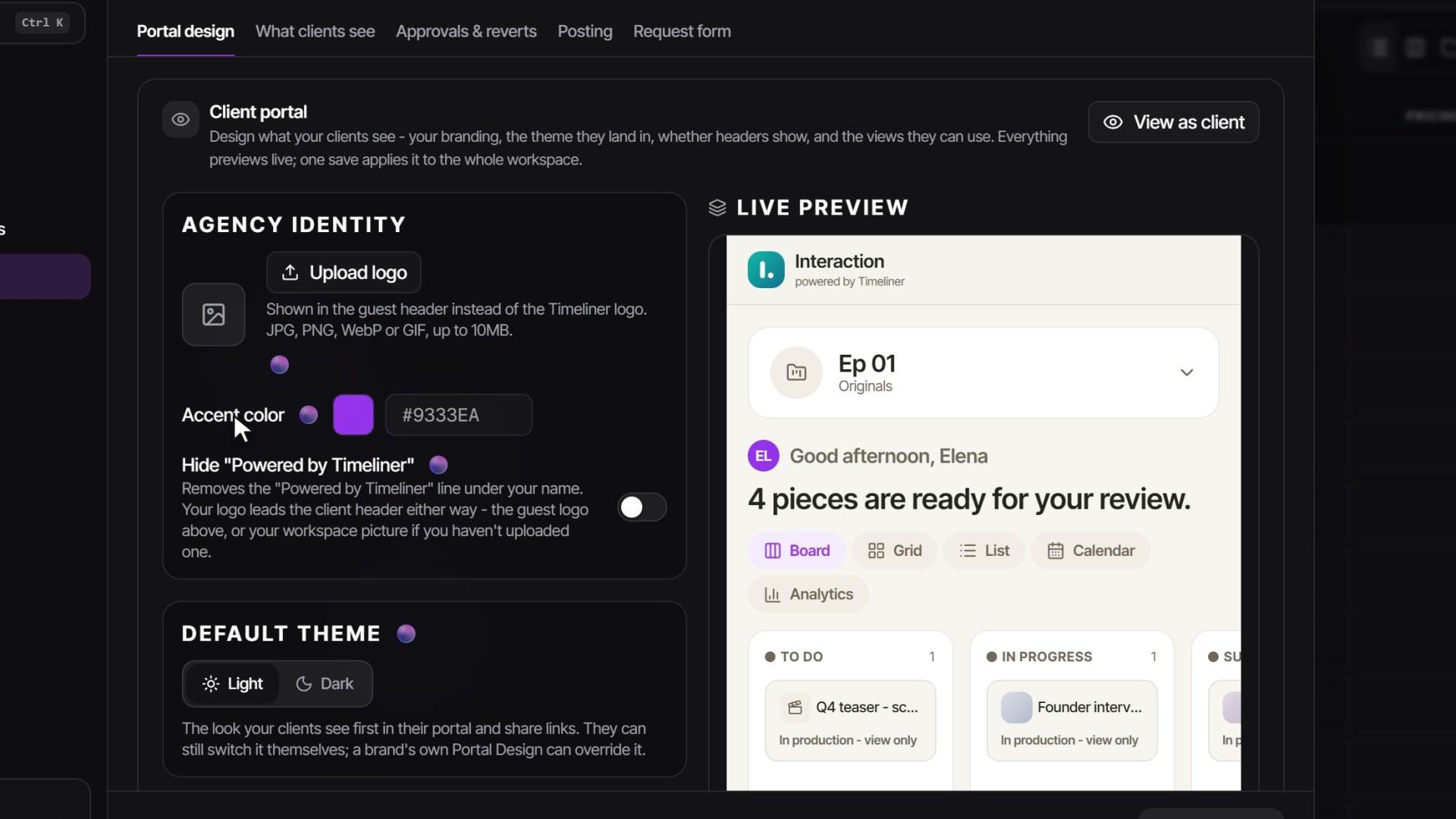
- Click your avatar at the bottom of the left sidebar, open Settings and go to Clients & portal > Portal design.
- Click Upload logo and set your Accent color. Both work on every plan.
- Pick the Default theme, whether to Show headers, and how Headers start.
- Under Client views, choose which views clients can switch between and use the arrows to put the one they should see first at the top. Board and Analytics are extras you add with Add a view.
- Set Where clients land and Clients can mark approved work as Posted.
- Click Save Changes.
| Setting | Plan |
|---|---|
| Logo, accent colour, theme, headers, where clients land | Every plan |
| Changing Client views, Show clients every workflow stage | Studio and up |
| The Calendar view for clients | Agency and up |
| Hide "Powered by Timeliner", branded video watermark, password-protected links | Scale |
What clients see holds the privacy switches: Task Versions, Hide pricing from clients, Guest Deadline Visibility and Who guests can @mention, among others. Details for each plan are on pricing.
A different portal for one client
- In the left sidebar, open the brand's three-dot Actions menu and click Edit Brand.
- Open Portal Design and turn on Custom portal for this brand.
- Change the theme, headers, views or Where clients land for this client only, and save.
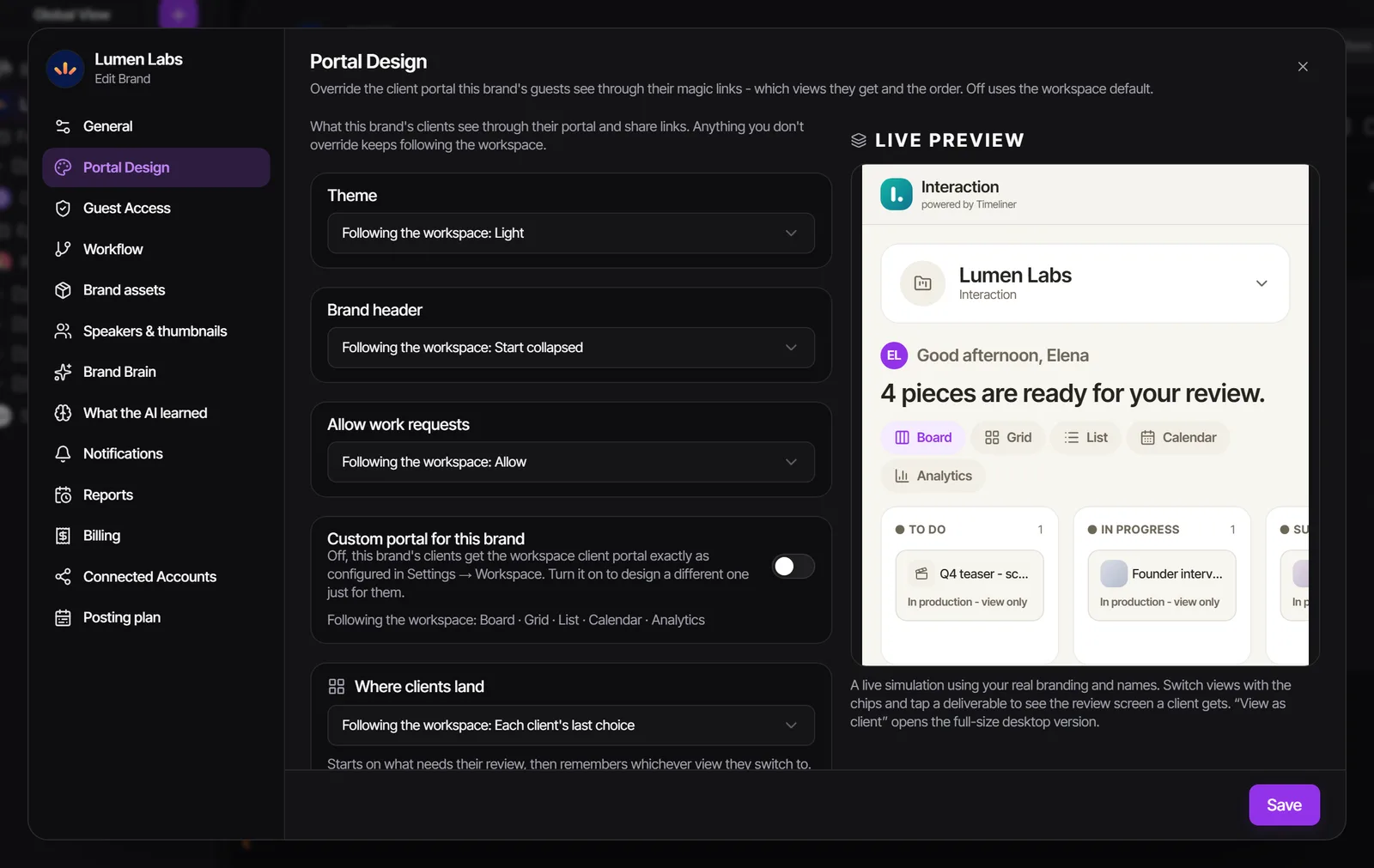
A brand's settings always beat the workspace default, and the brand's share links follow the brand. The Share dialog of a brand, folder or project also has a Client portal settings button, beside Preview as client, that jumps straight to that brand's Portal Design.
See exactly what your client sees
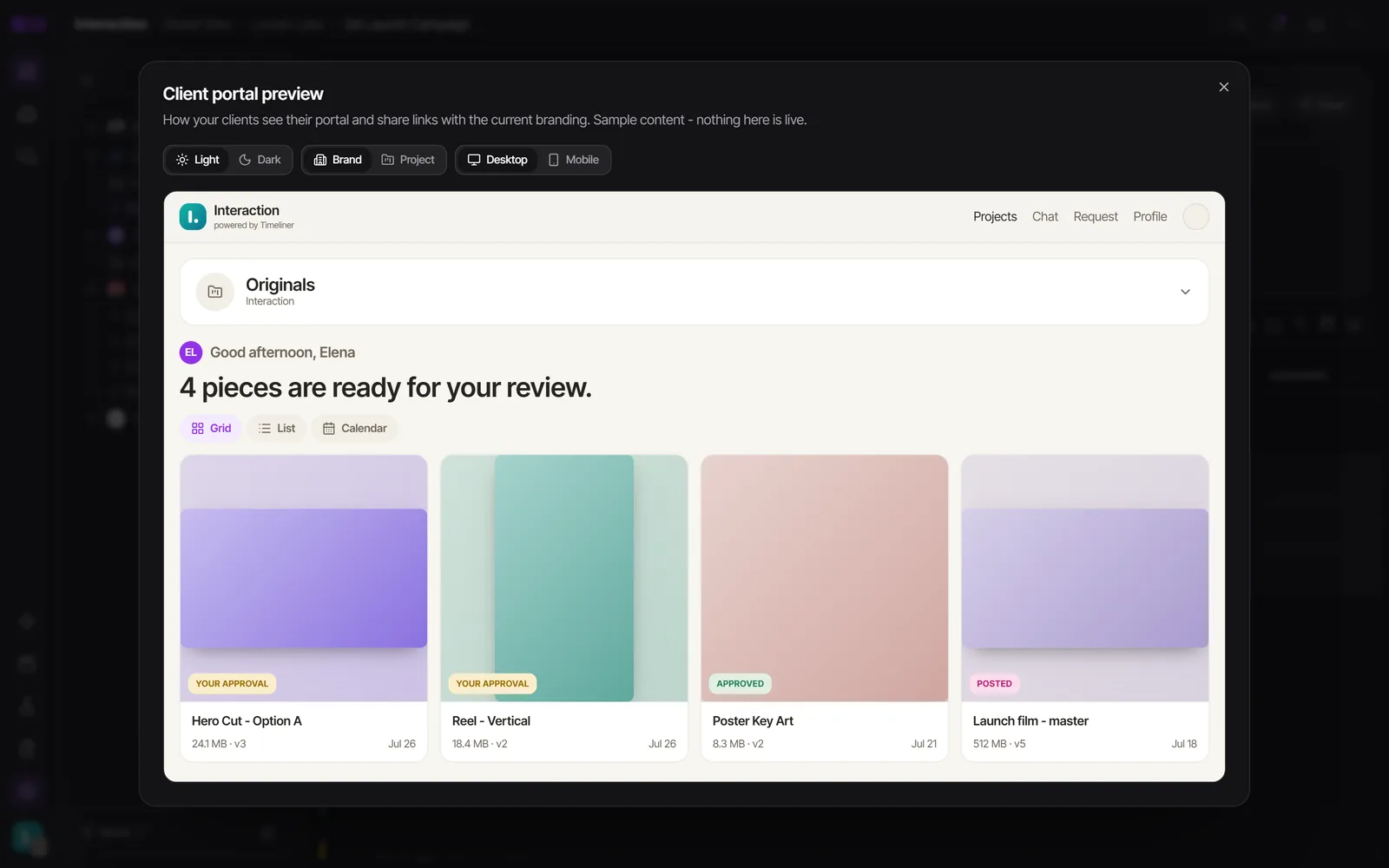
- In Portal design, click View as client for a full-size preview with your branding and sample content (admins).
- For a real project, open it, click Share, and use Preview as client.
- Or copy an Approver link and open it in a private browser window.
Clients of your clients
On agency-to-agency workspaces, your client can have their own end client. An end client sees only End Client Approval, Approved and Posted, with everything earlier shown as one "In Production" step. They see your client's name and logo everywhere, never yours, and never any prices. See Team roles and permissions for what each tier can do.
Watch it
Questions people ask
Can my client see my editors' comments?
Only comments marked Public. Editors' comments are Internal by default and never reach a client unless an admin turns on Let editors post client-visible comments.
Can my client see my whole pipeline?
Yes, if you turn on Show clients every workflow stage in Portal design (Studio and up). Earlier stages show as view-only cards.
Why can't my client see a task in revisions?
Clients only see a task in In Revisions once they have reviewed it at least once. A task your team bounced internally stays hidden.
Can I remove the Timeliner badge?
On the Scale plan, turn on Hide "Powered by Timeliner" in Portal design. Your logo leads the header on every plan.
Can my client download the video?
It depends on your download policy. By default, clients can download once a task is approved.
Still stuck?
Ask Janet, the assistant inside Timeliner, email our team, or ask the community on Discord. We answer every message.