Comments, drawings and feedback on videos
Leave frame-accurate comments, draw on the video, keep notes internal, reply and resolve, work from the transcript, and send notes to your editing app.
6 min readUpdated November 7, 2026
Video lesson: Timecoded Comments & Approvals
Overview
Every media task has a review player with comments pinned to the exact moment they are about. Your team and your clients leave feedback in the same place, your editor works through it note by note, and nothing gets lost in email or chat threads.
Comments work on videos, audio, images and PDFs, on every plan. Anyone who can comment can draw, record a voice note and resolve notes.
Leave a timecoded comment
- Open the task. It opens on the Review stage with the Comments tab on the right.
- Play the video and pause on the frame you want to talk about.
- Type your note in the comment box. It is set to Timecoded, so it is pinned to that moment. Switch to General for a note about the whole file.
- Press Enter or click send. The note appears in the list and as a marker on the timeline.
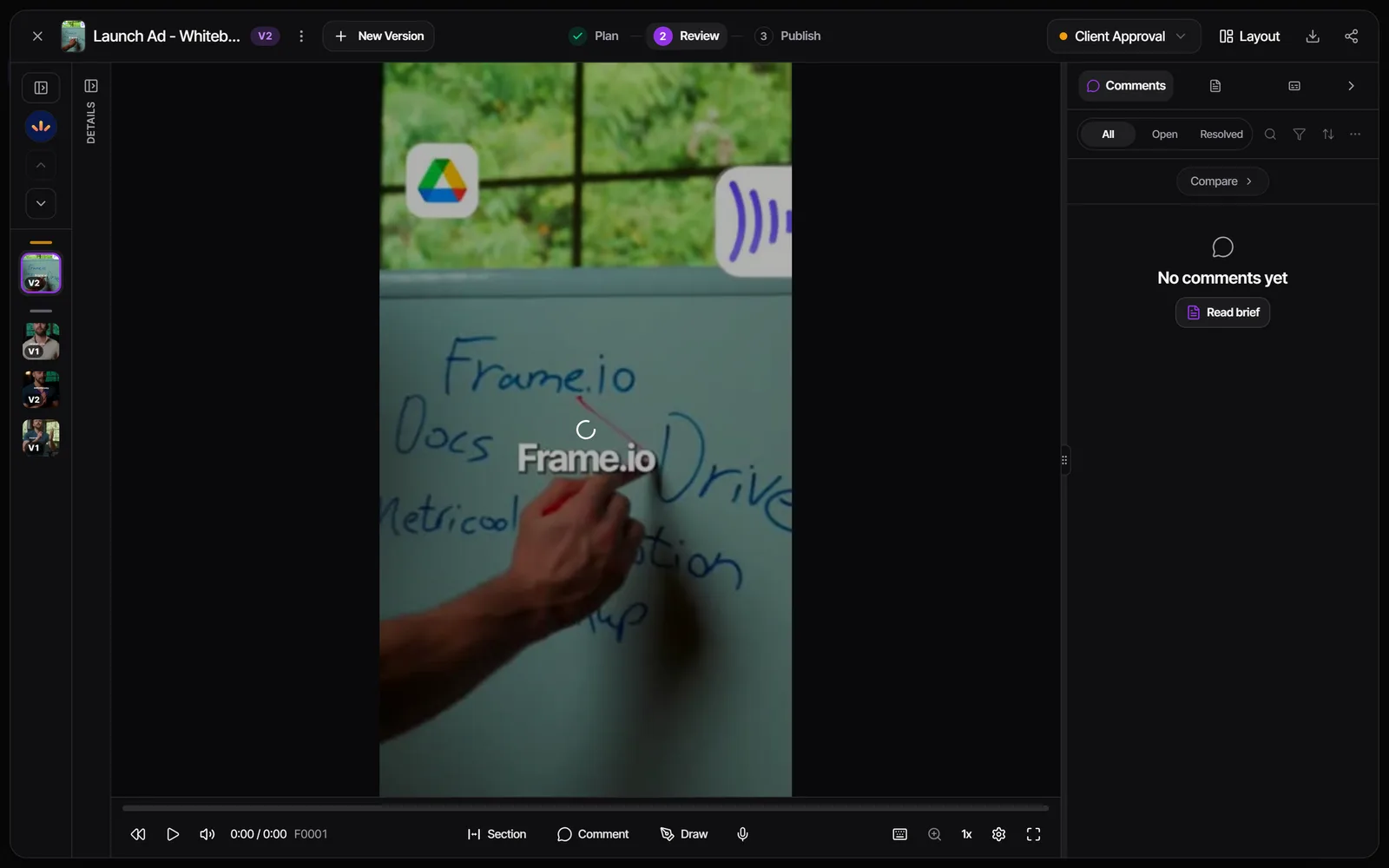
Click a comment's timecode, or its marker on the timeline, to jump the video to that frame. Images take general comments only. On a PDF you can Pin a comment to a spot on the page, and a typed note belongs to the page you are reading.
Draw, mark a range or record a voice note
- Draw (or press D): the video pauses and a toolbar appears with freehand, rectangle, circle and arrow tools, eight colors and four line widths. Click Done to attach the drawing to a comment at that frame.
- Section (or press R): drag the handles across the timeline to mark a range, then Comment on it, or Loop it to watch it over and over. The comment shows a start and end time.
- Voice note (or press V): click the microphone and say it. Anyone who can see the note can click Generate transcript to read it as text.
- Attachments: add files of up to 50 MB each, or paste a screenshot.
- Mentions: type @ to tag someone. The person you mention is notified.
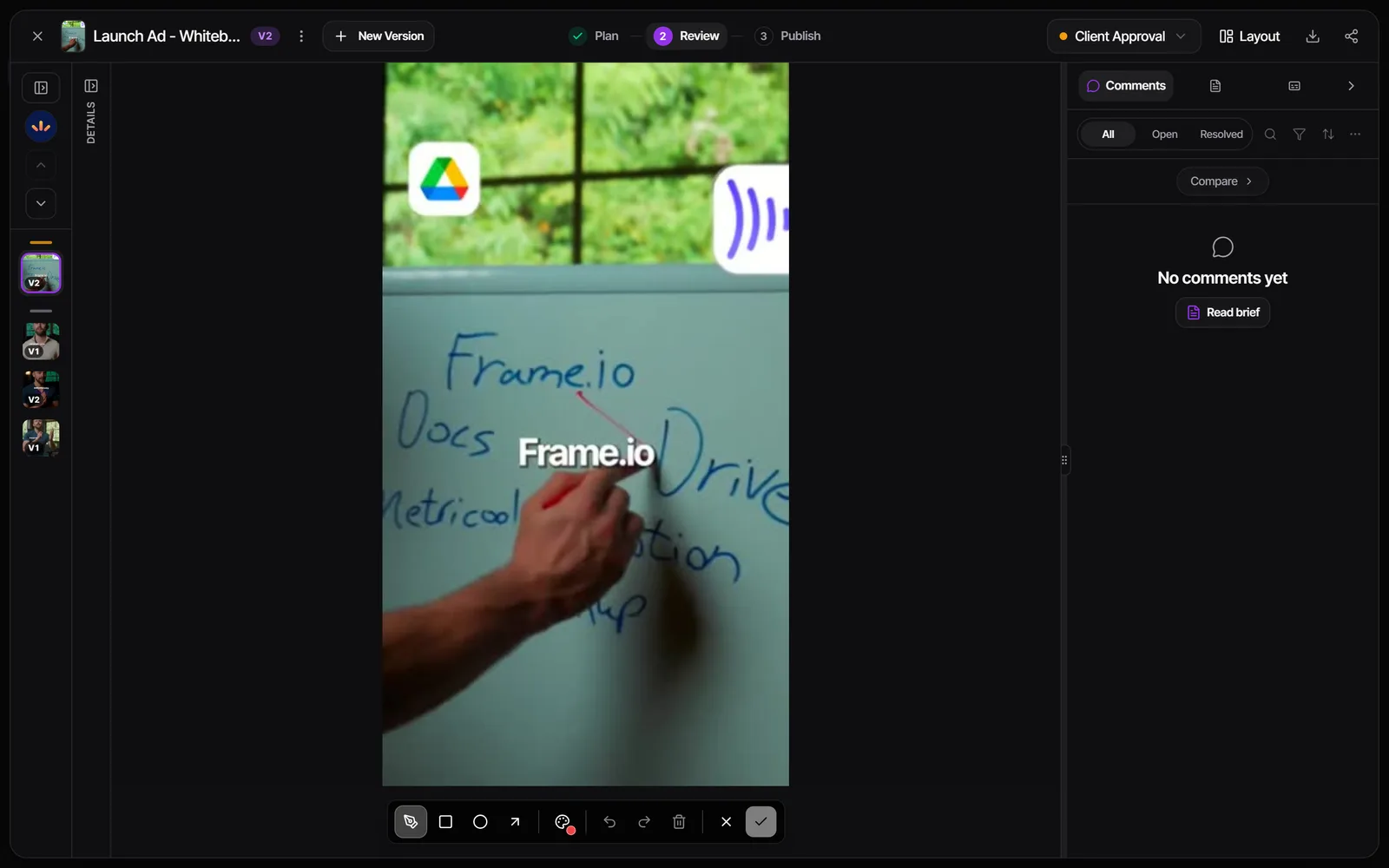
Hover the keyboard icon at the bottom right of the player to see every shortcut. Change your own keys in Settings > Profile > Keyboard shortcuts.
Keep a note internal or show it to the client
Every team comment is either Internal (padlock: "Only your team can see this") or Public (globe: "Your client can see this"). Pick it with the chip next to the send button before you post.
- Admins and supervisors start on Public. Editors start on Internal and can only post internal notes unless an admin turns on Let editors post client-visible comments in Settings > Clients & portal > What clients see.
- Client comments are always public. Replies take the setting of the comment they answer.
- Clients only see a task once it reaches a client-facing stage, such as Client Approval. A public note on a task still in production stays hidden from them until then.
Comment on what was said, from the transcript
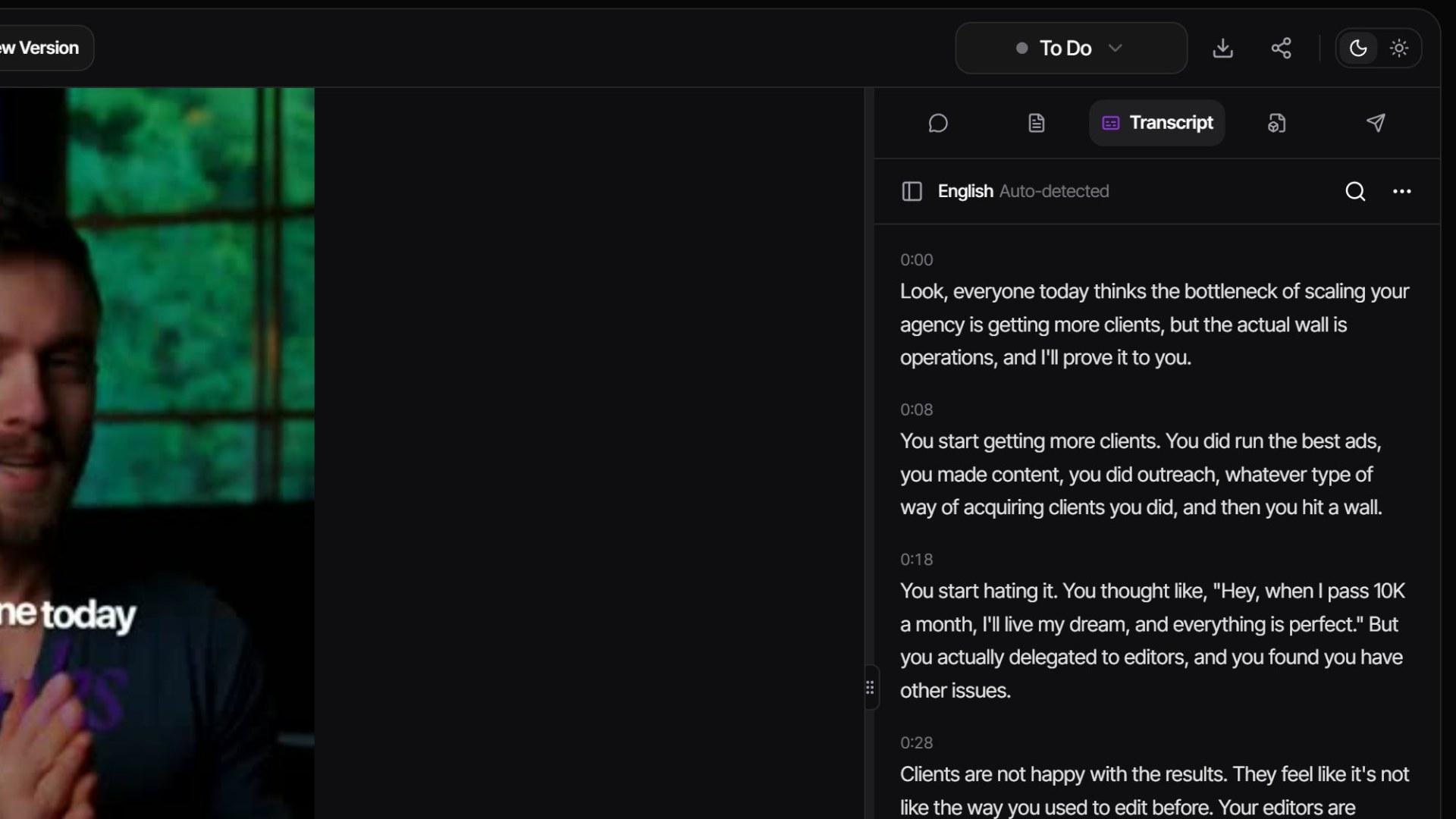
- On a video or audio task, open the Transcript tab and click Transcribe. The language is detected for you.
- Click any word to jump the video to that moment, or search for a phrase.
- Drag across a few words and choose Comment on section to leave a range comment on exactly that line. On a phone, tap Select words first.
- Need subtitles or a script? Open the transcript's menu and download it as SRT or TXT.
Each transcript uses the workspace's credits, and a video with no speech costs nothing. Admins can switch transcripts off in Settings > Review & media > Video review > Transcripts.
Chat about a task or a project
Comments are for notes on the work itself. For back-and-forth that isn't tied to a frame, use chat:
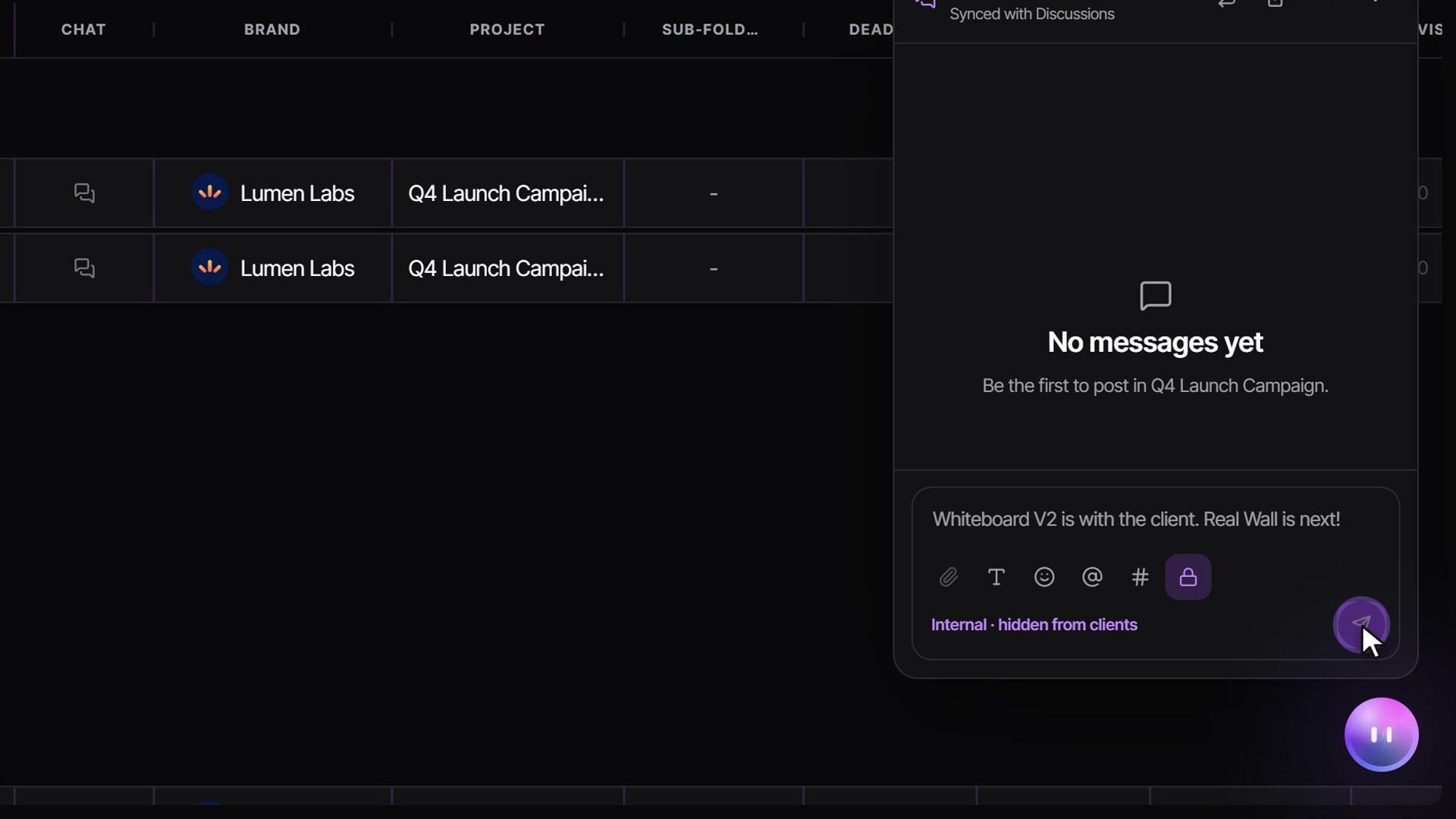
- Task chat: the Chat button in an open task's header opens a side conversation about that one deliverable.
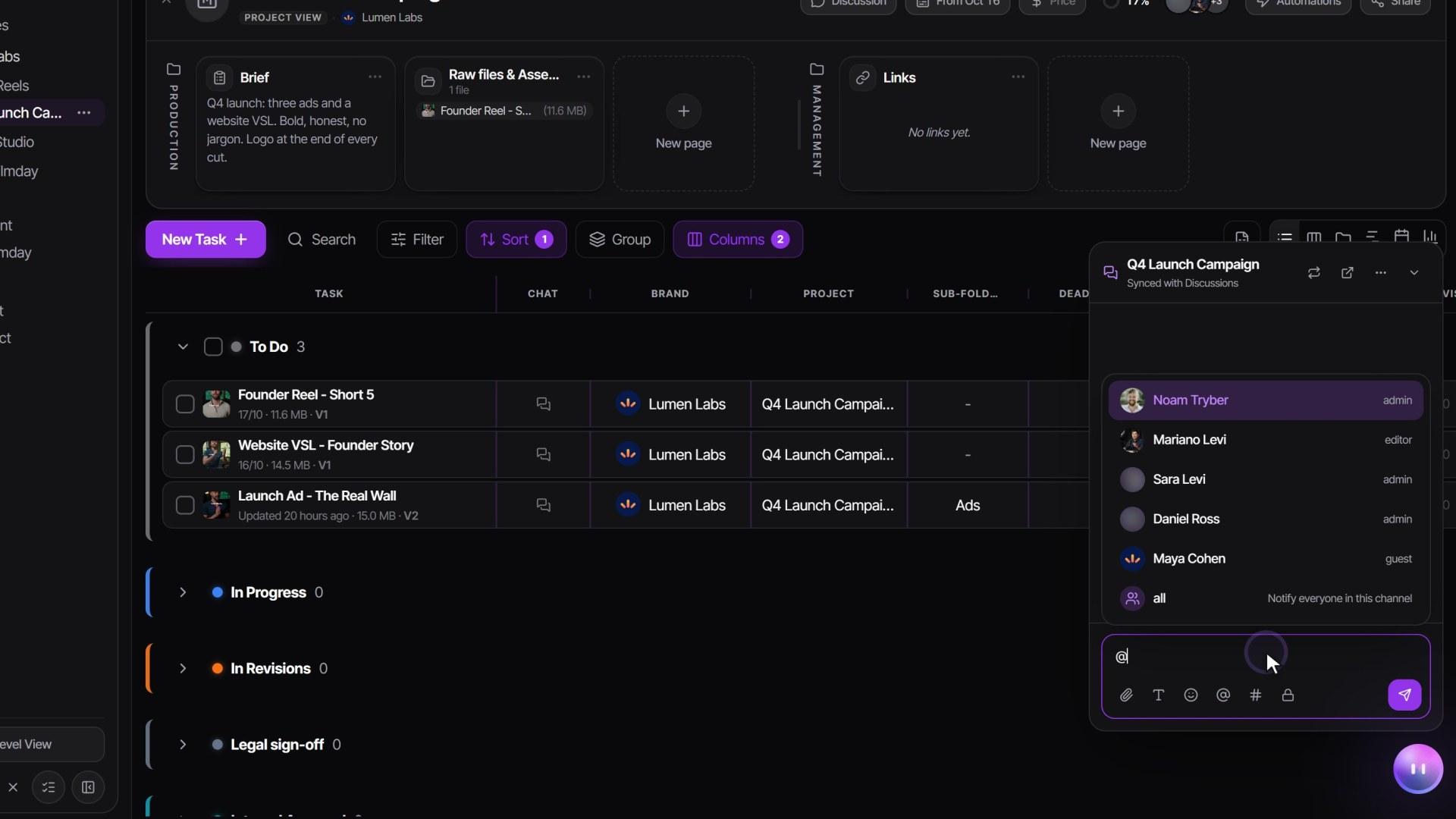
- Project chat: the Chat button in the project header opens the project's channel. Choose Team only to keep a message from your client, or Everyone so they can read and reply.
- Everything at once: Chat in the left sidebar shows every brand, project and direct conversation in one place.
- Team members can type @ and pick @all in a channel to notify everyone who can read the message.
Send the notes to your editing app
Open the three-dot menu at the top of the comments panel:
- Export markers for Premiere Pro, Export markers for DaVinci Resolve or Export markers for Final Cut Pro puts a marker on your timeline for each timecoded note.
- Export as SRT or Export as CSV for subtitles or a spreadsheet.
- Print comments (PDF) for a printable list with frame thumbnails and drawings.
An export holds exactly what the panel shows, so filter to one reviewer or to Open notes first if that is all you need. For every note across a project or a brand in one file, use Download > Review notes from the project's or brand's menu.
Who can do this
| Action | Team (admin, supervisor, editor) | Guest approver | Guest commenter | Guest viewer |
|---|---|---|---|---|
| Comment, draw, record voice notes | Yes | Yes | Yes | No |
| Resolve and reopen notes | Yes | Yes | Yes | No |
| Post internal notes | Yes | No (always public) | No (always public) | No |
| Transcribe a video | Yes | Yes | Yes | Read only |
| Approve or request changes | See the approval article | Yes, at their review stage | No | No |
Clients reviewing through a share link without an account comment and draw in the same player. More on what clients see: The client portal and guest experience.
Watch it
Questions people ask
Will my client see this comment?
Only if it is Public and the task is in a stage the client can see. Notes marked Internal are never shown to clients or on share links.
Does a new comment notify anyone?
A new comment with no @mention notifies no one, apart from assigned editors who turned on that notification. Replies notify the author of the comment they answer, and an @mention notifies the person you tag.
Where did the comments from version 1 go?
Comments belong to the version they were left on. Switch back to that version from the version pill, or open compare and show both versions' notes side by side.
Can I get the client's notes into Premiere Pro as markers?
Yes. In the comments panel's three-dot menu choose Export markers for Premiere Pro and import the file into your project. DaVinci Resolve and Final Cut Pro exports are there too.
Can I comment on raw footage, not just the final cut?
Yes, once an admin turns on Allow comments on raw footage in Settings > Review & media > Video review. Then open the file from Raw footage and click Comment.
Still stuck?
Ask Janet, the assistant inside Timeliner, email our team, or ask the community on Discord. We answer every message.