Invite your team and give them access
Invite editors and supervisors, send one invite link to many people, give each person the right brands, and hand over work when someone leaves.
5 min readUpdated November 7, 2026
Video lesson: Welcome, Admin
Overview
Your team are the people who work on the videos: admins, supervisors and editors. Each one uses a seat. Admins and supervisors invite them from Settings, then give them access to the brands and projects they will work on.
Joining the workspace alone doesn't show a supervisor or editor any brand. Access comes from being added to a brand or project, and editors also need to be assigned to a task to see it. Clients are invited differently, as free guests: see Share work with clients.
Invite a team member
- Click your avatar at the bottom of the left sidebar, open Settings and go to Team & permissions > Members.
- Click Invite Member, type their email and click Continue.
- Choose who fills in their details. They fill in their details is the default: you only pick their role. I'll fill in their details lets you add their Full Name, Phone Number, photo and languages yourself.
- Pick a Permission Level: Editor, Supervisor or Admin. Add an optional Sub-role such as Colorist or Motion Graphics.
- For an editor, tick the clients they will work on under Which clients can they work on? They get those brands and every project inside them as soon as they join.
- Click Send Invitation (or Confirm if you filled in their details).
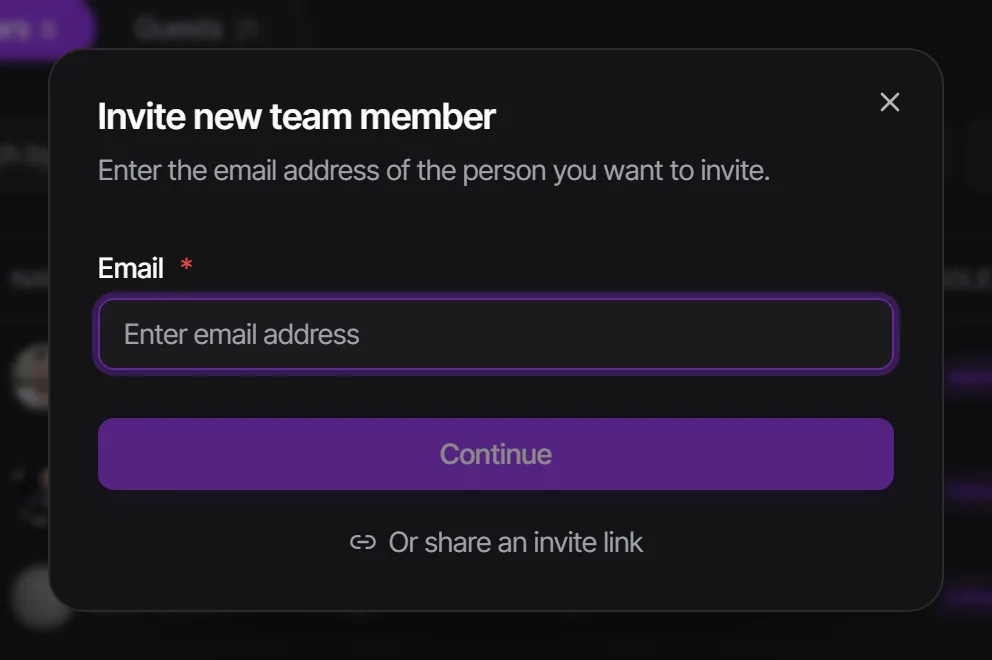
The invitation email goes out straight away, with no draft. It carries a one-minute welcome video for the role you picked: Welcome, Admin, Welcome, Supervisor or Welcome, Editor. You can send the same link yourself to anyone who joins another way. The invite link works for 7 days. When they accept, a one-time Finish setting up your account window asks for their name, phone, photo, languages and a password.
If the person already has a Timeliner account in another workspace, the dialog switches to Invite Existing User. Pick the role and click Send Invitation. No second account is created.
Give someone access to a brand or project
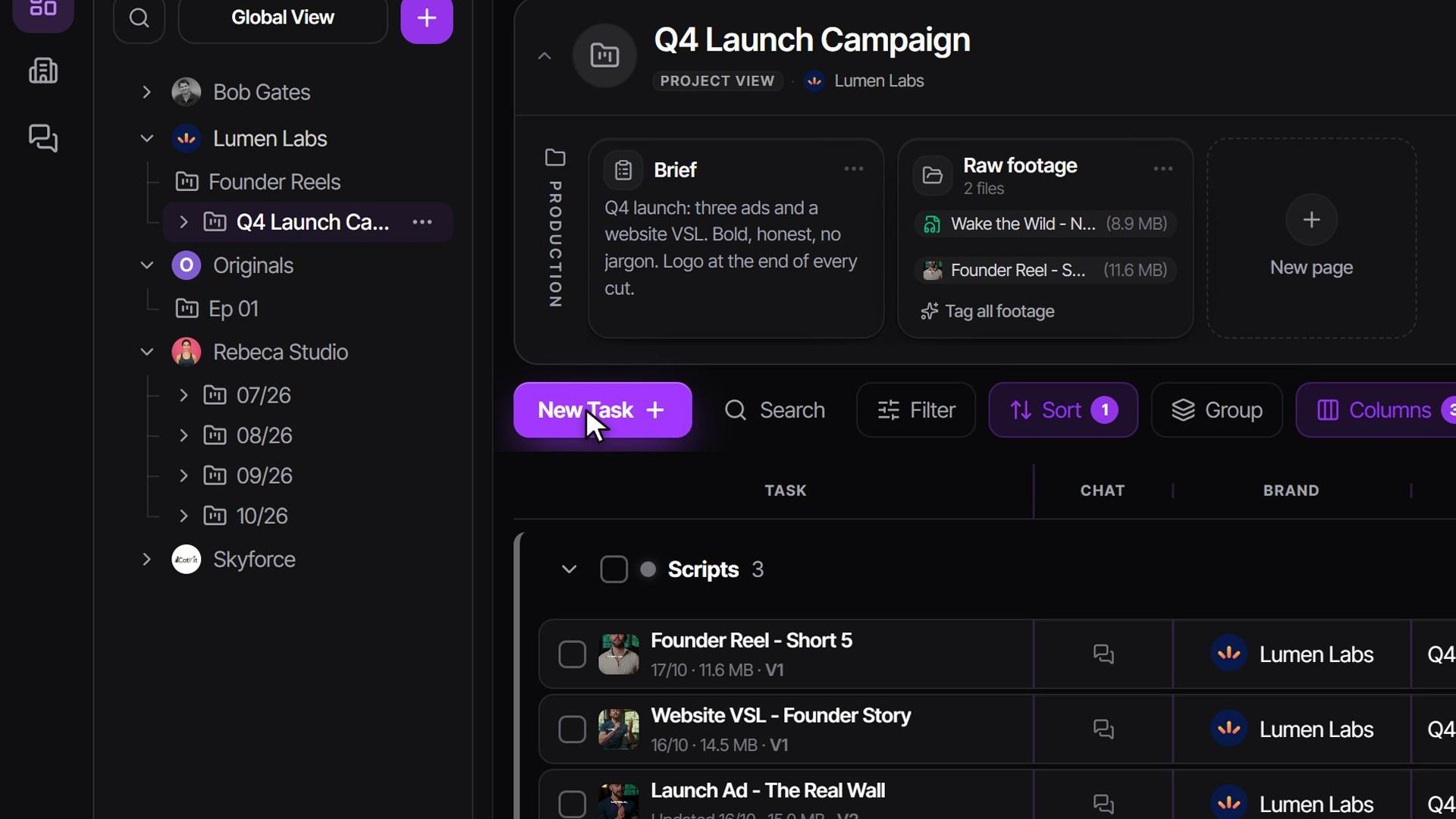
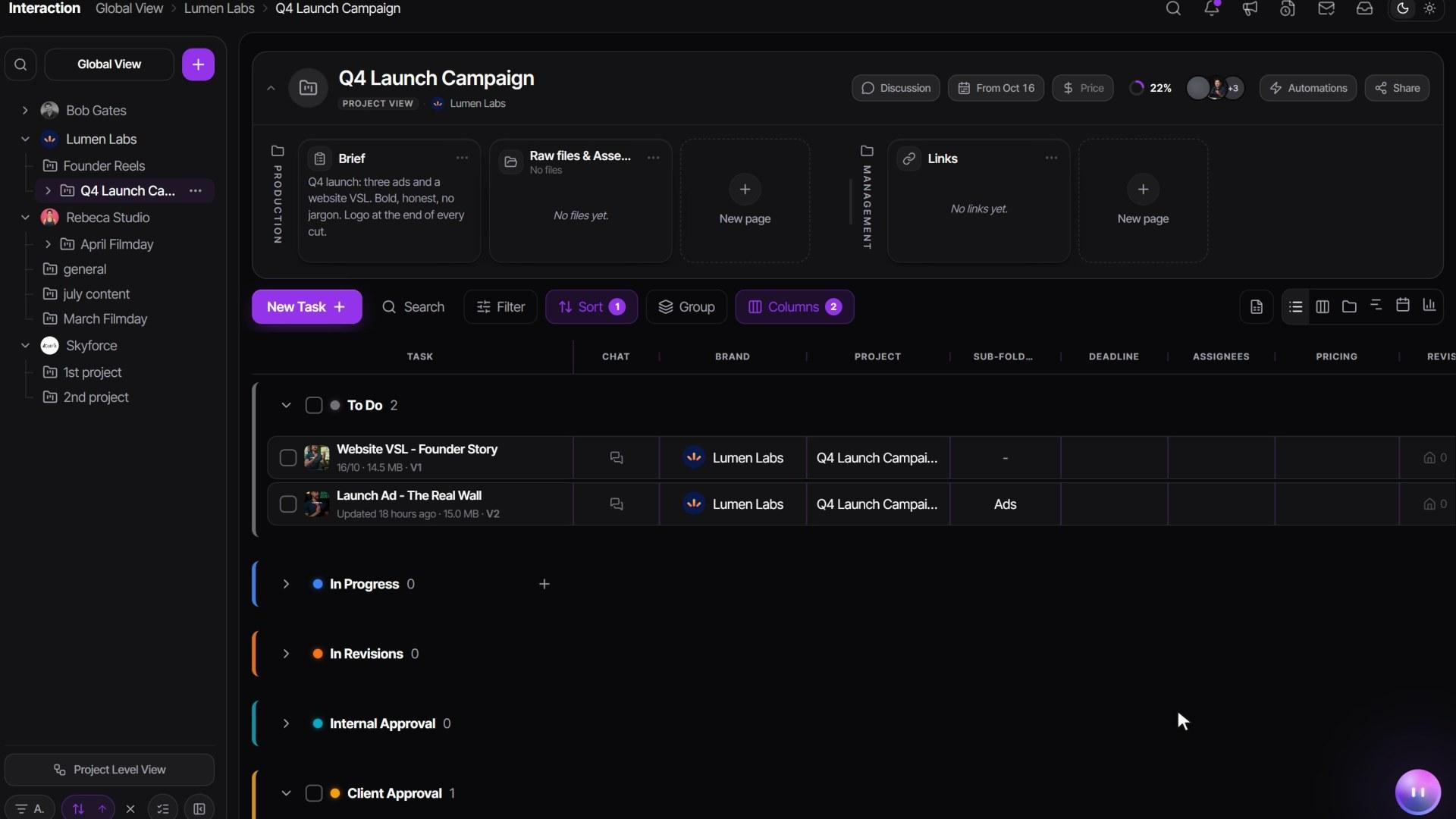
- In the left sidebar, open the three-dot Actions menu on the brand's row (or a single project's row).
- Click Manage Members.
- In the Members column, search for the teammate and click their name.
- Click Done.
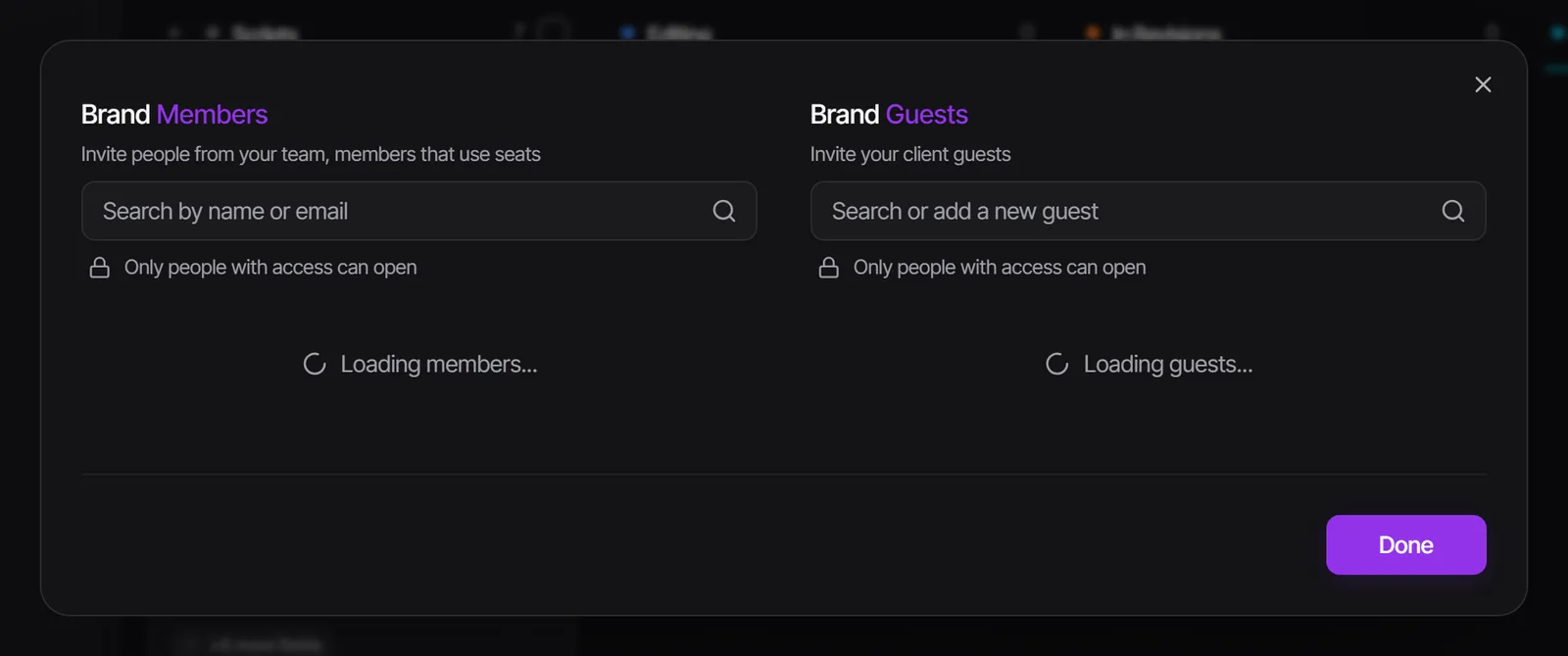
- A brand gives them every project inside it, including new ones. A single project gives them only that project. That is how you limit what someone sees.
- Adding someone to a brand notifies no one.
- Admins don't need this step. They see every brand and project automatically.
- Editors still see only the tasks they are assigned to. Assign them on the task, or turn on Can See All Tasks for them in their Edit > Role & Access.
The assignee picker on a task only lists people with access to that project. If you can't find an editor there, add them to the brand first.
Share one invite link instead
Onboarding a group of freelancers? Make one link and paste it into WhatsApp, Slack or an email.
- In Settings > Team & permissions > Members, click Invite link next to Invite Member. If you already have links, click Create invite link.
- Pick the role, an optional sub-role, when the link expires (or Never expires), an optional limit on how many people can use it, and an optional label.
- Click Create and copy link, then paste it anywhere.
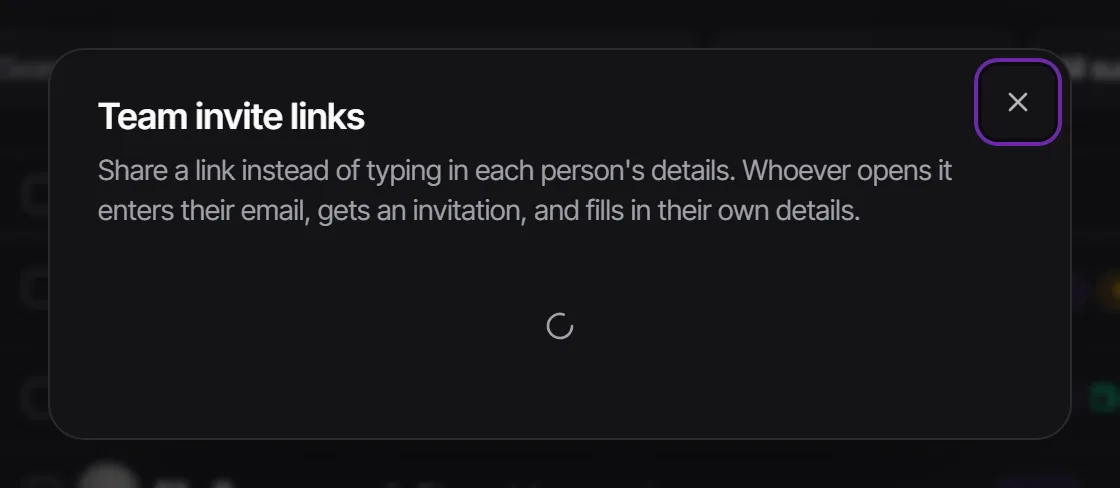
Whoever opens the link types their email, clicks Send me an invite, and gets the normal invitation email. Each person takes a seat. Every link shows whether it is Active, Expired, Revoked or Used up, how many times it was used and who joined. Revoke stops it at once; people who already joined stay.
Pending invitations
Until someone accepts, their row reads Pending Invitation with the time left. Open the row's menu for:
- Resend Invite sends a fresh 7-day link.
- Edit email fixes a typo. The old link stops working and a new invite goes to the right address.
- Reassign work hands any tasks you already gave them to someone else.
- Cancel withdraws the invitation. If they hold open tasks, you're offered to reassign them first.
Brand access and task assignments you gave someone while their invite was pending are removed if the invitation is cancelled or declined. An invitation that simply expires keeps them, and resending keeps them too.
Seats
- Every admin, supervisor and editor uses a seat, and so does every pending invitation. Clients never do.
- The team list shows how many seats are used. When every seat is taken, the invite button shows Seat limit reached.
- An admin adds seats in the avatar menu > Plan & Billing > Plans > Team Size > Update Subscription. See pricing.
- Deactivating a member frees their seat.
When someone leaves
- In Settings > Team & permissions > Members, open the person's row menu.
- Click Reassign work to hand their open tasks to One person, Split evenly, or By workload. Approved and posted work stays as it is.
- Click Deactivate. They lose access and their seat is freed. Their financial history is kept.
Deactivate also offers to reassign their open work in the same step. Changed your mind? Reactivate brings back their old brand and project access. To remove someone for good, an admin deactivates them first and then clicks Delete permanently on that row. This can't be undone.
Who can invite whom
| Your role | Can invite |
|---|---|
| Admin | Admins, supervisors, editors and guests |
| Supervisor | Supervisors, editors and guests, never admins |
| Editor | No one |
The same limits apply to invite links: supervisors can only make supervisor and editor links. What each role can do once they're in: Team roles and permissions.
Good to know
- New editors and supervisors see a one-time Welcome aboard card listing what their role can do.
- An editor who hasn't been added to any brand sees a welcome screen with buttons to message their admin.
- Someone who is already a guest in your workspace can't be invited as a team member. Guest and team access are separate.
- Admins can change what the invitation email says in Settings > Workspace > Basics > Welcome emails.
Watch it
Questions people ask
Why doesn't my new editor see anything?
Editors only see brands they've been added to, and only the tasks they're assigned to. Add them to the brand with Manage Members, then assign them on the task.
Can a supervisor invite people?
Yes, supervisors can invite editors, other supervisors and guests. Only an admin can make someone an admin, and editors can't invite anyone.
My business partner should see everything. What role?
Admin. Admins see every brand and project automatically, including new ones, and manage billing and settings.
The invite never arrived. What do I do?
Ask them to check spam, then use Resend Invite on their pending row. If the address had a typo, use Edit email.
Does a freelancer on one project need a seat?
Yes, anyone who works on tasks needs a team role and a seat. Add them only to that project so they see nothing else.
Still stuck?
Ask Janet, the assistant inside Timeliner, email our team, or ask the community on Discord. We answer every message.