Notifications: email, WhatsApp, Slack and the bell
Who gets notified when, how to choose your channels, turn on WhatsApp, mute a brand, set quiet hours, and check what was actually sent.
6 min readUpdated November 10, 2026
Video lesson: Control Your Notifications
Overview
Timeliner tells people when something needs them: work ready for review, a revision request, a mention, a new assignment. Notifications arrive in four places: the bell inside the app, email, WhatsApp and Slack.
| Channel | Default | Plan |
|---|---|---|
| The bell (in-app) | Always on, no switch | Every plan |
| On | Every plan | |
| Needs your number and the switch | Studio and up | |
| Slack | Needs an admin to connect Slack once | Studio and up |
Nobody is ever notified about their own action. Each person picks their own channels, and admins set the defaults for the team and for clients.
Who gets notified when
| What happens | Who hears about it |
|---|---|
| You create a brand, project, task or share link | No one |
| You invite a client or a team member | That person, by email, right away |
| A task moves to Client Approval | The project's invited clients |
| A task moves to Supervisor Approval | The project's supervisors and admins |
| A task moves to In Revisions | The task's editors (plus supervisors and admins when a client or editor sent it back) |
| A task moves to Approved | The task's editors plus the project's supervisors and admins |
| Someone is assigned to a task | The person assigned, if they already have access to the project |
| You @mention someone | Only that person |
| Someone replies to your comment | You (clients only for a Public reply) |
| A client comments through a share link | The task's editors plus the project's supervisors and admins |
| Files are uploaded to raw footage | Team members with access, once per upload batch |
| A deadline is near or past | Supervisors and admins, in one daily summary |
- Plain comments with no @mention notify no one by default.
- Moving many tasks at once, or uploading many files, sends one combined message, not one per item.
- A task with no file yet doesn't notify the client. The message goes out when the upload finishes.
- Share-link visitors are never notified. Only invited clients are.
Choose where you get alerts
- Click your avatar at the bottom of the left sidebar and open Settings.
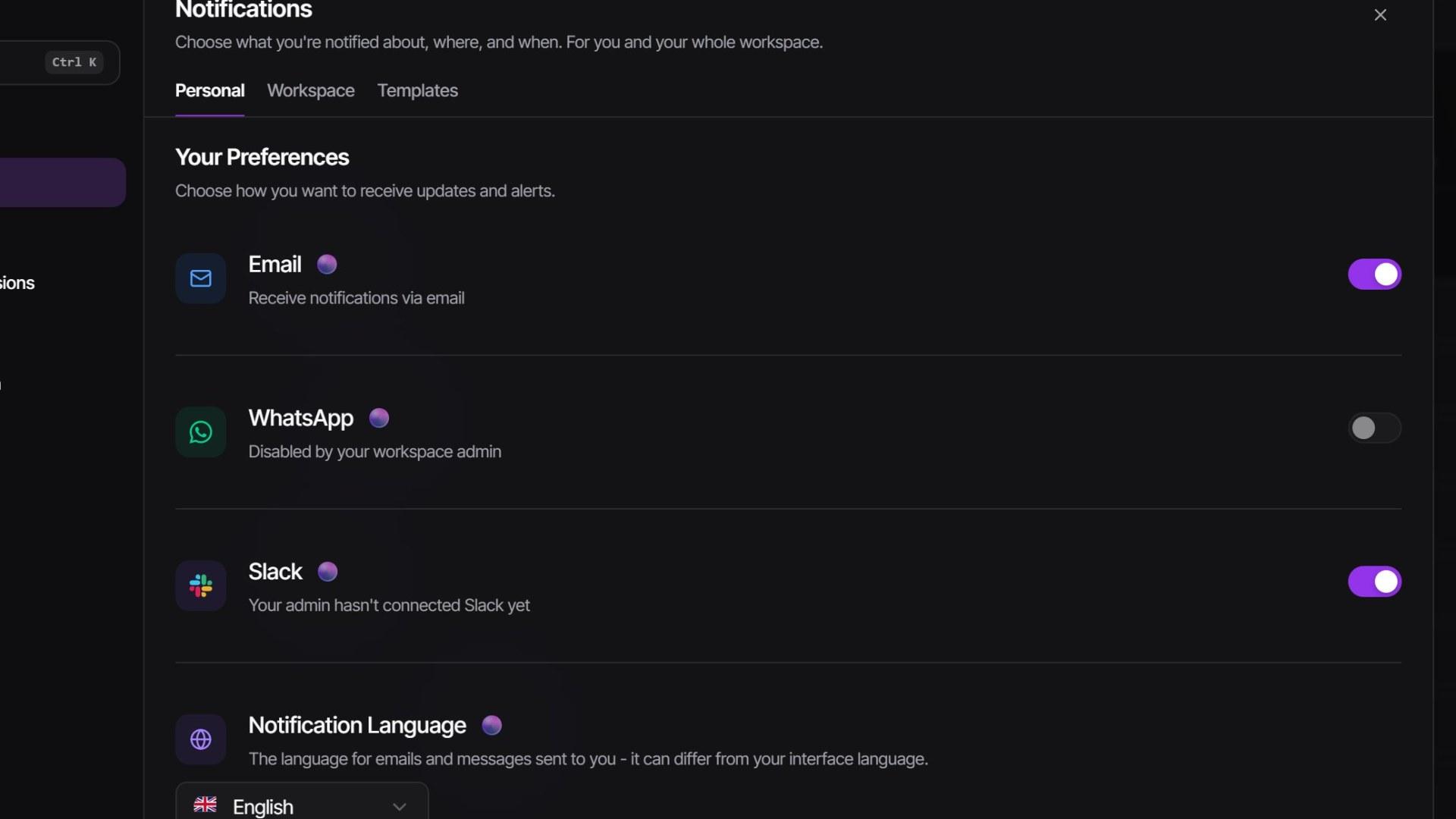
- Go to Notifications > Personal.
- Turn Email Notifications, WhatsApp Notifications and Slack Notifications on or off.
- Pick your Notification Language. It can differ from the language you use the app in.
- Click Save Changes.
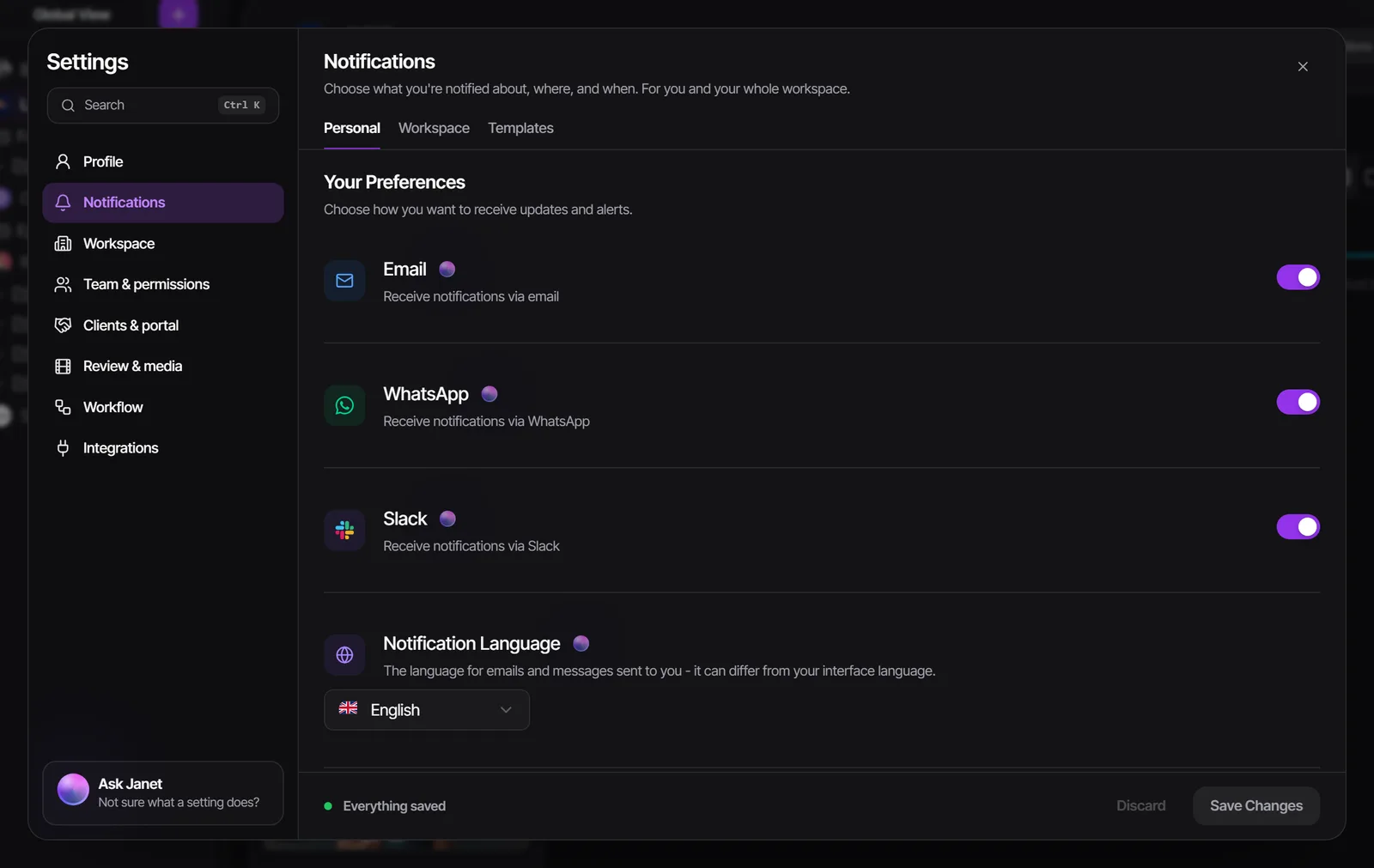
A switch that is greyed out with Disabled by your workspace admin means an admin turned that channel off for everyone. Both your switch and the workspace switch have to be on.
Turn on WhatsApp alerts
- In Settings > Profile > Account, enter your WhatsApp Number with its country code, then click Save Changes.
- In Settings > Notifications > Personal, turn on WhatsApp Notifications and save.
- Still greyed out? Ask an admin to turn on WhatsApp Notifications in Notifications > Workspace.
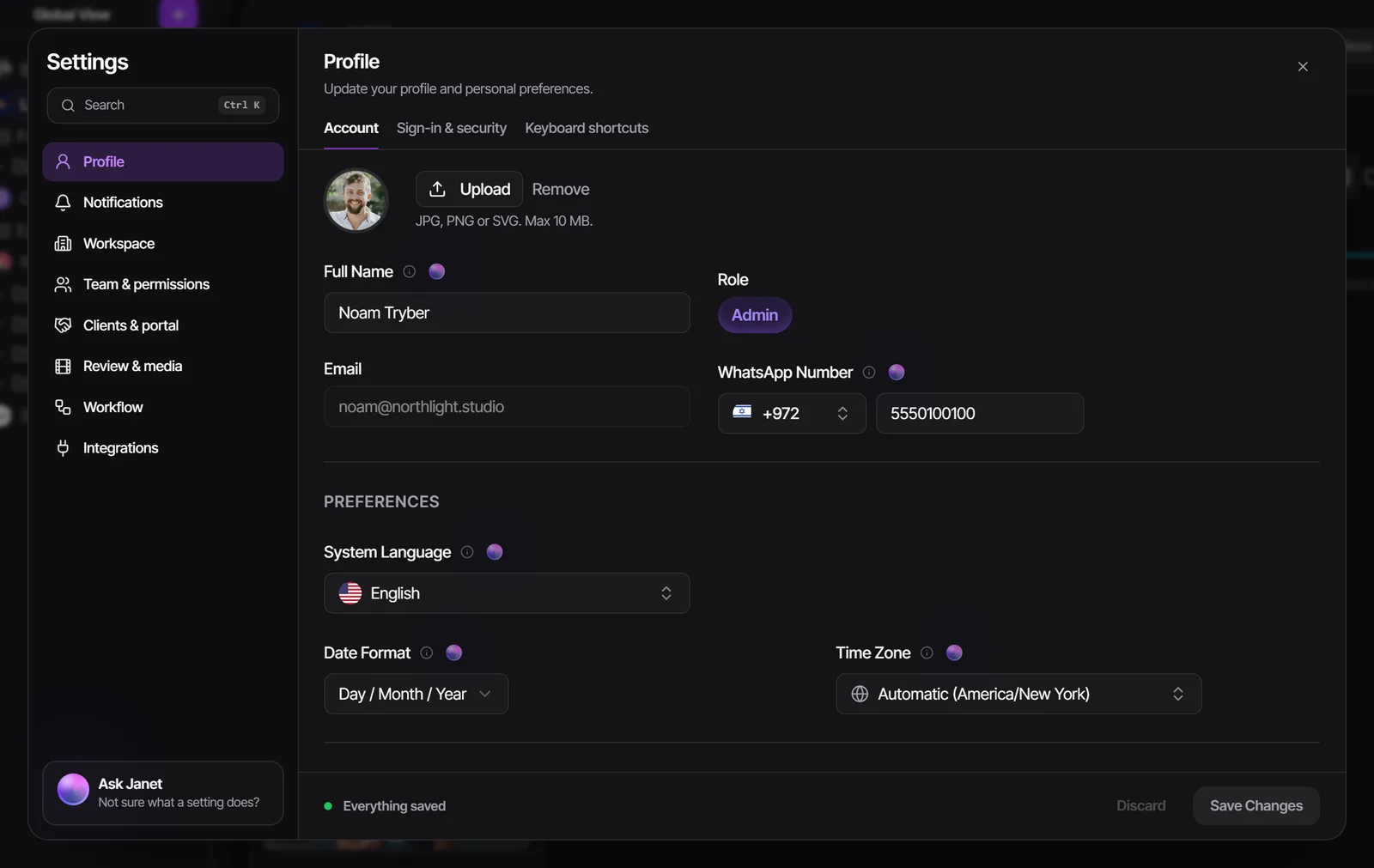
- Each WhatsApp message uses 2 of the workspace's credits. Workspace invitations are free. If credits run out, WhatsApp pauses while email, Slack and the bell keep going.
- WhatsApp messages are sent in English or Hebrew.
- To stop WhatsApp for yourself, switch it off, or reply STOP to any Timeliner WhatsApp message.
Pick which notifications you get, and mute a brand
Under Notifications > Personal:
- Advanced: per-notification controls > Customize opens a grid where you choose, for each kind of notification, whether it reaches you by email, WhatsApp or Slack (Studio and up).
- Brands lets you mute a whole brand, or keep it to some channels. Muting works on every plan; choosing channels per brand needs Studio and up.
You can also open a brand's three-dot Actions menu > Edit Brand > Notifications. A muted brand sends no bell, email, WhatsApp or Slack alerts, but invitations and download requests still arrive.
Quiet hours, batching and a daily catch-up
On the Agency plan and up, each person can set their own rules under Notifications > Personal > Your delivery rules:
- Quiet hours & days pauses email, WhatsApp and Slack on the days and hours you pick. Everything still shows in the app.
- Batch notifications bundles frequent alerts into one summary every 30 minutes, hour, 2 hours, 4 hours or twice a day. Direct @mentions are never held back.
- Catch-up summary sends one email at a set time: What you missed or Ready for your review.
Turning any of these off works on every plan, so a workspace that moves to a lower plan can still switch them off.
Set the defaults for your team and clients (admins)
- Open Settings > Notifications > Workspace.
- Use the switch at the top to choose Members (your team) or Guests (your clients). Each has its own defaults.
- Set which channels are on, which events notify on which channel in Manage notifications, and the Global Notification Language.
- Click Save Changes.
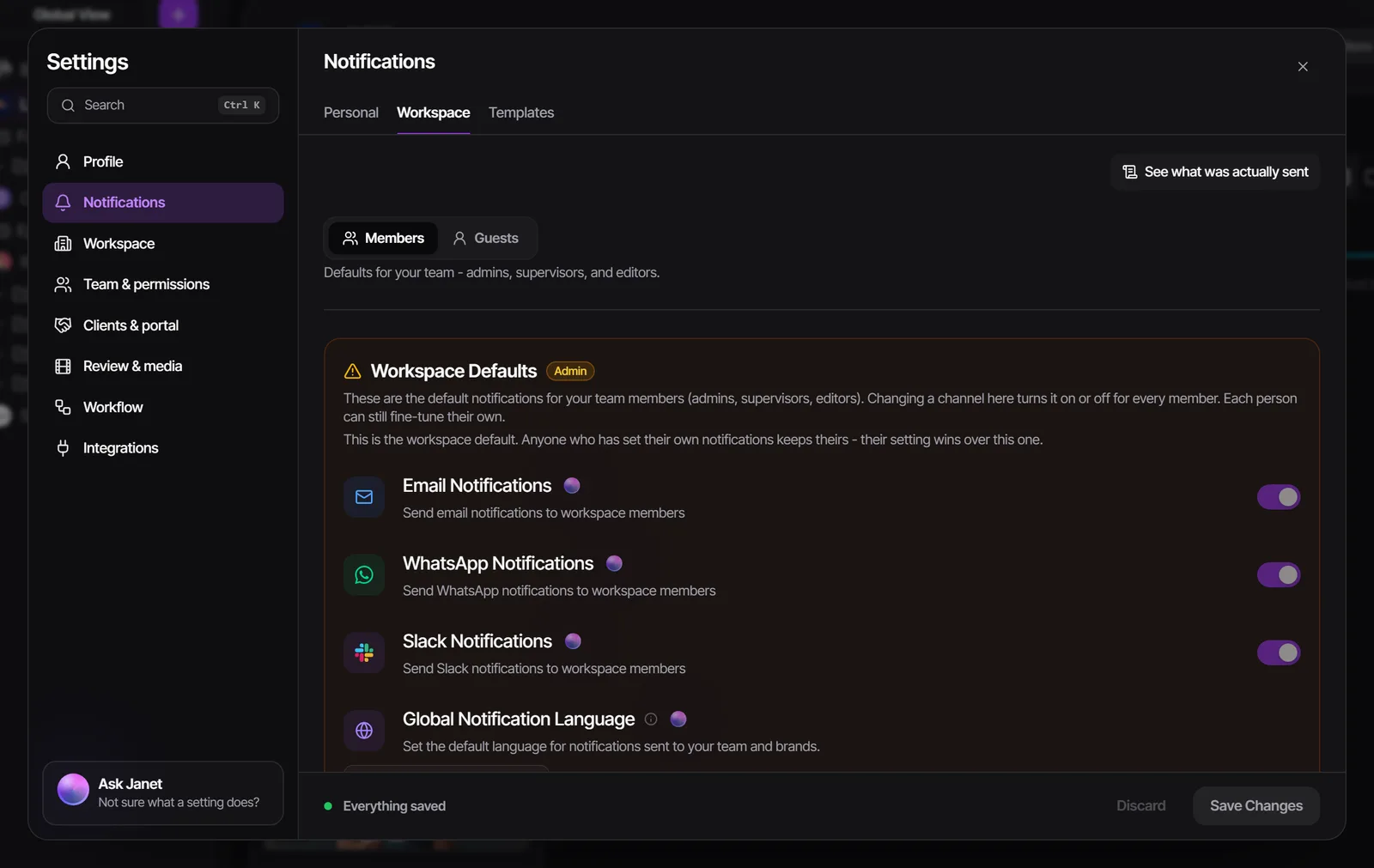
- Connect Slack: in the Members view, type your Slack workspace address and click Connect to Slack. Pick a default channel, and add Brand & project channel overrides to send one brand's posts to its own channel, with a separate one for the client if you like.
- Deadline reminders (on by default) remind admins about client-facing deadlines on every brand, and supervisors only on the brands they're on, once before and once after, in one summary. Editors are reminded only about internal deadlines, when Dual Deadline Mode is on.
- Per-brand defaults mute a brand or switch off channels for the whole team or for that brand's clients. A person's own rule still wins.
- To change one person's channels, open Team & permissions > Members, their row's Edit > Notifications.
Check what was actually sent
Open the three-dot More actions menu in the top bar and click Notification log. It lists every email, WhatsApp and Slack message from about the last 90 days, newest first. Filter by channel and by sent, failed or skipped, and search by person or task. Open a row to see the full message, or the reason it failed.
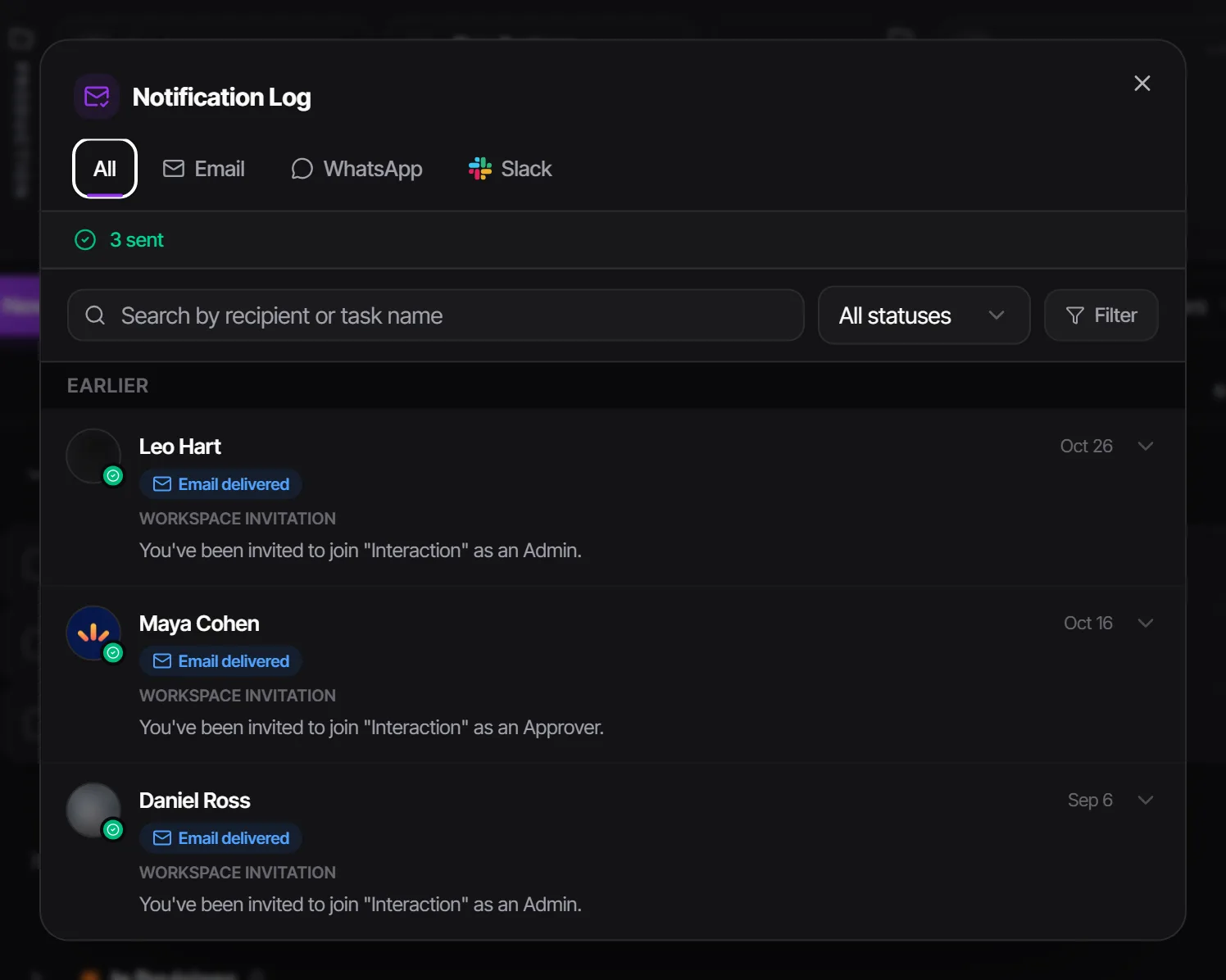
Supervisors and admins see everything and can Resend a message. Editors see only the notifications their own actions sent. The bell itself has All, Mentioned and Assigned tabs, an Unread only filter and Mark all as read.
Watch it
Questions people ask
How do I stop the emails but keep seeing notifications?
In Settings > Notifications > Personal, turn off Email Notifications and save. The bell in the app keeps working.
Why am I not getting WhatsApp messages?
Check three things: your WhatsApp Number in Profile > Account, the WhatsApp Notifications switch in Notifications > Personal, and that an admin hasn't turned WhatsApp off for the workspace. WhatsApp needs the Studio plan or higher.
Does my client get notified when I create a share link?
No. Creating a share link notifies no one. Your client hears about work when you move it to Client Approval after inviting them, or when you send them the link yourself.
Why didn't my client get the review email?
They must be invited to that brand or project as a guest, and a video task waits until its file has uploaded. Check the Notification log (top bar > More actions) to see whether it was sent.
Can I get notified about every comment on my tasks?
Yes. Editors can turn on Comment on your assigned task in their per-notification controls.
Still stuck?
Ask Janet, the assistant inside Timeliner, email our team, or ask the community on Discord. We answer every message.