Brands, projects, folders and sub-folders
Create a brand for each client, projects for each job, sub-folders inside a project and folders to group brands, and choose who can open them.
6 min readUpdated November 7, 2026
Video lesson: Create Your 1st Brand & Add Members
Overview
Timeliner organizes work the way an agency thinks about it: every client is a brand, every job for that client is a project, and every deliverable is a task. Admins and supervisors build this structure; editors and clients see only the parts they were given.
Two optional levels keep things tidy as you grow: folders group brands in the left sidebar, and sub-folders group the tasks inside one project.
The levels at a glance
| Level | What it holds | Example |
|---|---|---|
| Folder | Brands (and other folders), for grouping in the sidebar | Retainers, One-off projects |
| Brand | One client's projects, files and settings | Lumen Labs |
| Project | One job: its brief, raw footage and tasks | October 2026, Spring campaign |
| Sub-folder | A group of tasks inside one project | Ads, Organic, Podcast clips |
| Task | One deliverable | Spring sale 15s ad |
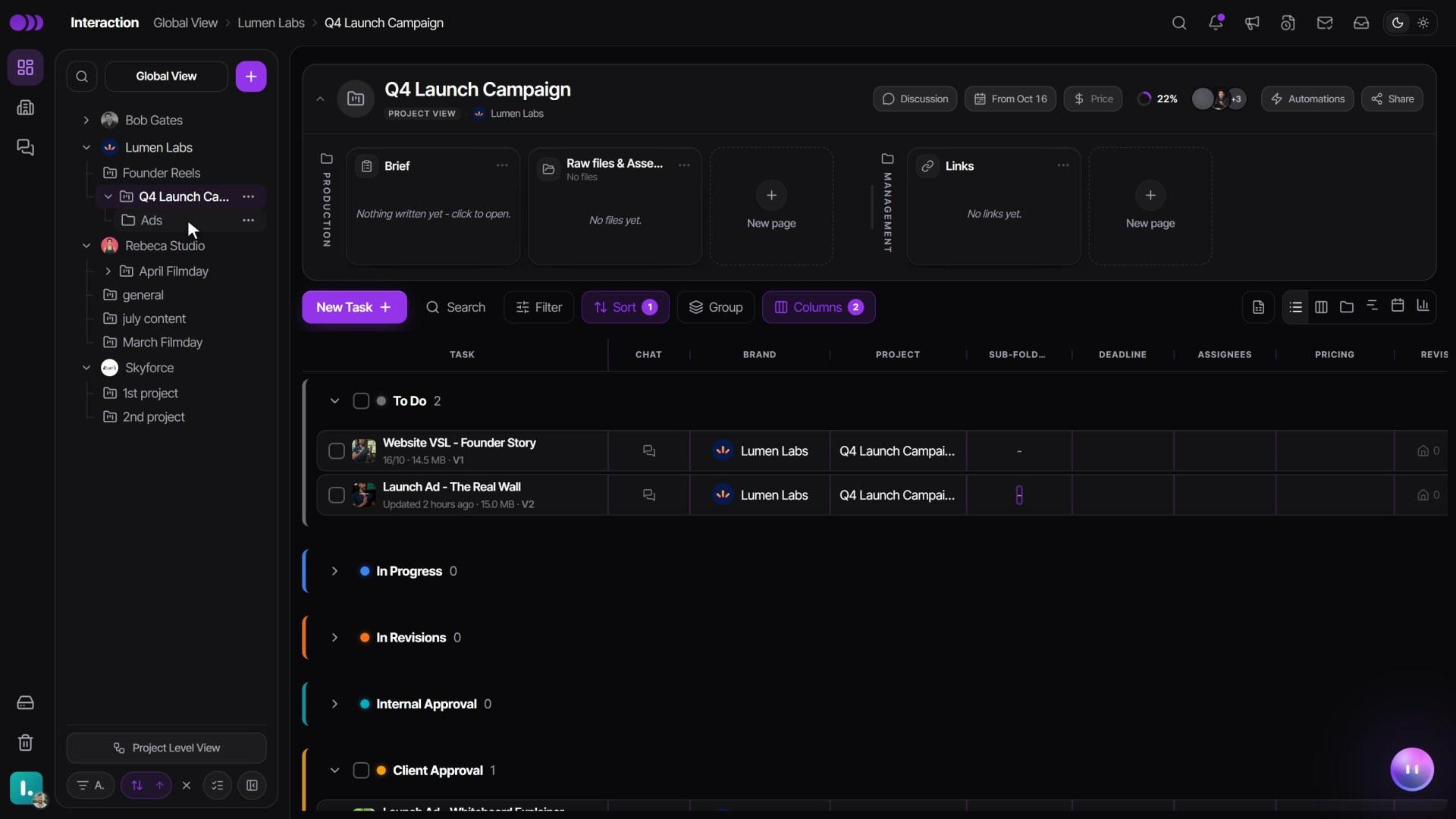
Click a brand in the sidebar to see every task across its projects. Click a project to see only that project's tasks, and click a sub-folder to see only what is inside it.
Create a brand
- Click the + button at the top of the left sidebar, next to Global View, and choose Brand.
- Type the Brand Name and click the circle to add the client's logo.
- Choose the brand type. Client means your client reviews and approves the work. Internal Brand is for your team's own content: its tasks never go through client approval, and you can't add clients to it.
- Click Next. For a client brand, the next step invites the person who approves work on their side. Enter their details to send the invitation now, or click Skip for now to do it later.
- On the last step, add the teammates who work on this client, then click Done. Only people added to a brand can open it.
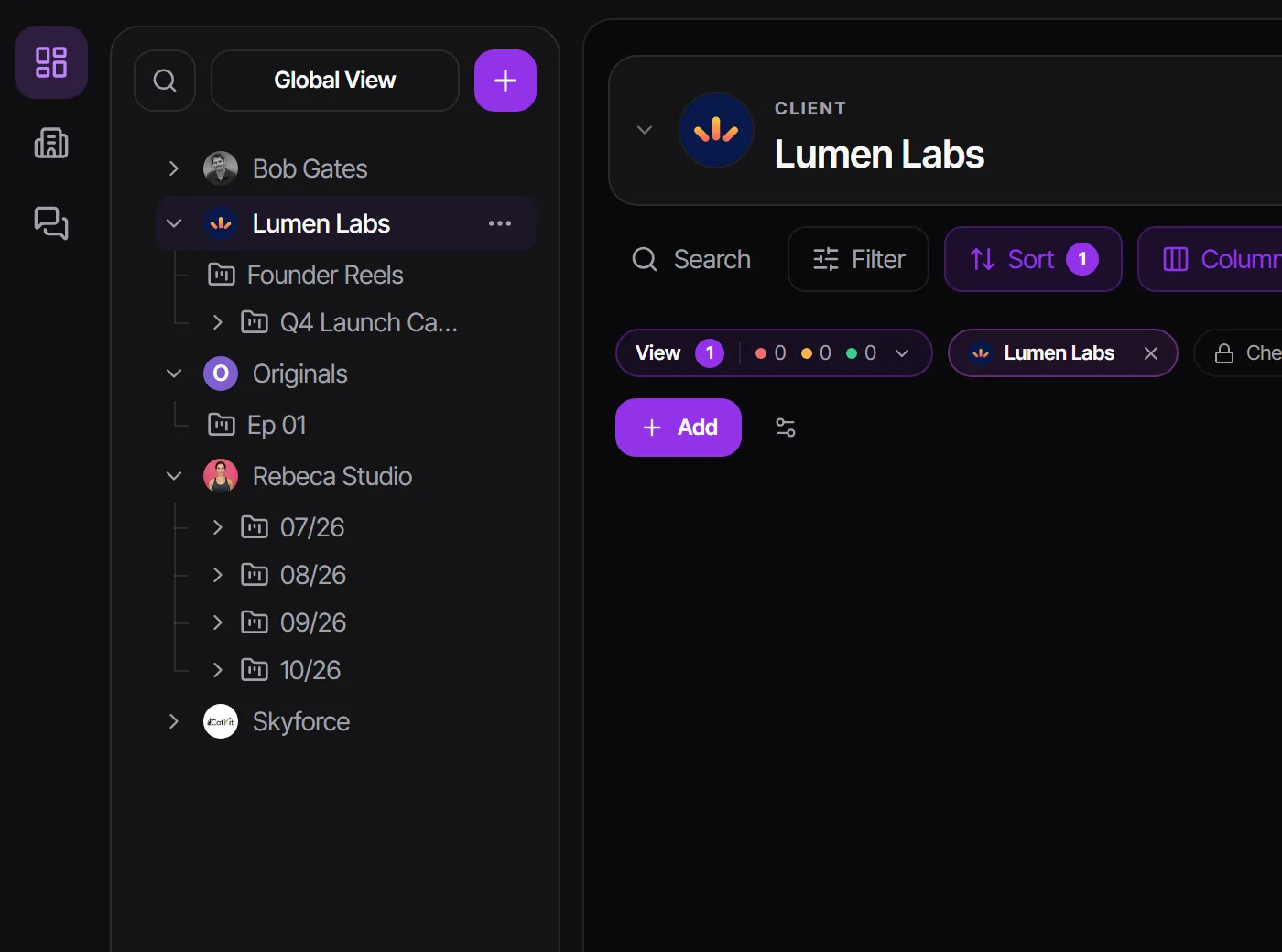
Every new brand starts with a first project called 1st project, so you can add work right away. Rename it from the project's Actions menu → Edit Project.
Creating a brand notifies no one. Your client gets an email only if you invite them in step 4. If you are just testing, the dialog suggests inviting a second email address of your own.
Picked the wrong type? Open the brand's Actions menu → Edit Brand → General → Brand type. Switching to Client asks you to invite the client contact; switching to Internal Brand works once no tasks are waiting for client approval and no client contacts remain on the brand.
Choose who can open a brand or project
Joining the workspace does not give editors or supervisors any brand. You decide who sees each client.
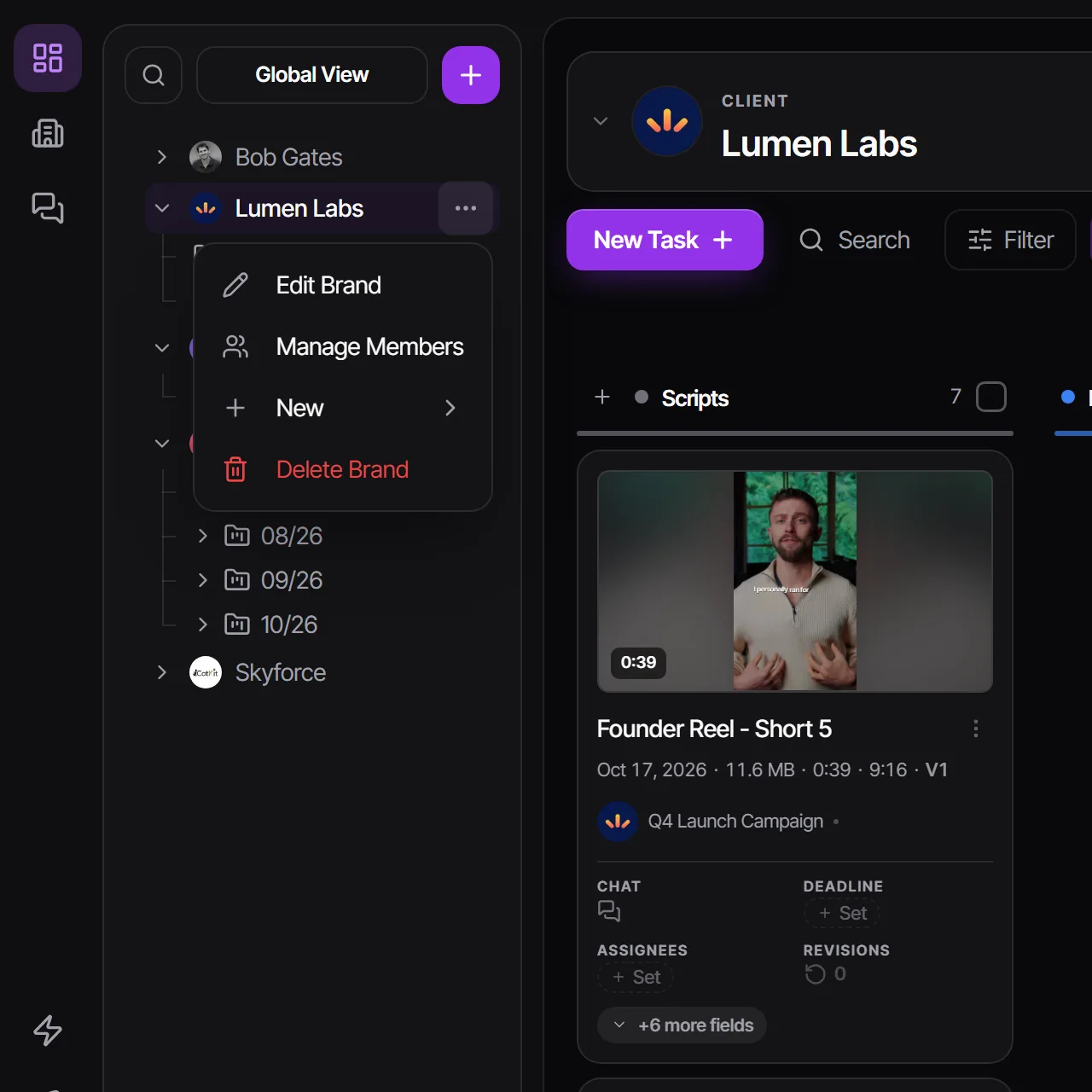
- In the left sidebar, click the three-dot Actions button at the right of the brand's row → Manage Members.
- Search for the teammate and add them with a role. Access to a brand covers every project inside it.
- To give someone a single project only, use that project's Actions menu → Manage Members instead.
A person's role on a brand or project can be the same as their workspace role or lower, never higher. See Team roles and permissions.
Create a project
- Open the brand's Actions menu → New → Project. The brand is already filled in.
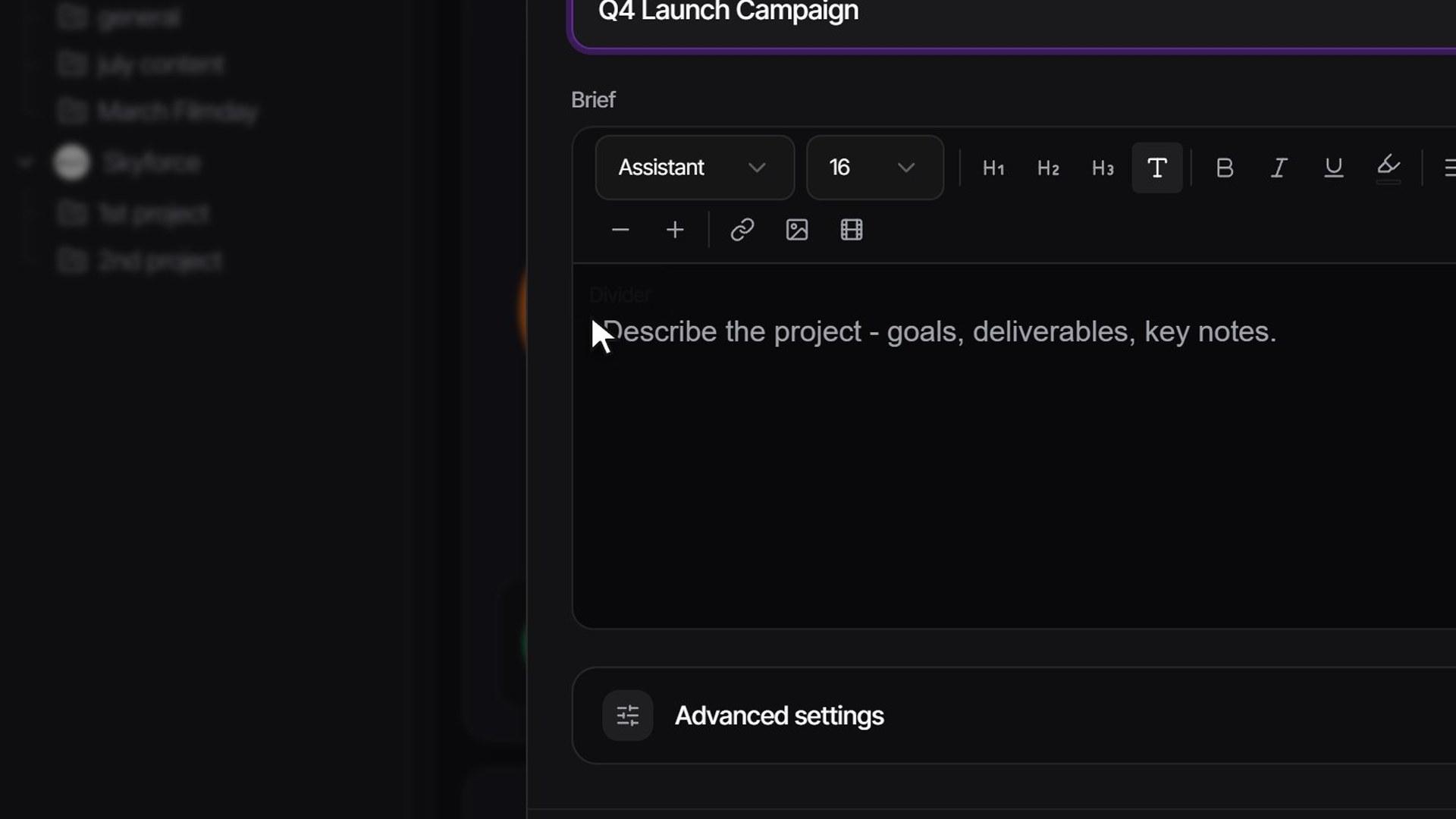
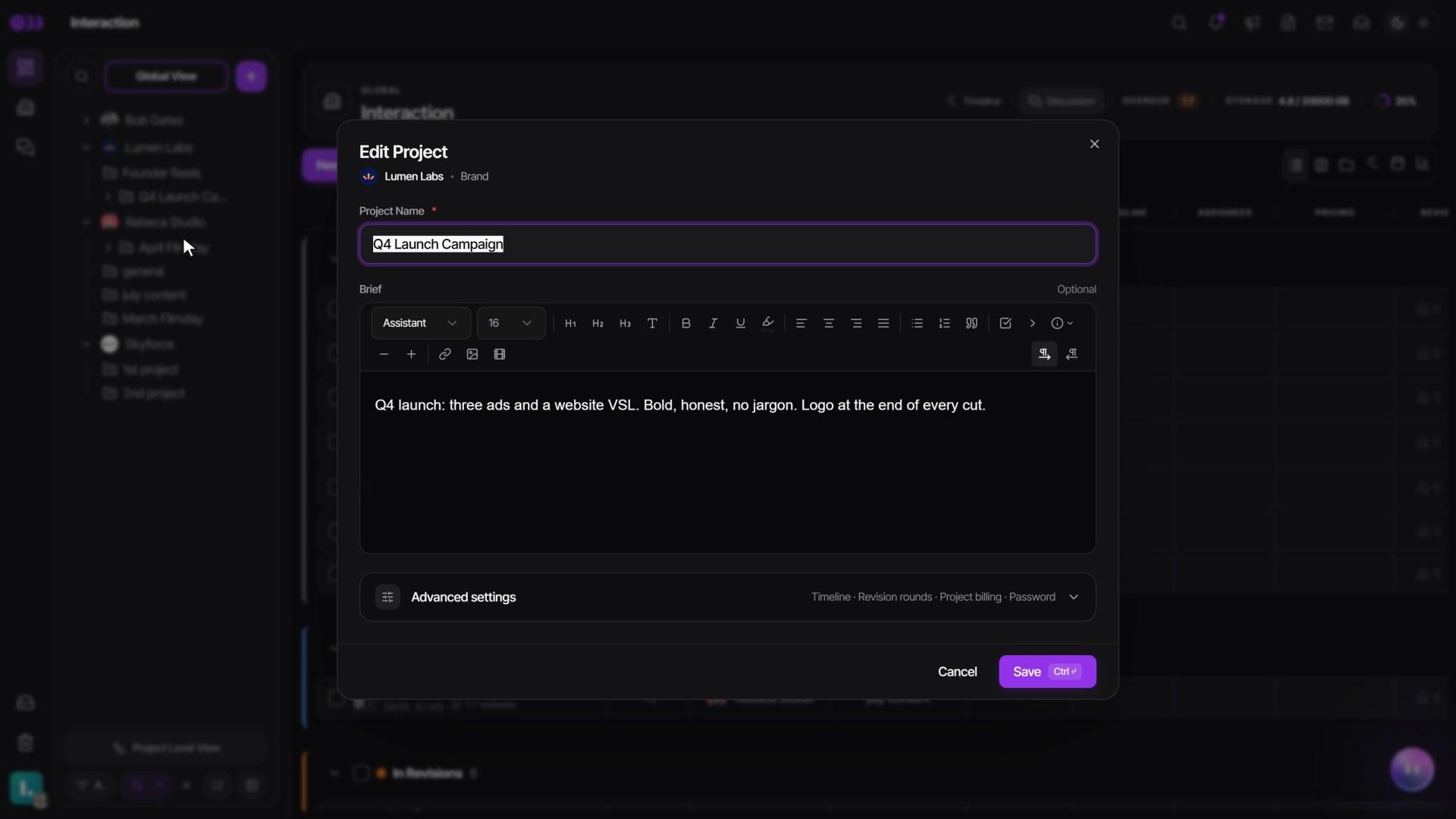
- Type the Project Name. Optionally pick a Folder and write the Brief — what the project is about, for your editors.
- Open Advanced settings to set the project's Timeline (Auto, or Set dates with a Start date and Target end date) and its Revision rounds. Depending on your plan, billing for the project is set here too.
- Click Create.
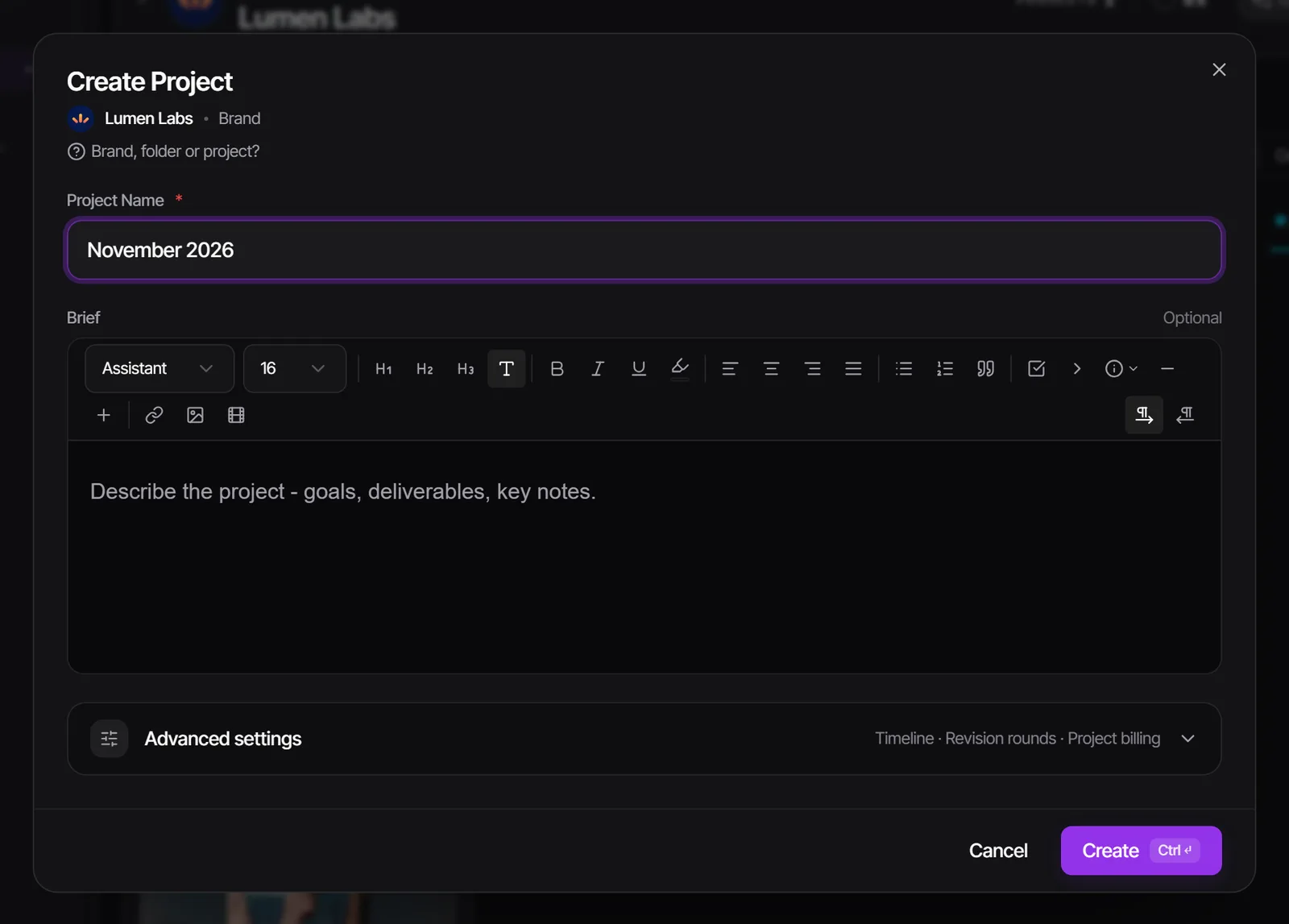
To change any of this later, open the project's Actions menu → Edit Project. The name and brief are up front, and everything else sits under Advanced settings. One Save keeps it all.
Organize a client by month
For a retainer client, a simple setup works well: each month is a project, named like "October 2026". When the client asks what you made them in October, it is one click. Inside the month, split deliverables into sub-folders such as Ads, Organic and Podcast clips.
- Open the project's Actions menu → New sub-folder, type the Sub-folder name and click Create.
- In the List view, the Sub-folder column appears right after Project. Click a task's cell and pick where it goes; No sub-folder takes it back out to the project.
- Have many tasks to sort? Tick several tasks first, then pick a sub-folder on any ticked row, and they all move together.
- Click the sub-folder in the sidebar to see only its tasks. The header reads Sub-folder view, and anything you create or drop in there lands in it.
- Sub-folders hold tasks, not files, and they don't nest inside each other.
- On the Kanban, the sub-folder line on a card is the picker, and the card's menu has Move to sub-folder.
- Deleting a sub-folder never deletes its tasks. They go back to the project.
Group brands into folders
Once you have many clients, group the brands themselves — for example Retainers and One-off projects.
- Click the + button at the top of the sidebar → Folder.
- Type the Folder Name and click Create.
- Drag brands into the folder in the sidebar, or use the folder's Actions menu → New → Brand to create a brand inside it. The same menu can create a Folder inside the folder.
A folder is only for grouping. It has no client and no review flow of its own. It is a different thing from the file folders inside a brand's or project's files, and from sub-folders inside a project.
Rename, archive or delete
- Rename a brand, folder or project from its Actions menu → Edit Brand, Edit Folder or Edit Project. There is no separate Rename item.
- Archive finished work: click the view button at the bottom of the brands panel → Select, tick the brands or projects, then Archive. Archived items leave the Active view for everyone but nothing is deleted. Switch the same menu's filter to Archived or All to see them, and use Unarchive to bring them back.
- Delete from the Actions menu → Delete Brand, Delete Folder or Delete Project. Deleted items go to Trash with everything inside them and can be restored. The Trash page says items are deleted after 30 days, so restore promptly.
Who can do this
| Action | Admin | Supervisor | Editor |
|---|---|---|---|
| Create, edit and delete brands and folders | Yes | Yes | No |
| Create projects | Yes | Yes | Only with Editors Can Create Projects on, inside brands they can open |
| Edit and delete projects | Yes | Yes | Never edit; with Editors Can Create Projects on, delete only projects they created |
| Create, rename and delete sub-folders | Yes | Yes | No |
| Move tasks into a sub-folder | Yes | Yes | Tasks they created |
| Archive brands | Yes | Only with Supervisors Can Archive Brands on | No |
| Archive projects | Yes | No | No |
| Permanently delete from Trash | Yes | No | No |
Both switches live in Settings → Team & permissions → Permissions and are off by default. Clients never create brands, projects or sub-folders.
Watch it
Questions people ask
Can I move a project to a different brand?
No. A project belongs to the brand it was created in, and dropping it on another brand is refused. Create the project in the right brand instead.
Why can't my editor see a client?
Editors see only the brands and projects they were added to. Open the brand's Actions menu → Manage Members and add them.
What is the difference between a folder and a sub-folder?
A folder groups brands in the left sidebar. A sub-folder groups tasks inside one project. Neither holds uploaded files; those live in a brand's or project's file cards.
Is there a limit on tasks per project?
No. A project holds as many tasks as the work needs, so you never have to split a project to make room.
Does archiving a brand remove my client's access?
No. It moves the brand out of the Active view, but nobody loses access, and clients can switch their own filter to see archived work.
Still stuck?
Ask Janet, the assistant inside Timeliner, email our team, or ask the community on Discord. We answer every message.