Views, filters, sorting and search
Switch between List, Kanban and Folders, filter, sort and group your tasks, save team views, and find anything with Ctrl+K.
7 min readUpdated November 7, 2026
Video lesson: Filter, Sort, Columns
Overview
As the work grows, the task list gets long. Views change how your tasks are laid out, filters and sorting decide which ones you see and in what order, and saved views let the whole team look at the same setup in the weekly meeting.
Everything here follows the scope you pick in the left sidebar: Global View for every brand, one brand, one project or one sub-folder.
Switch between views
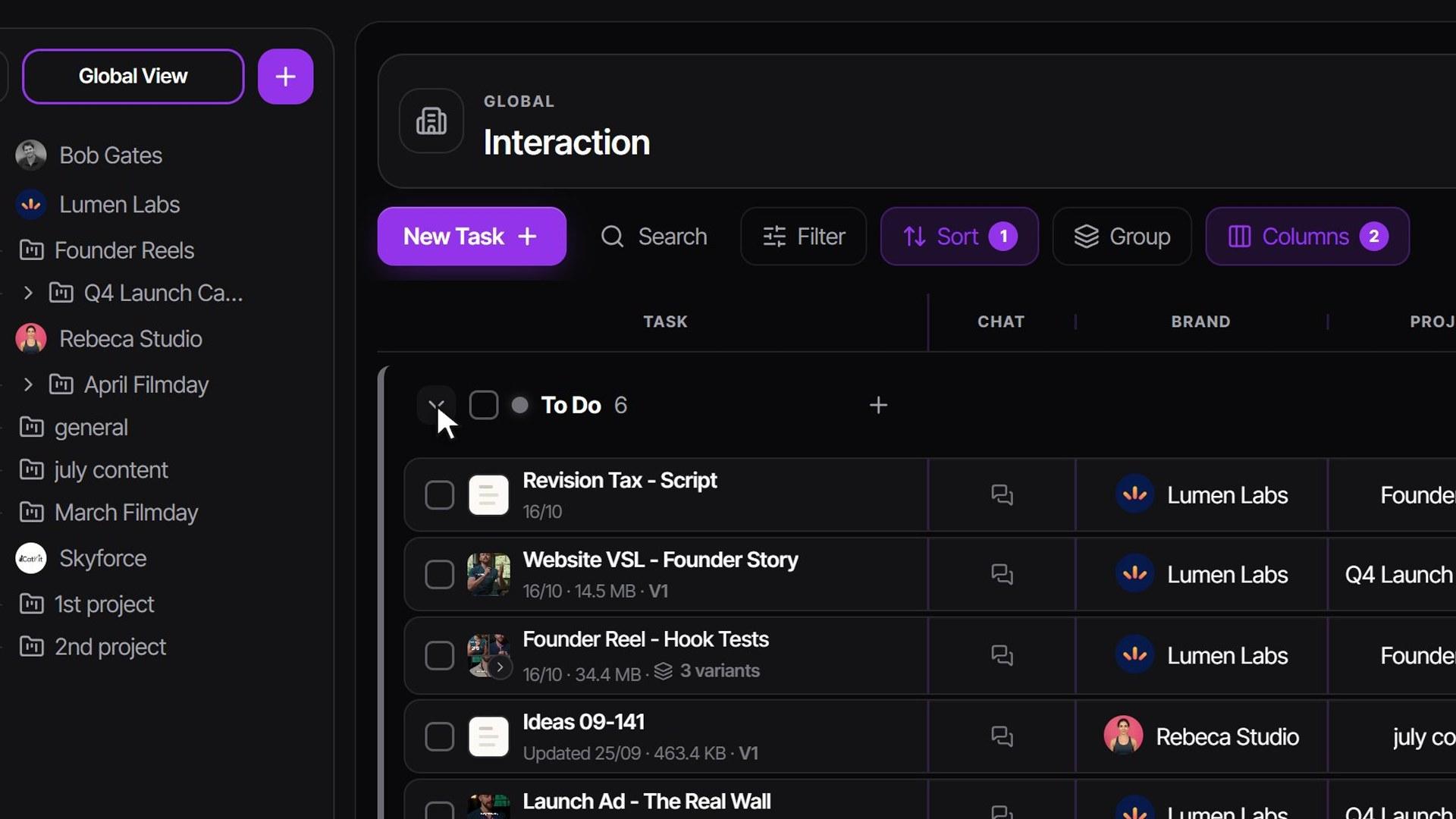
The view switcher sits at the right end of the toolbar above your tasks. Your choice is saved to your account and stays the same in every brand and project.
| View | What it shows | Plan |
|---|---|---|
| List | Tasks as rows, grouped by status, with the columns you choose | Every plan |
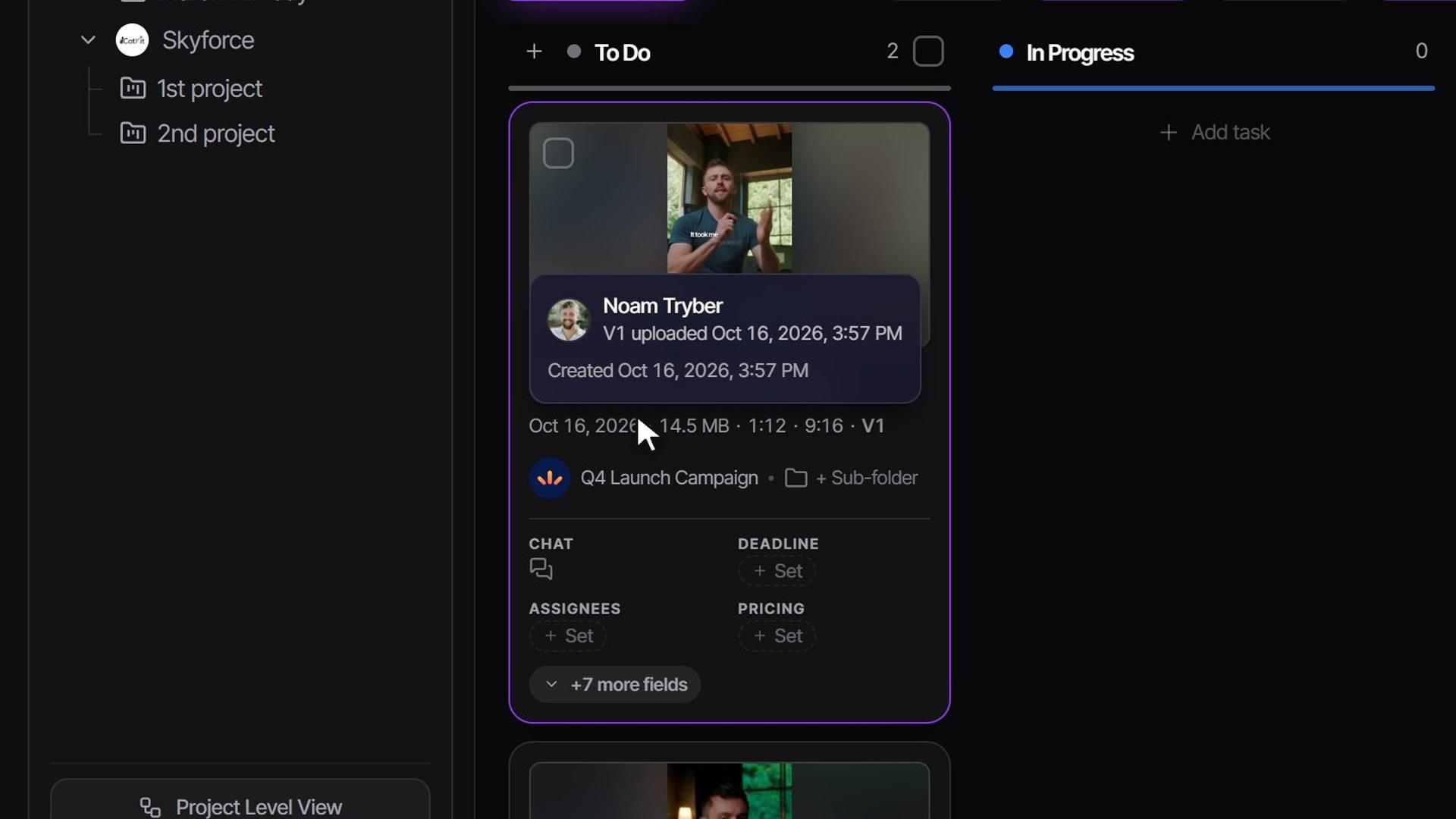
| Kanban | Your pipeline as columns of cards; drag a card to change its status | Every plan |
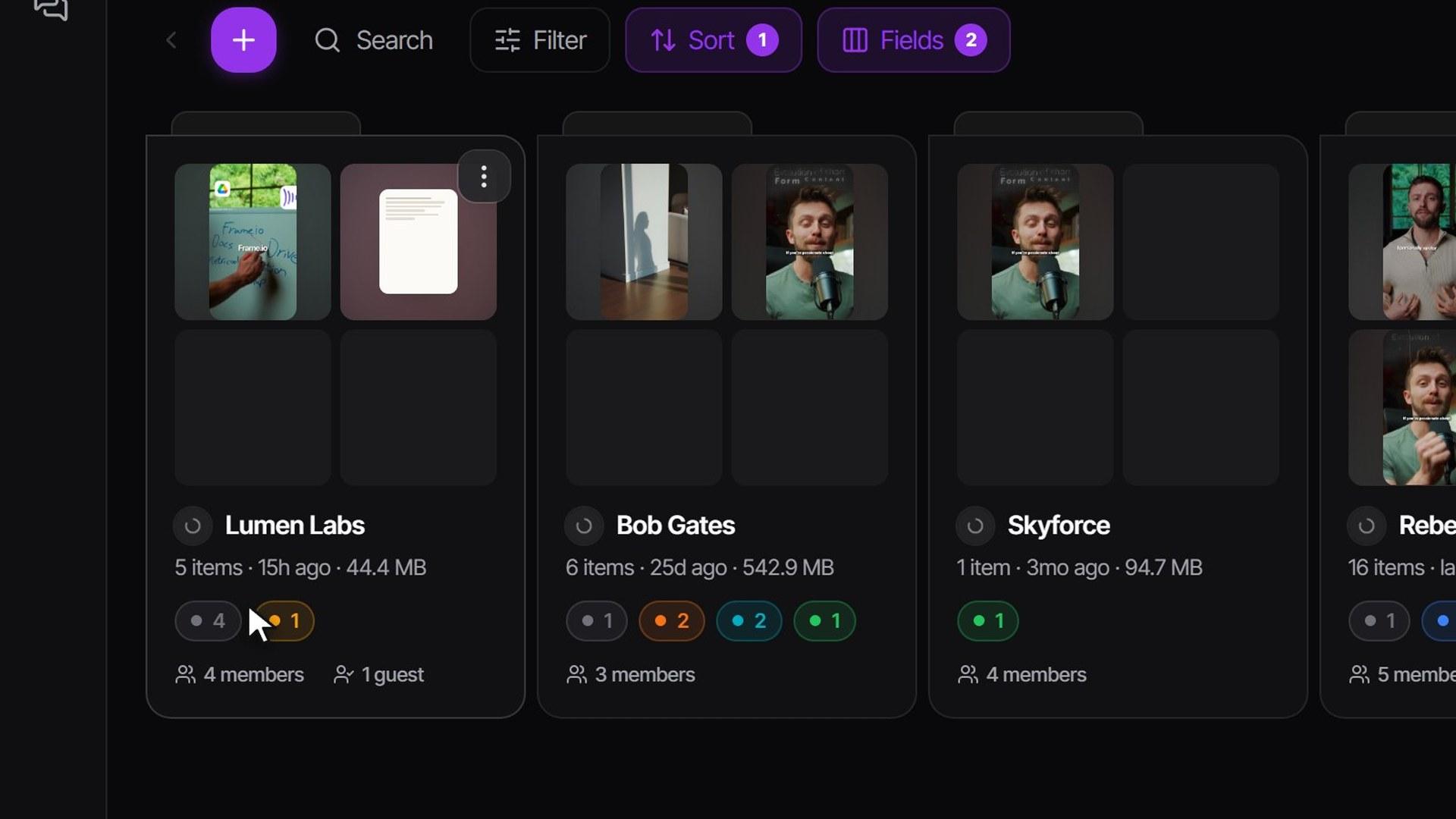
| Folders | Brands, projects, sub-folders and deliverables as big visual tiles | Every plan |
| Workload | Each person's capacity over time | Agency and up |
| Calendar | When each social post goes live | Agency and Scale |
| Analytics | Pipeline, team, finance and social numbers | Full dashboard on Agency and up; three cards on Studio |

- On the Kanban, every column is a stage and every card is a deliverable with its thumbnail, length and version. Switch between Comfortable and Compact to fit more on screen, and use Fields to choose what each card shows.
- In Folders, every brand is a tile with a peek at its latest videos and how many tasks sit in each stage. Click a brand, then a project, to step inside; the breadcrumbs at the top take you back out.
- A view your plan doesn't include shows a small lock and opens a preview behind an upgrade card.
To choose the view you land on after signing in, go to Settings → Profile → Account → My views and move it to the top (it reads Lands here). Admins choose which views each role gets in Settings → Team & permissions → Permissions → Team views.
Filter the list
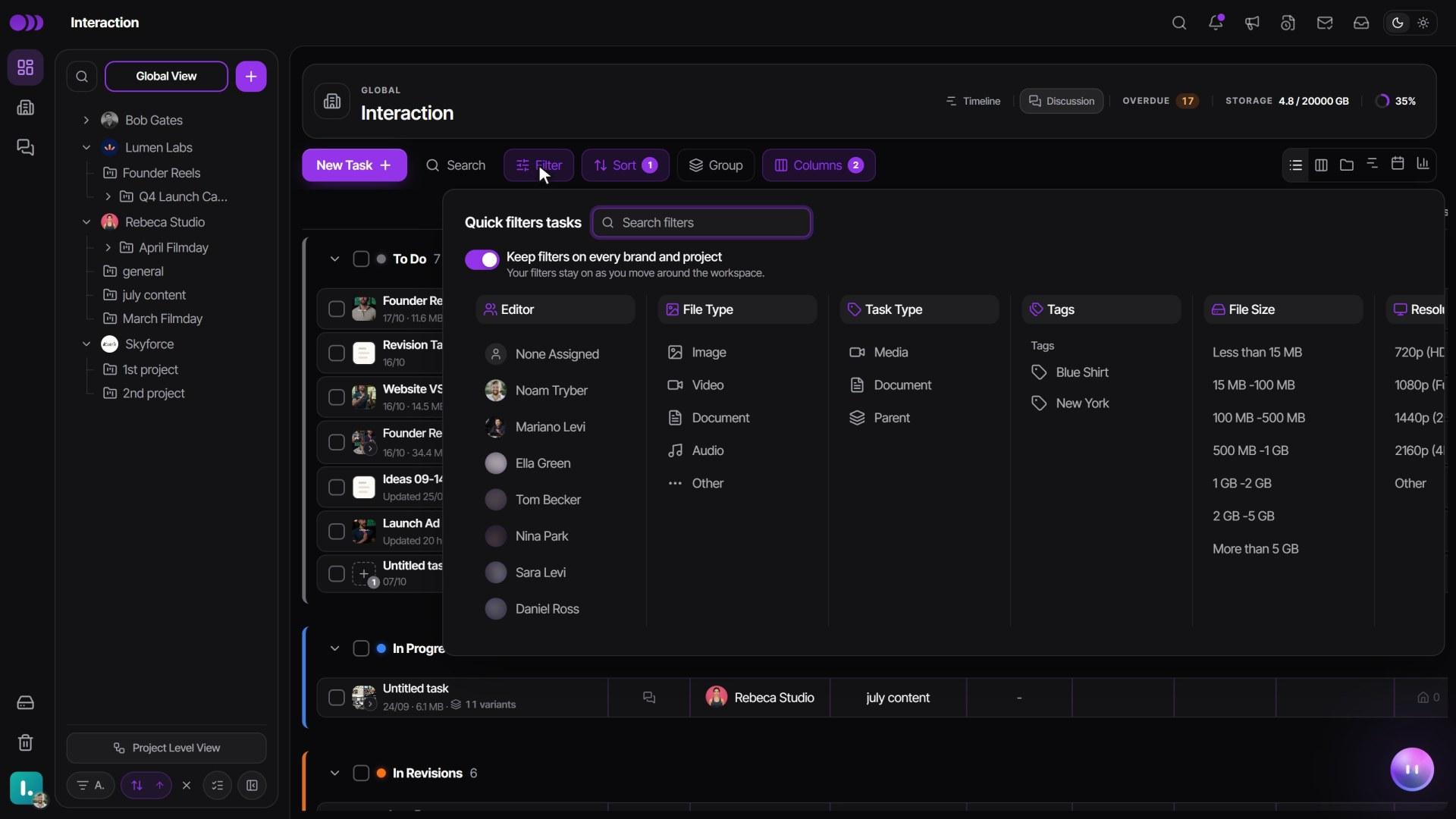
- Click Filter in the toolbar to open Quick filters tasks.
- Pick what you want to see — for example File Type → Video. You can combine several filters.
- Can't find a filter? Type in Search filters at the top of the panel. Typing part of a teammate's name, or a filter's name such as FPS, narrows the list.
- Click Clear to show everything again.
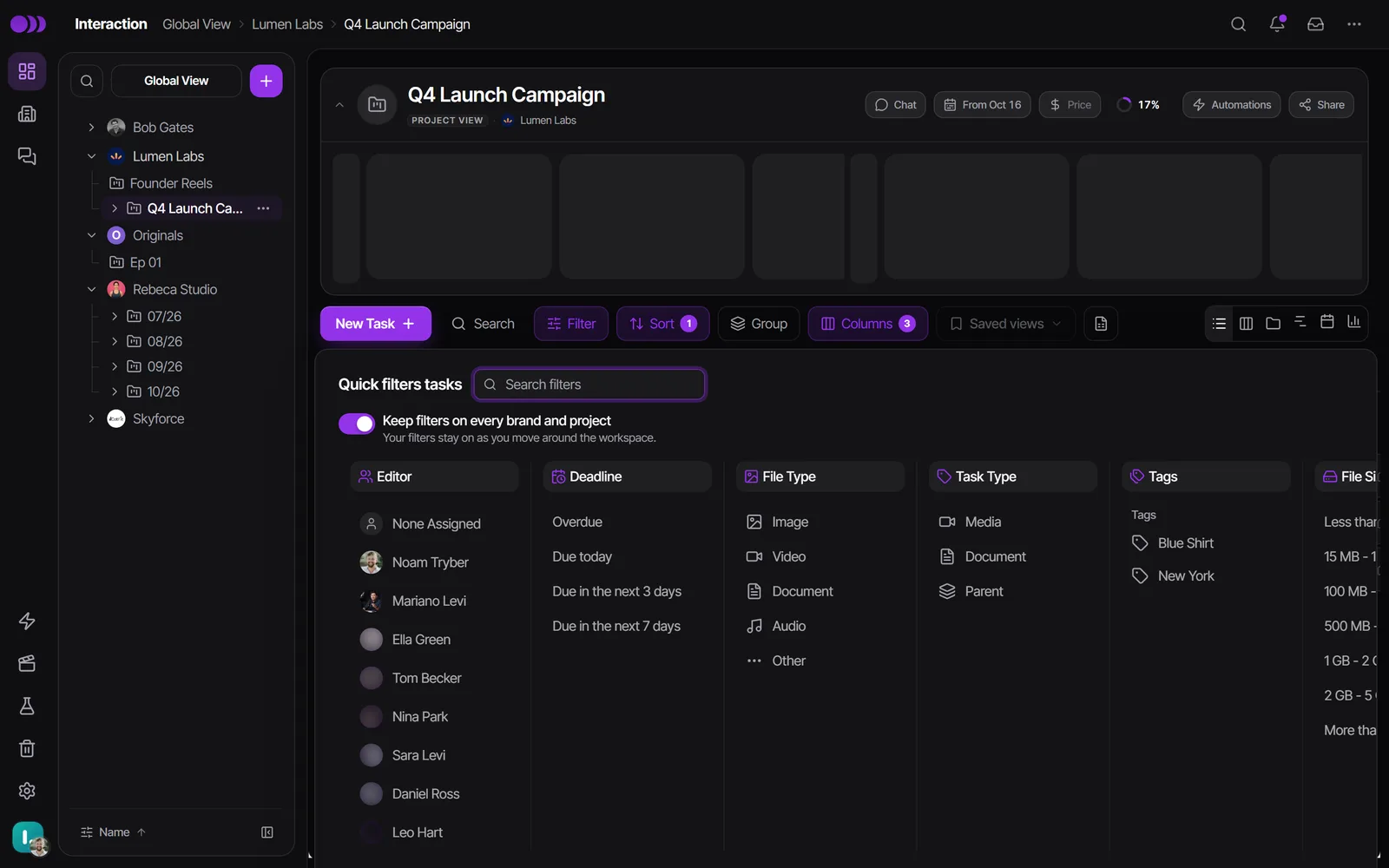
Filters include Editor (with None Assigned), Deadline for admins and supervisors (Overdue, Due today, Due in the next 3 days, Due in the next 7 days), File Type, Task Type, Tags (with Match any or Match all), file size, resolution, FPS, aspect ratio, length, and creation and approval dates. Status has its own Status button.
Your filters stay on as you move between brands and projects. Switch off Keep filters on every brand and project at the top of the panel if you'd rather each brand and project kept its own filters.
Looking for document tasks? Use Task Type → Document. File Type → Document only matches uploaded files.
The search box in the toolbar matches task titles, task IDs, and project, brand and tag names, in the List and on the Kanban.
Sort, including by more than one column
- Click Sort in the toolbar and choose a column under Sort by — for example Deadline.
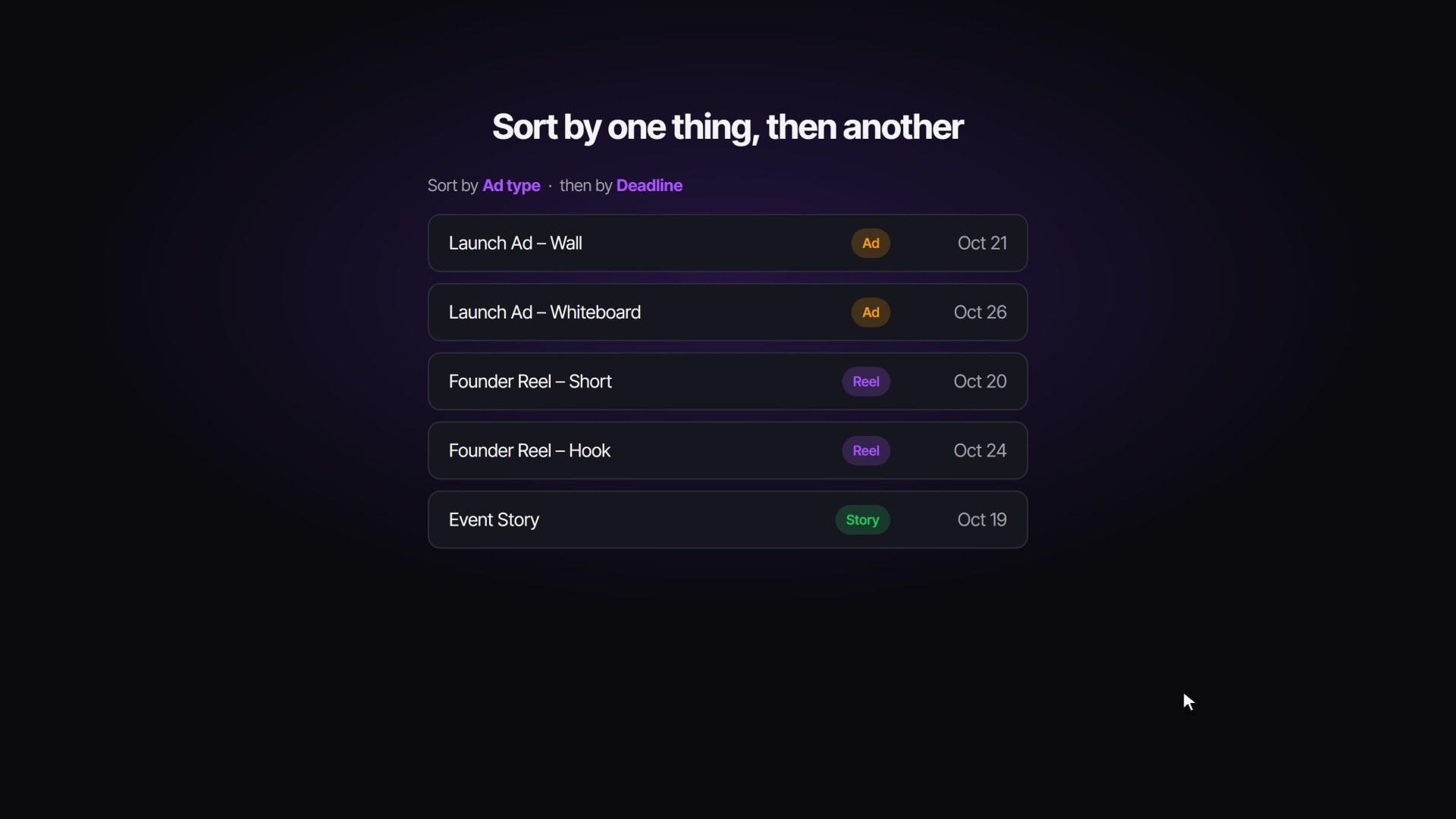
- Need a second level? Click Add sort and pick a column in the Then by row. You might sort by an Ad type column, then by Deadline, so each ad type lists its closest deadline first.
- Stack up to three levels. Each level has its own direction, arrows to change which one comes first, and an X to remove it.
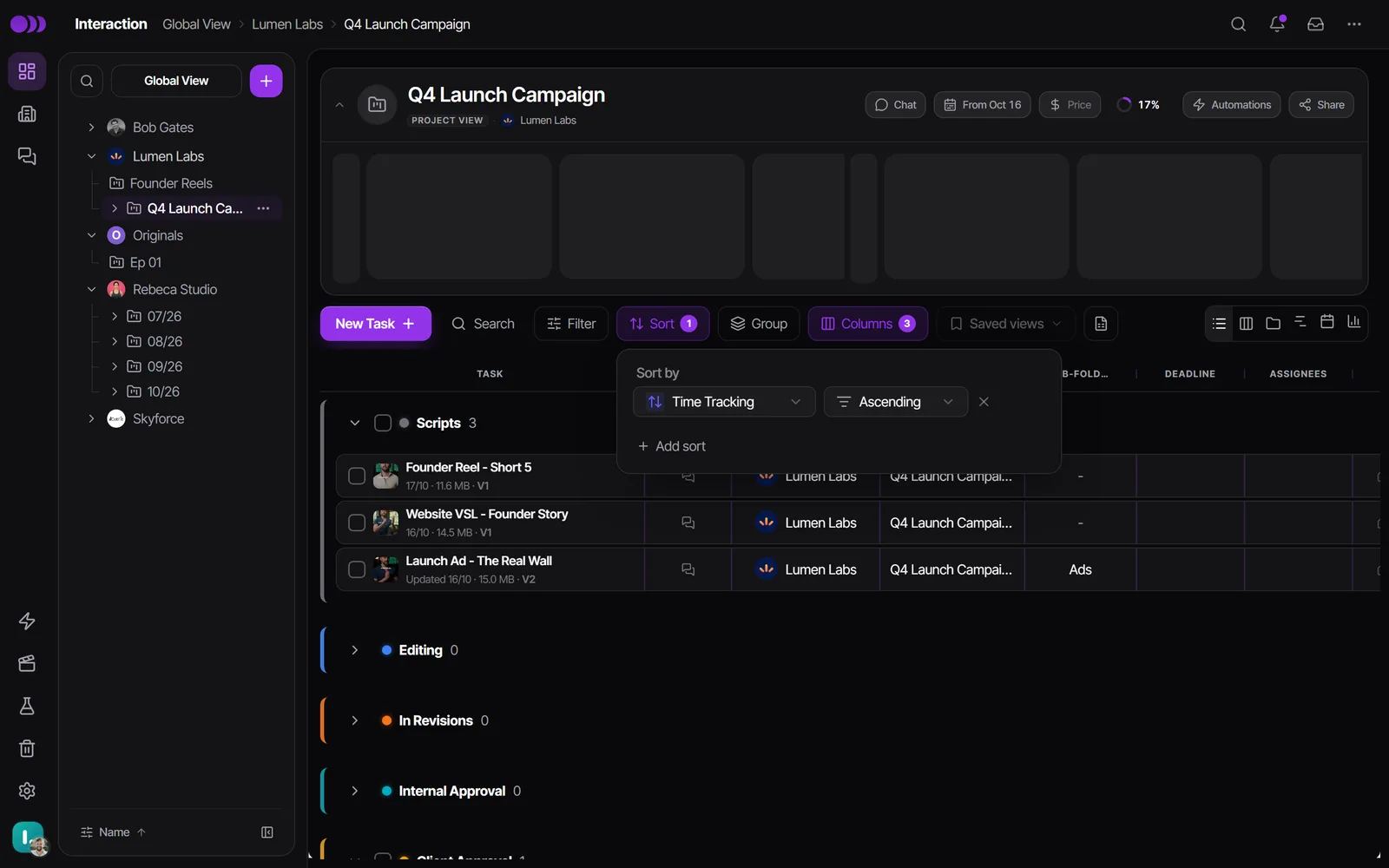
Clicking a column header in the List also sorts — ascending, descending, then off — and replaces any multi-level sort with that one column. Your sort is saved for you across the workspace and doesn't change anyone else's.
Choose columns and group your list
- Columns (in the List) or Fields (on the Kanban and in Folders) switches columns on or off, reorders them, and renames a built-in column with Rename column. On a computer you can also drag a column header left or right.
- Each column header's menu has Hide column. Bring it back from Columns at any time.
- Supervisors and admins can add their own fields with the + at the right end of the List header → Add custom column.
By default the List is grouped by status, one section per stage. Click a group's arrow to fold it away. Once you have a Stage group or Priority column, Group in the toolbar lets you group by that column instead — Short-form, Long-form, Thumbnails, say — and pick Default statuses to go back. Dragging a task between groups changes its value.
Save a view for yourself or the whole team
A saved view remembers the columns (which show, their order, widths and names), the sort, the grouping, the row density and the quick filters. It works in the List and on the Kanban.
- Set the list up the way you want it — for example, hide the pricing column for a delivery view.
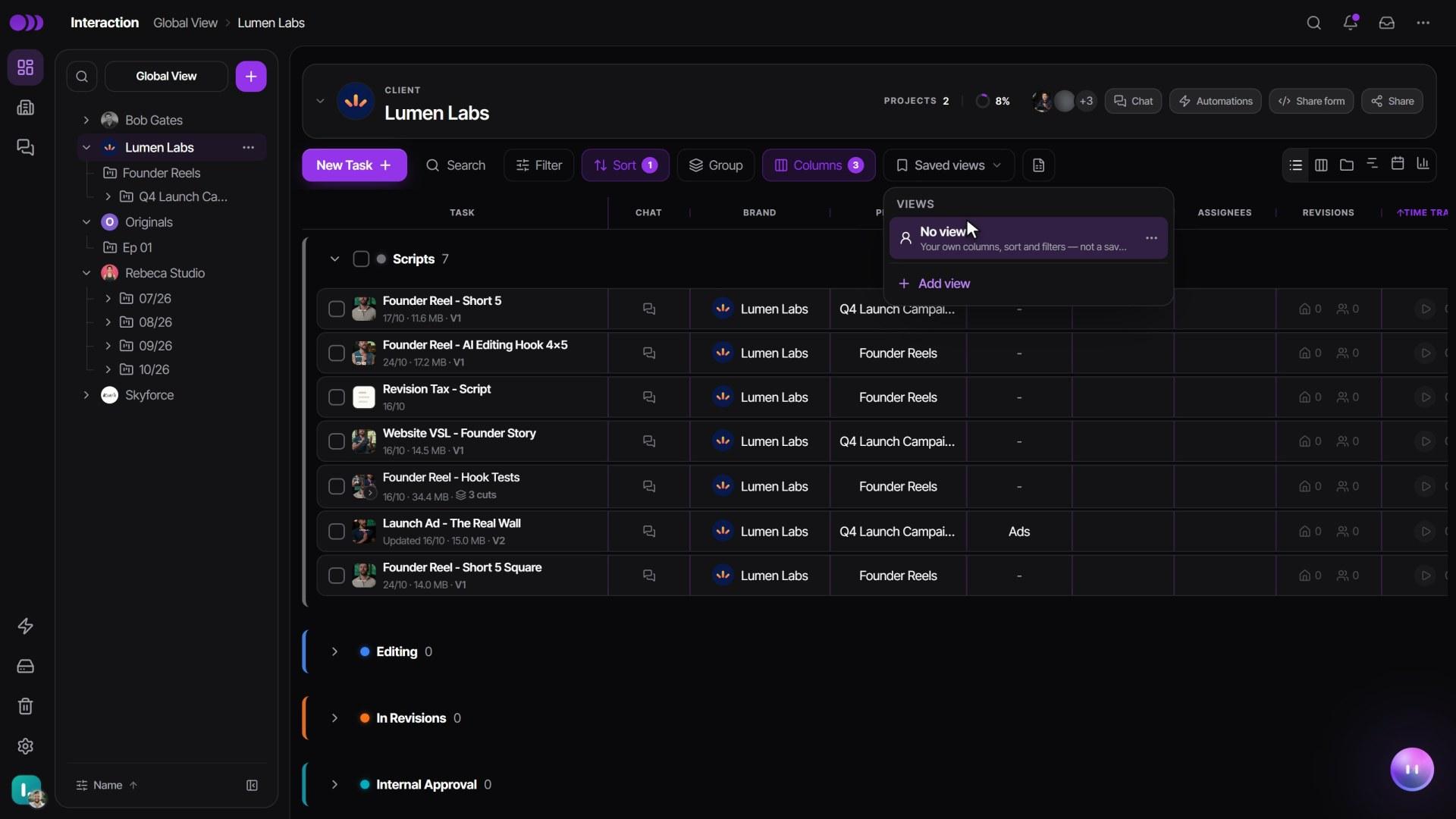
- Click Saved views in the toolbar → Add view and give it a name.
- Choose who sees it: Only me keeps it private, Everyone makes it a team view. Click Create view.
- To make everyone land on it, open the view's … menu → Set as default → For the whole workspace, For this client only or For this project only.
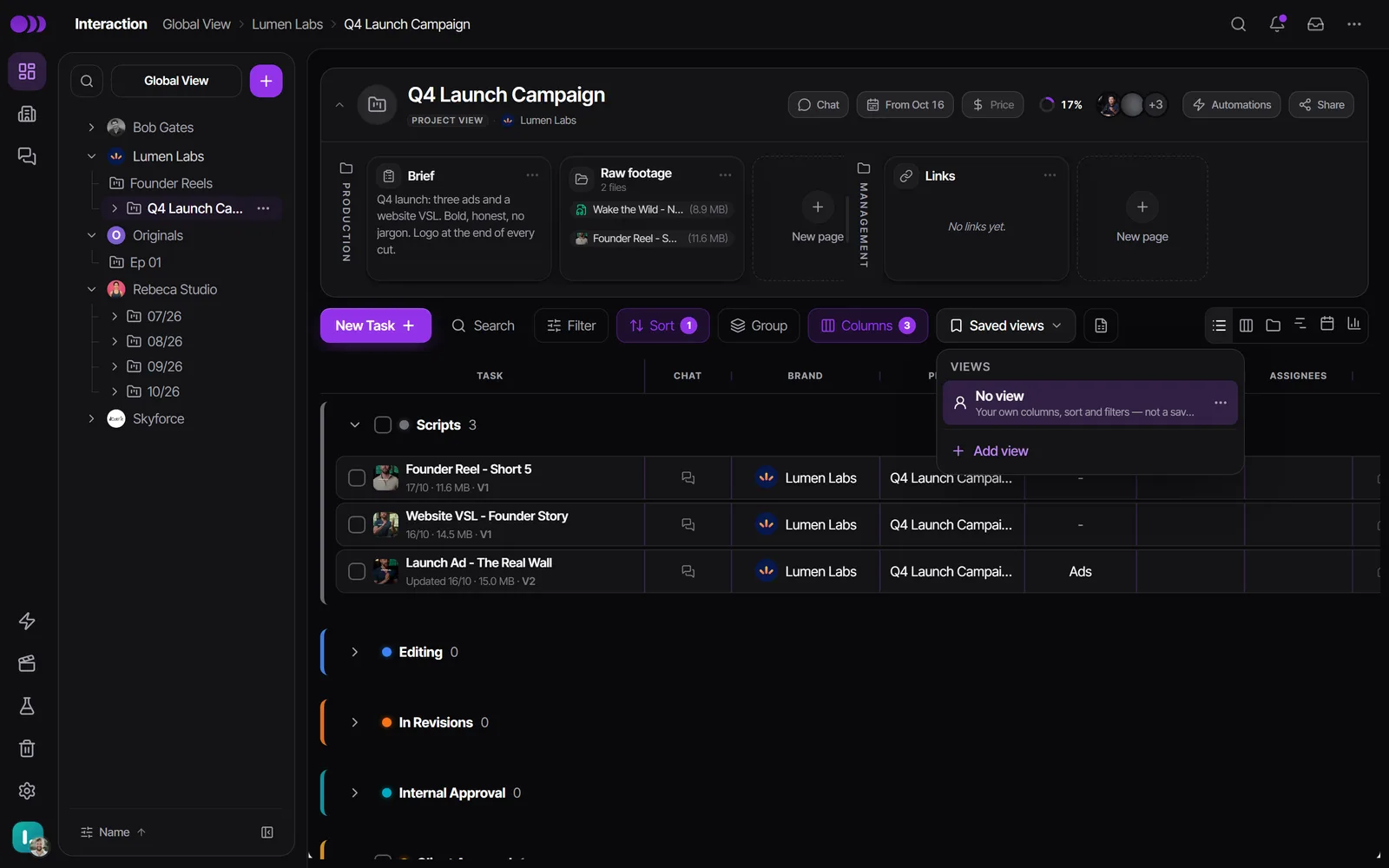
If someone changes a team view, the change stays theirs and an amber Unsaved pill appears. They can click Save for everyone (admins and supervisors), Save as new view, or Reset to go back to the team setup. Nobody else's screen moves.
- The view's … menu also has Rename, Duplicate, Share with team / Make private, Reset to team default and Delete view.
- Editors make private views only, and can duplicate a team view.
- No view at the top of the list is your own setup without a saved view.
- Up to 20 team views per workspace and 20 private views per person.
Find anything with Ctrl+K
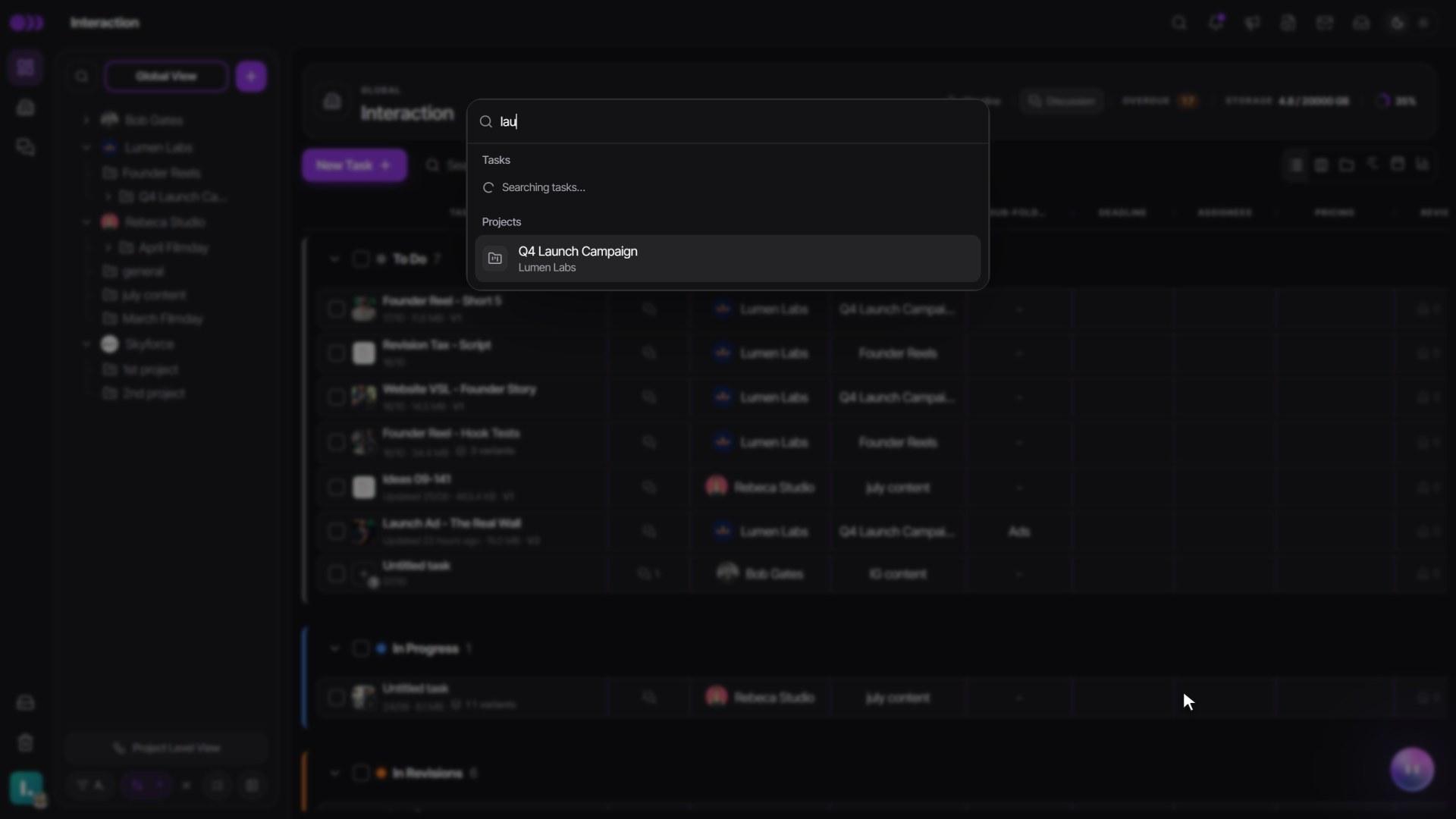
- Press Ctrl+K on Windows or Cmd+K on a Mac from any page, or click the magnifier in the top bar.
- Start typing. Tasks, Projects, Brands and Folders show up as you type, and a task ID works with or without the dash.
- Press Enter or click a result to go straight there. Type a page's name, such as workload or calendar, to jump to it.
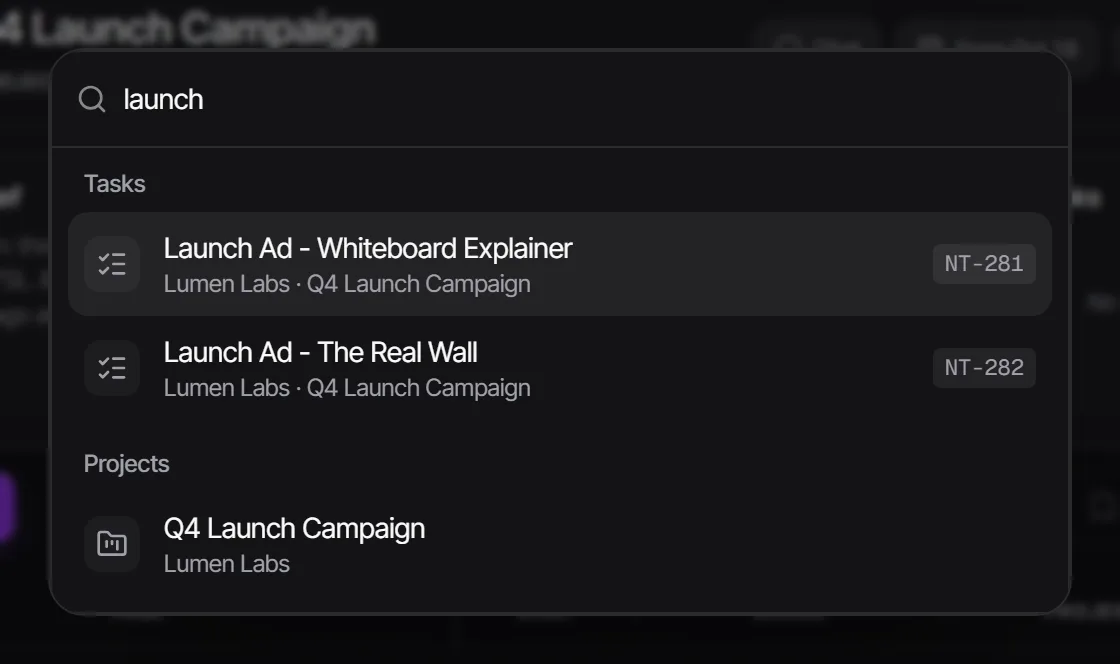
Search only shows what you can already open. An editor who sees only their assigned tasks won't find other people's tasks. Trashed and archived items are not listed.
Where dates live
The Calendar view is a posting calendar: it shows when each social post goes live, with Month, Week and Day layouts. It does not show task deadlines, though its Filters include a Due filter that narrows posts by their deliverable's deadline. See Social media scheduling.
Deadlines show as a column in the List and on the cards, and you can filter by them with Deadline. Shoots, time off and team dates go in Workload — see Workload and capacity.
Watch it
Questions people ask
Why don't I see the Workload or Calendar view?
Workload needs the Agency plan or higher and Calendar the Agency or Scale plan; below that they show a lock. If they are missing entirely, an admin turned them off or left them out of your role's Team views.
My filters followed me to another client. How do I stop that?
Open Filter and switch off Keep filters on every brand and project. Each brand and project then keeps its own filters.
Will hiding a column change it for my team?
No. Your columns, sort and filters are yours. Only Save for everyone on a team view changes what the whole team sees.
Can I sort by status?
Sorting by status is available in Folders. In the List, tasks are grouped by status by default instead.
How do I put every list back to the team's default?
Go to Settings → Profile → Account → My views and use Reset all my view settings.
Still stuck?
Ask Janet, the assistant inside Timeliner, email our team, or ask the community on Discord. We answer every message.